jumperman09
-
Joined
-
Last visited
Everything posted by jumperman09
-
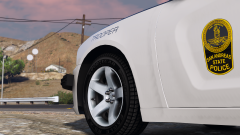
From the album: Emergency Vehicle Screenshots!
-
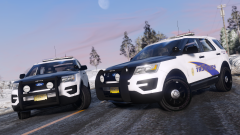
From the album: Emergency Vehicle Screenshots!
:))) -
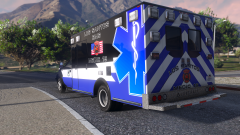
From the album: Emergency Vehicle Screenshots!
Expect a release along with a vehicle model for EMS supervisor with a matching skin! Let me know what you think! -
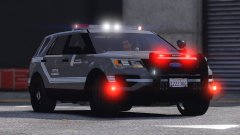 I really like this one over the other designs, Very nice looking.
 -
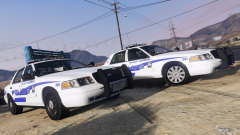 QuantV https://www.gta5-mods.com/misc/quantv
 -
Well I did that 16 Taurus with this same lightbar, but I plan on updating the taurus with a new skin like this and some major edits. So I might do a pack now instead of just this car, Thanks for the idea.
-
From the album: Emergency Vehicle Screenshots!
-
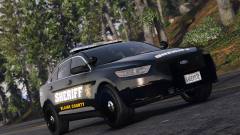
From the album: Emergency Vehicle Screenshots!
-
From the album: Emergency Vehicle Screenshots!
-
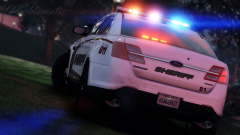 Damn man, Beautiful.
 -
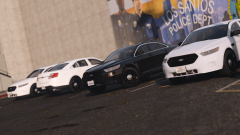
From the album: Emergency Vehicle Screenshots!
@OfficerUnderwood I can't thank you enough for this model man, I know myself and alot of others appreciate the work that you do. This is truly an amazing dev model, One that I will use ALOT. -
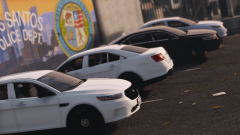
From the album: Emergency Vehicle Screenshots!
-
Looks amazing! will there be a traffic advisor?
-
-
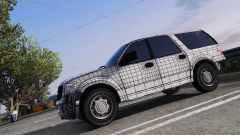
From the album: Emergency Vehicle Screenshots!
*Not the dev, but a ELS car* -
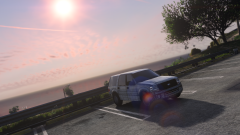
From the album: Emergency Vehicle Screenshots!
Soon™ ( @Him1250 thanks man ) P.S - *Not the dev, but a ELS car* -
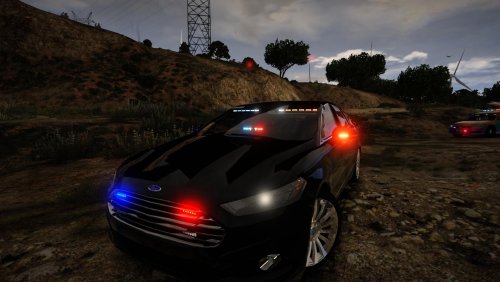 I agree. The rear lights look like they cover up the entire window causing little room to see. No department uses lights the size of a van ( over exaggerating of course, but you get the idea ) Devin, some people do like christmas tree setups and I get that but you only do those types and it gets old. I myself and I know most enjoy simple setups that get the point across. You really just stick lights wherever and call it good. I've never seen cars setup like this..At all.
- 30 comments
- 14 reviews
-
-

- 5
-
-
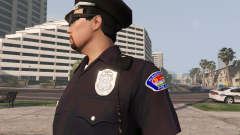
From the album: Emergency Vehicle Screenshots!
Working on a couple APD uniforms for him1250 check out his APD cars! -
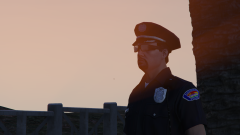
From the album: Emergency Vehicle Screenshots!
Working on a couple APD uniforms for @Him1250, check out his APD cars! -
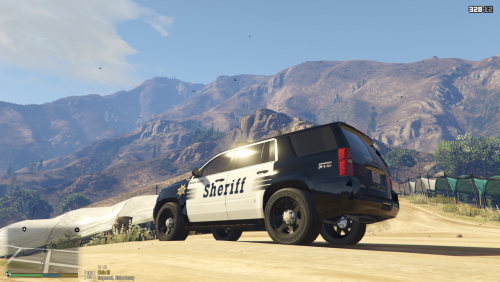 Skins aren't too bad, I was working on a Ventura Pack but may not release it as you are doing it. Please for future reference don't put ELS skin pack..Everyone thinks it's necessary and it's not. The skin it's self is made for the model not the fact that it's ELS.
 -
That looks awesome! You need to model for V.
-
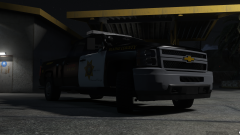
From the album: Emergency Vehicle Screenshots!
Skin by me Vehicle put together by me Base model from him1250 ( Thanks man, It's awesome!) -
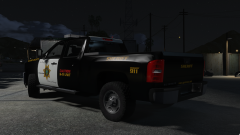
From the album: Emergency Vehicle Screenshots!
Skin by me Vehicle put together by me Base model from him1250 ( Thanks man, It's awesome!) -
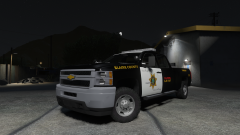
From the album: Emergency Vehicle Screenshots!
Skin by me Vehicle put together by me Base model from @Him1250 ( Thanks man, It's awesome!) Will be released eventually. -