



Smithy Boi Designs
Members
-
Joined
-
Last visited
Everything posted by Smithy Boi Designs
-
 Honestly would take me maybe 30-45 mins max, but I procrastinate way to much... hence I have no time... I've just been sitting here staring trying to template a vehicle but I got side tracked with TopGear for the past 45 mins.
 -
I mean the main reason is just time, atm I don't have time to do it. It might come later as an update if I remember.
-
I could look into it but most likely wont happen. Many thanks 🙂
-
That is a good point
-
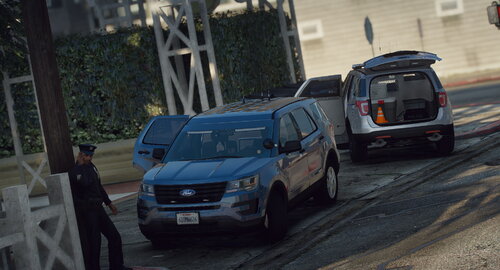
Vehicle Information This 2016 Ford Explorer Police Utility has been outfitted to be primarily used for dog services purposes (K9). Equipment included on this model includes a partial dog/prisoner cage, K9 heat monitoring equipment and so much more. Lighting System: NON-ELS Livery Status: Included, 1 variant is available Imgur: Click Here For Full Gallery A full list of model documentation can be found here: https://docs.smithyboi.com/k9-series/2016-ford-explorer-k9 Vehicle Features Toggleable lightbar, Toggleable visor bar, Toggleable dash lighting, Toggleable grill lighting, Toggleable push bar lighting and siren speaker, Toggleable ALPRs and antenna equipment, Toggleable spot light, K9 focused interior equipment. Included With Download Vehicle files (.yft .ytd .yft_hi), Vehicle meta files (vehicle.meta, carvariations.meta, carcols.meta), Vehicle templates. SBD - Terms of service short cut. SBD - Vehicle information short cut.

