

ferxl
Members
-
Joined
-
Last visited
Everything posted by ferxl
-
or try to move it outside the GTAV folder, just to debug. if the problem is still there, then its not scripthook
-
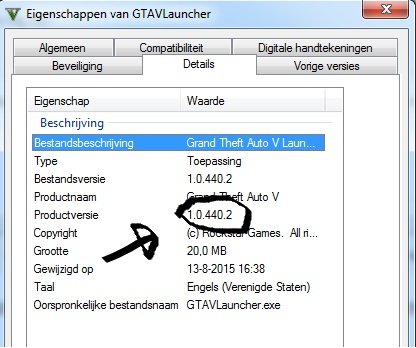
Do the same with GTA5.EXE what version it says there? My versions are GTAV.EXE 1.0.505.2 GTAVLAUNCHER.EXE 1.0.440.2 U sure u running ragehook as administrator?
-
what game version are u on? 505 i think? click on right mouse click on the GTAVLauncher.exe then properties and then details what version is your launcher?
-
no log file?
-
download Microsoft Visual c++ 2010 i preffer to download them both x86 & x64 Check all the required software that u need for lcpdfr!! U can see the errors : [System dependencies] Failed to find MSVCR110.DLL [System dependencies] Failed to resolve MSVCR100.dll if the error still comes when u have installed mvc++ then find the drivers MSVCR110.DLL & MSVCP100.dll And MSVCR100.dll on the internet! and install manuel! put them in c:/windows/system32
-
 I ask author Patrinus couple days ago, he says its uncompattible with rage 28, but human partner is working, he say's it will be fixed in the next update!
- 542 comments
- 98 reviews
-
Human partner is working good with game build 505 and rhp v28, only when i want to select the k9 as my partner lspdfr crashes log file is attached RagePluginHook.log
- 542 comments
- 98 reviews