
TheCanadianDream
-
Joined
-
Last visited
Everything posted by TheCanadianDream
-
From the album: San Andreas Emergency Services
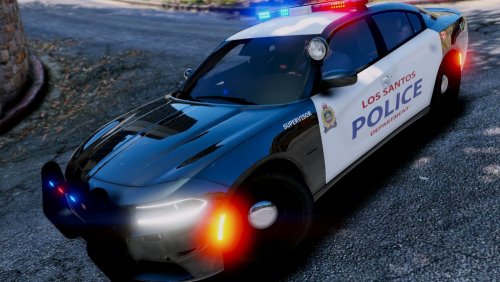
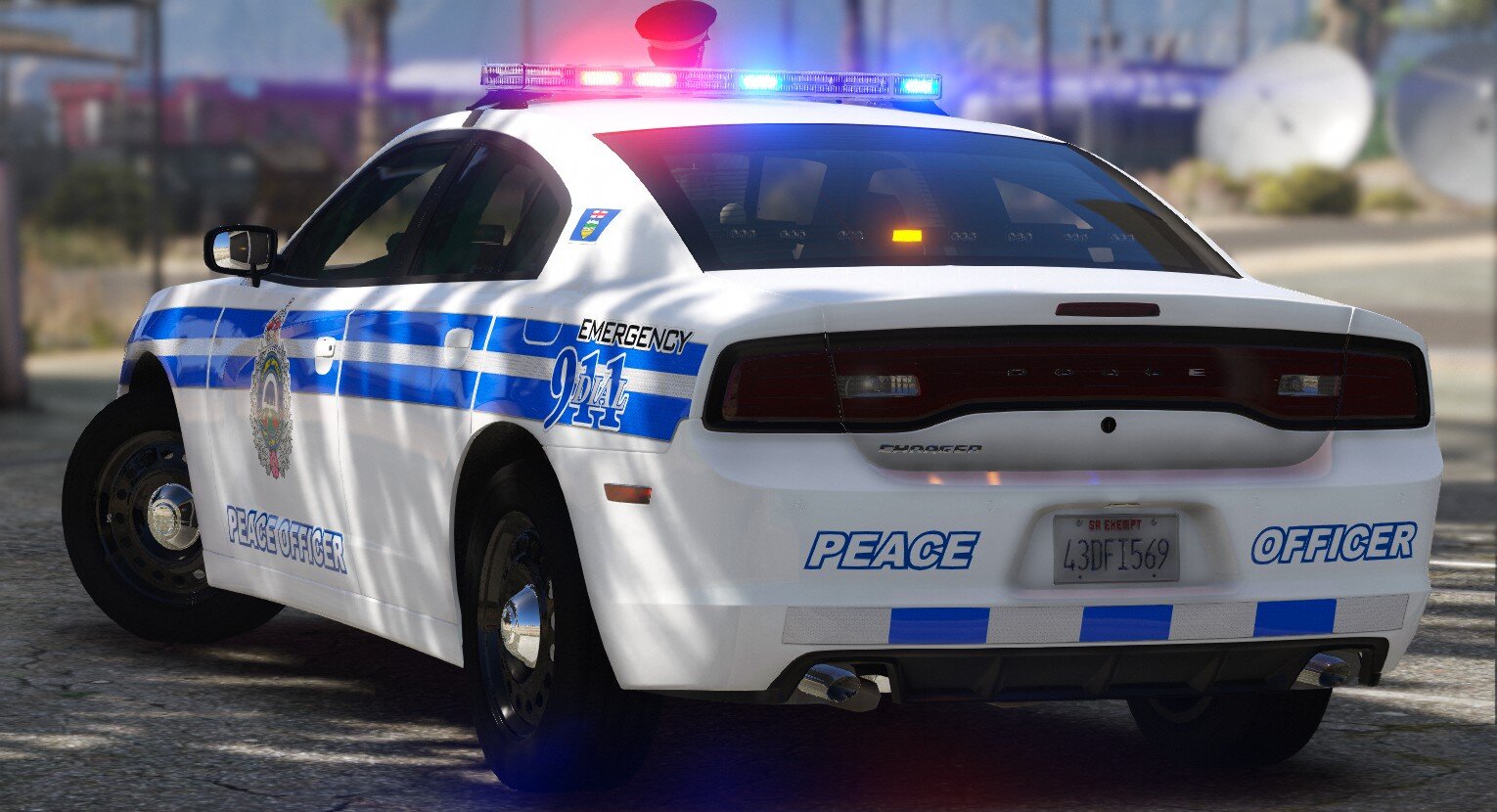
Another 2014 Dodge Charger Peace Officer of Los Santos City, what you guys think? -
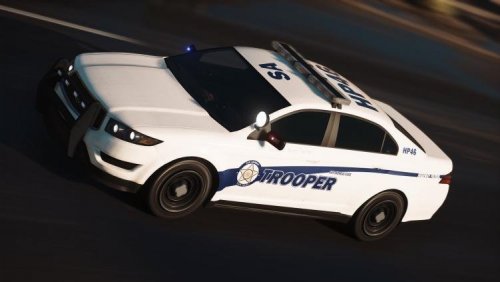 Hey guys, i saw that there was a new Stanier and granger and i couldn't resist. lol. Heres another pack hope you guys enjoy! The vehicles here in the readme along with instructions. Hope you enjoy! be sure to leave a review and a like! 😉
 -
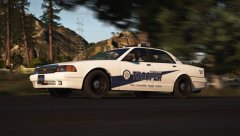
From the album: San Andreas Emergency Services
-
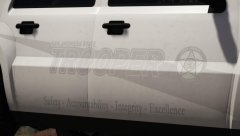
From the album: San Andreas Emergency Services
-
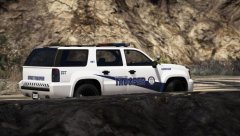
From the album: San Andreas Emergency Services
-
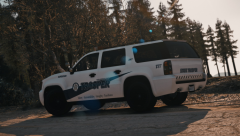
From the album: San Andreas Emergency Services
-
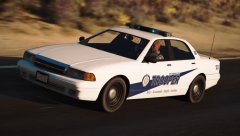
From the album: San Andreas Emergency Services
-
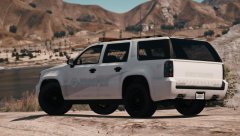
From the album: San Andreas Emergency Services
-
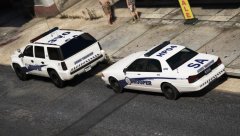
From the album: San Andreas Emergency Services
-
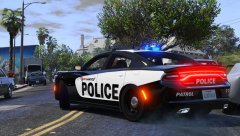 @Slendis when TCD does the skin, anything can win XD
 -
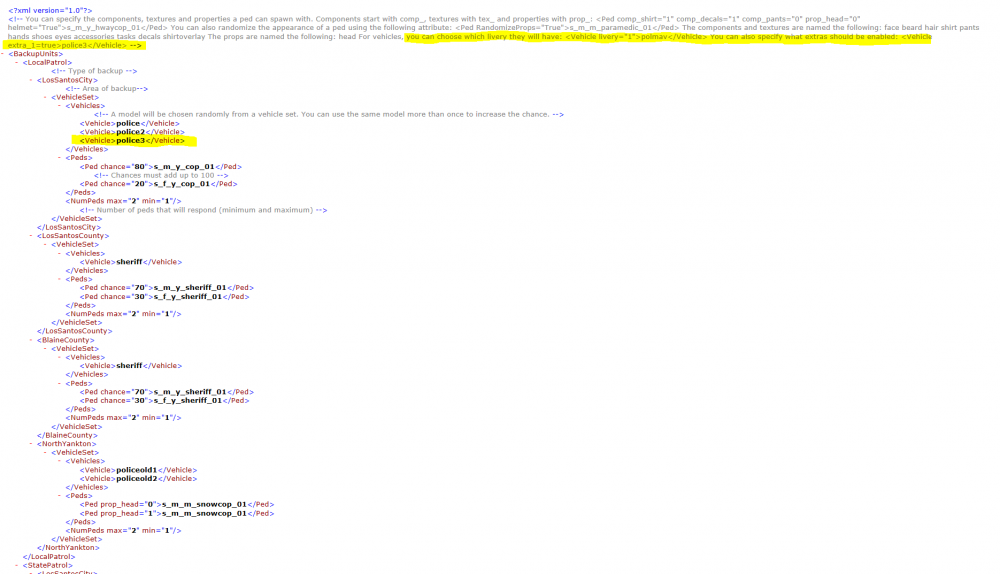
can you guys briefly look at this (i know the exras arnt right yet ill fix them later ) (also what is the RIOT slot called? ) @willpv23
-
is it? idk i downloading it and it looked way more confusing
-
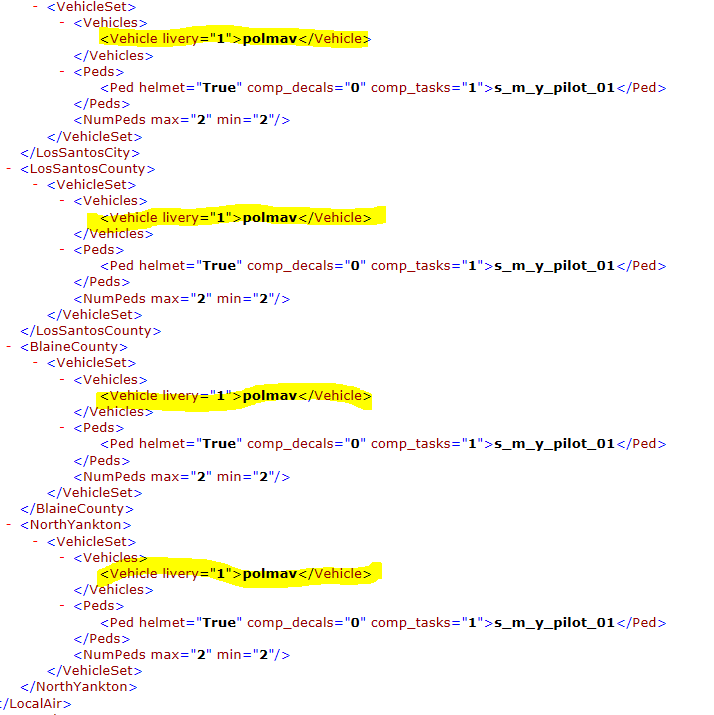
ok does that mean i can add the lines in...? what i posted in the description it says i can control extras, but i don't see any off that in the code.... and liverys but only for the maverick
-
From the album: San Andreas Emergency Services
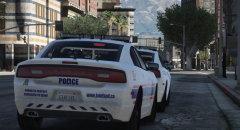
I LOVE CHARGERS -
From the album: San Andreas Emergency Services
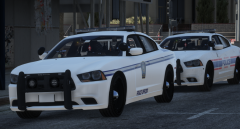
Transit Peace Officer with the old LSPD charger -
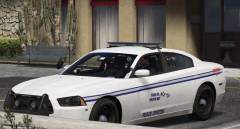
From the album: San Andreas Emergency Services
Paleto Bay Peace Officer -
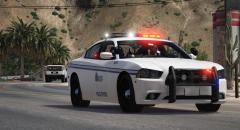
From the album: San Andreas Emergency Services
Got a call of some speeders near by thought i might lend a hand -
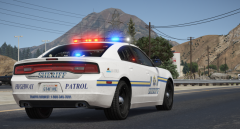
From the album: San Andreas Emergency Services
2014 Charger old Sheriff skin (alberta) -
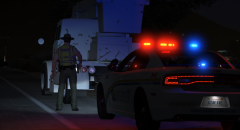
From the album: San Andreas Emergency Services
Patrolling in my new 2014 Highway Patrol Sheriff skin based off the Alberta sheriff -
ok well maybe i need to redownload it, because i look at the backup XML of 0.3 and i can choose which cars spawn, but only the liverys of the ambulance can i choose
-
one thing i would love to see, is choosing my liveries for my patrol units. like most cars can have serveral diffrent liveries in one car, so if i call in back up in los santos and i get a blaine county unit bc that skin is on the car and its randomly choosen isnt vary realistic....i would love to see those options
-
i totally agree
-
@SoUThPHiLLY20 what you think of the playoffs this year with phlyers SoUThPHiLLY20
-
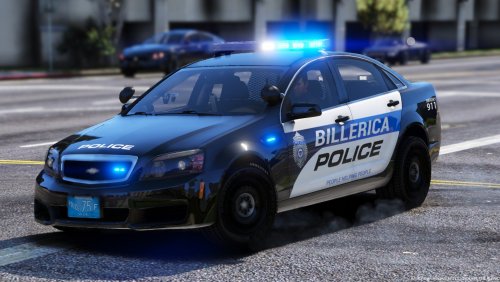 these are amazing, look iv done like 30 skin pack, u have done one and ur already better XD keep up the great work brother
- 4 comments
- 9 reviews
-
-

- 1
-
-