Jesster14
Members
-
Joined
-
Last visited
Everything posted by Jesster14
-
Invite is invalid. I am interested in joining though
-
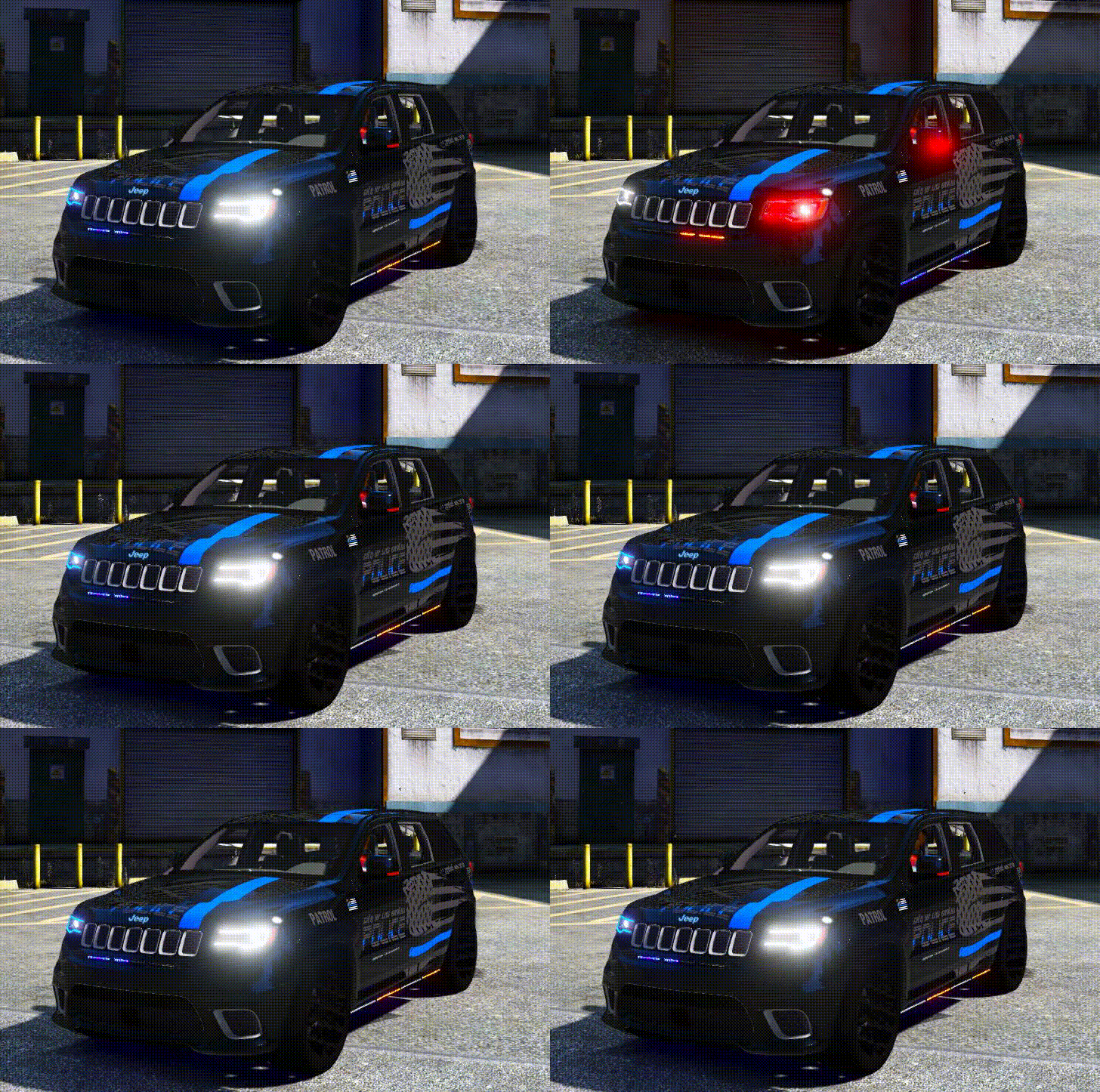 This is hands down the best non-els vehicle i have ever seen. Are there more that have similar lighting. I love that the headlight work like they do!
- 45 comments
- 3 reviews
-
I have had this working with no problems before. But I removed the game and reinstalled and now I cant get RC2 to install again. I get the following error screen Installation component 'CppScriptHook' error'd! at System.IO.__Error.WinIOError(Int32 errorCode, String maybeFullPath) at System.IO.FileStream.Init(String path, FileMode mode, FileAccess access, Int32 rights, Boolean useRights, FileShare share, Int32 bufferSize, FileOptions options, SECURITY_ATTRIBUTES secAttrs, String msgPath, Boolean bFromProxy, Boolean useLongPath) at System.IO.FileStream..ctor(String path, FileMode mode, FileAccess access, FileShare share) at System.IO.File.WriteAllBytes(String path, Byte[] bytes) at G17MediaSetupEngine.Stuff.ExtractResourceToPath(String resourceName, String destName, Boolean pureres) at G17MediaSetupEngine.Stuff.ExtractResourceToPath(String resourceName, String destName) at G17MediaSetupEngine.Installation_Components.CScriptHook.beginComponent() at G17MediaSetupEngine.UI.Interface.wizardControl1_SelectedPageChanged(Object sender, EventArgs e) at G17MediaSetupEngine.UI.Interface.wizardControl1_SelectedPageChanged(Object sender, EventArgs e) any ideas?