Nankatzu
Members
-
Joined
-
Last visited
Everything posted by Nankatzu
-
LSPD:FR Easy Directory A simple tool to copy and delete files! Welcome dear Community! today im proud to release the Alpha Version of LSPD:FR Easy Directory. With this tool you don't need more than one Grand Theft Auto V Main Directory. This tool allows you too copy and delete the LSPD:FR files. - In the Picutre you can see the functions of my tool - As i said the tool is in a Alpha Version, it works but it has defects and not completed code! I'm excited to get responses and suggestions to this tool. (Please report Bugs / Glitches !) A new Version is already in production!
-
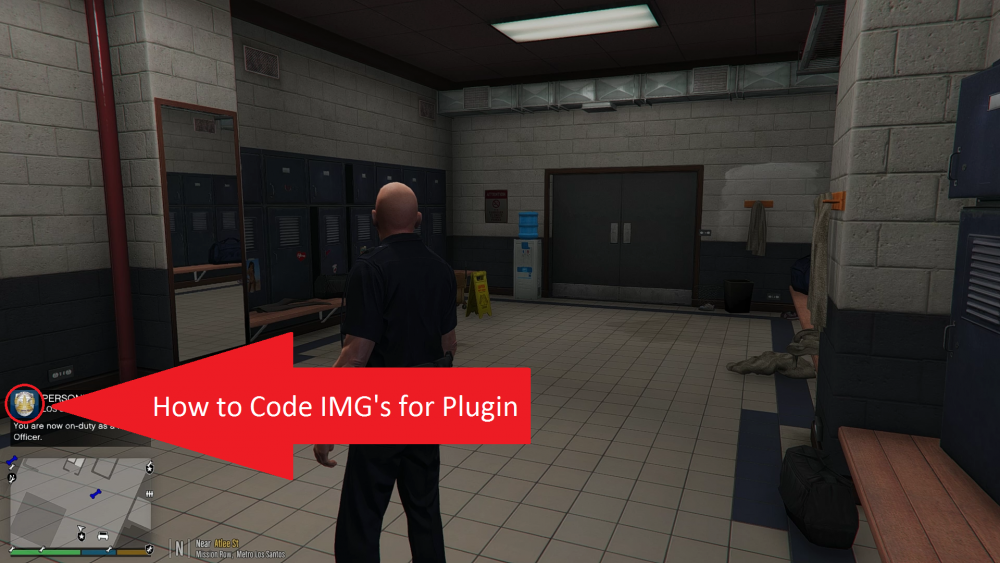
Hello LSPD:FR Members, In September i will beginn a Education as an Application Developer (I will learn C#). And i thought maybe i can do some Plugins and etc. for LSPD:FR. I know already C# but i have to learn more. (In my Education) Now i'm Scripting a Plugin and i want to have an IMG for my Display Notification. But i cant find the Code to bind an IMG for the Display Notification. I already searched so many DLL's from LSPD:FR if there an Code for it. Can anyone help me ? I really need to know, how i get an IMG in to my Display Notification. Sorry for my bad English it's late and i'm slowly nervous.