


xenarthran
Members
-
Joined
-
Last visited
Everything posted by xenarthran
-
Thank you for the response, and for all the assistance offered. This has now resolved the issue and ELS 8 now working correctly.
-
Thank you, I have checked and both installed, and still no difference. When I load an ELS vehicle, at the moment I only have 1 which is an ambulance, there are solid lights lit but none of the ELS functions work. I have double checked the configuration file and all OK. This is not a new PC but had to restore my machine back to factory settings and since then cannot get ELS to function. Should it matter that this is a Steam version of the game?
-
I have now attached log files for AdvancedHook, ScriptHook and ScriptHookDotNet if that helps any :) AdvancedHook.log ScriptHook.log ScriptHookDotNet.log
-
Thanks again for the help, tried and again still unable to get it to work. Never had this in the past, it is only since I had to rebuild my PC earlier this week, after re-installing my GTA IV I could not get it to date check on install and had to change the date on my PC to overcome this. I have also noticed the start up of GTA IV has changed, now get a splash screen about Rockstar TV!. I believe I am on the latest patch for the game as installed via GFWL. In the past it was a simple case of copy and paste files and ELS8 and ELS8.5 worked fine. Very frustrating. ELS 6 works, but not from ELS7 onwards. Any other ideas?
-
Hi, thanks for the response, I have tried that, and still unable to get this to work,
-
At the moment the only ELS enabled vehicle still installed is an Ambulance, this was because it was a fresh install and testing to see if I could get it to work, normally there would be more vehicles enabled
-
I have downloaded and installed the latest ELS V8.5. However I cannot get this to work. It is as if I have not installed correctly. I have un-installed and re-installed both GTA IV and ELS, but still unable to use. I can use ELS if I use older version which was V6. Can anyone shed any light on this. It has only happened since I had to rebuild my PC, before then it was working fine. Using Windows 8.1 and running the game in Windows 7 Compatibility Mode as an Administrator. As far as I can tell installed and configured correclty, see screen shots below of both my GTA installation folder and my _slotcontrol.ini configuration.
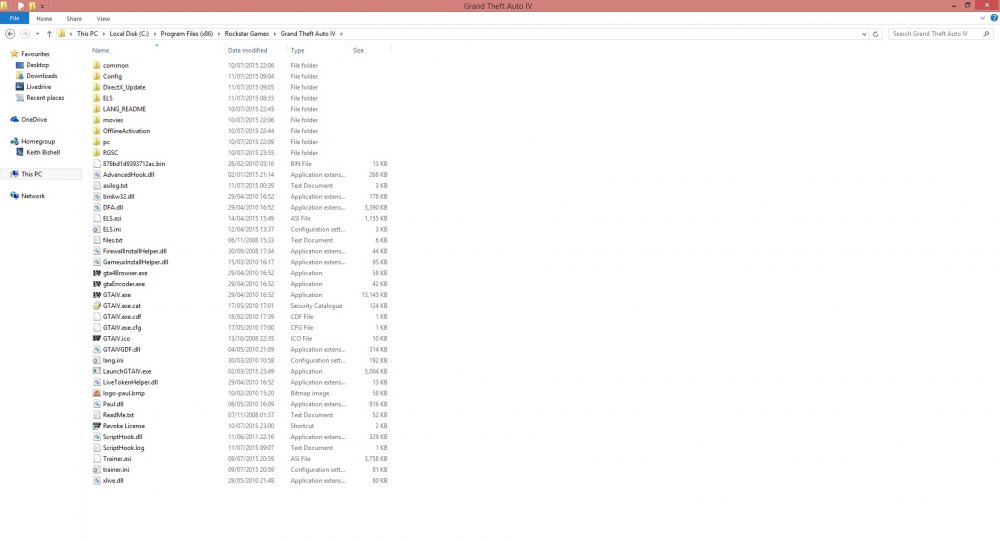
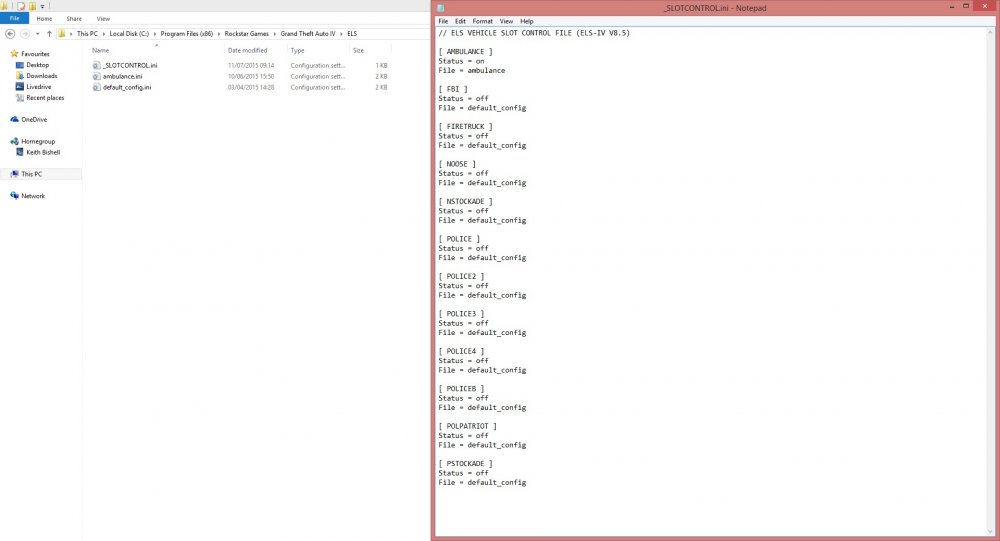
-
Hi, I have installed LCPD FR today, now I keep getting GTA IV has stopped responding, the game will not load, ran the diagnostics and everything appears to have passed. Log is: BEGIN *SIGNED* LCPD First Response Issue Report Diagnostics Tool Version: 0.4.3 Operating system: Windows7 HomePremium (6.1.0.0 Build: 7600) Service Pack: System RAM (GB): 5.99 CPU cores: 8 NET Framework 4.0 installed: True Visual C++ 2010 Redistributable installed: True GTA IV - Installed: True GTA IV - Install folder: C:Program Files (x86)Rockstar GamesGrand Theft Auto IV GTA IV - Version: 1, 0, 0, 0 GTA IV - Asi loader installed: True GTA IV - Asi loader: DSOUND GTA IV - Asi loader valid: True GTA IV - C++ ScriptHook installed: True GTA IV - C++ ScriptHook valid: True GTA IV - C++ ScriptHook version: 0, 5, 1, 0 GTA IV - ScriptHookDotNet installed: True GTA IV - ScriptHookDotNet valid: True End of *SIGNED* LCPD First Response Issue Report Digital signature: jXCfB0WBQMuhZo42isTFaA== Any help would be greatly appreciated :)


