


hsi700
Members
-
Joined
-
Last visited
Everything posted by hsi700
-
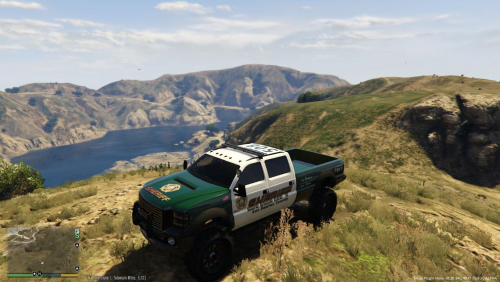 Now that I think of it.. Every time I use Open IV to edit something, the game downloads at least 3 GB at the beginning.. Erasing/Replacing everything that I edited or added..
- 8 comments
- 2 reviews
-
1. open openIV start with gtav/ update/ x64/ dlcpacks/ patchday3ng/ dlc.rpf/ x64/ levels/ gta5/ vehicles.rpf 2. enable edit mode and drag pranger.yft, pranger.ytd, and pranger_hi.yft into vehicles.rpf I Placed them there, but I just checked and they've been deleted? Probably what is done when it downloads on game startup.. And I just found out that it's not only your skin.. Tried another skin too, nothing works... ^^
- 8 comments
- 2 reviews
-
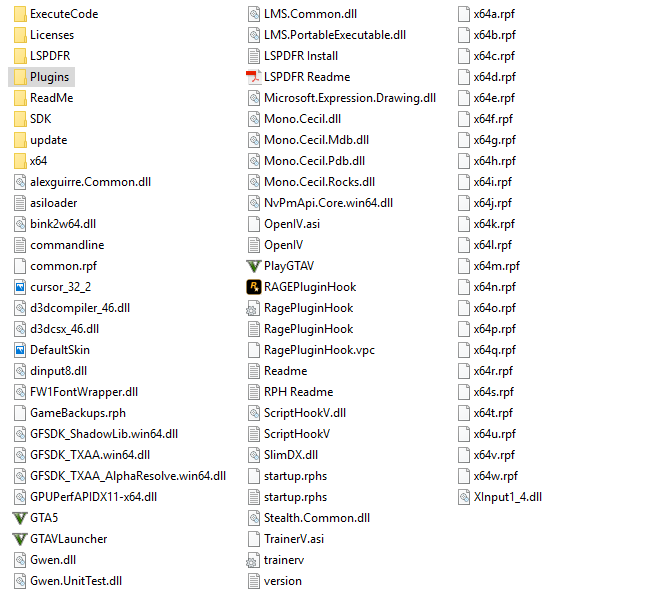
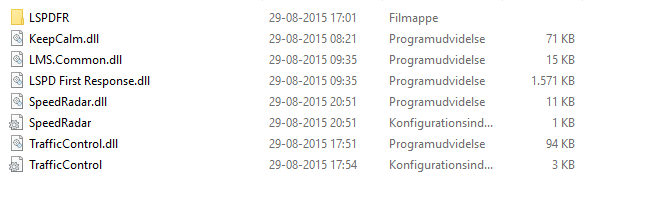
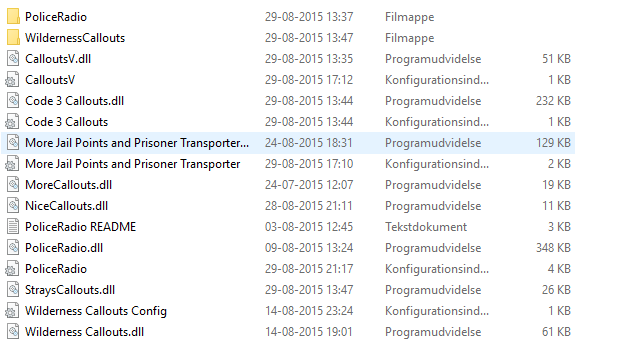
Using this awesome mod you spend alot of time in Police vehicles and spend alot of time looking at them, so I'm trying to apply 2 skins to the game.. But everytime I've done so the game dowloads 5-6GB Like something is broken at it automatically redownloads a bunch of files.. I use the OpenIV and I follow the directions given in the ReadMe files.. Any ideas? Skins I'm trying to apply: Picture 1 is main GTAV folder, 2 is GTAV/Plugins, 3 is GTAV/Plugins/LSPDFR Non steam version RagePluginHook.log
-
So... I know it says in the ReadMe file.. But.. I can't get this mod to work.. and I really like it! I did what the ReadMe file said.. but I can't find it ingame.. :)
- 8 comments
- 2 reviews


