


999moon9999
Members
-
Joined
-
Last visited
Everything posted by 999moon9999
-
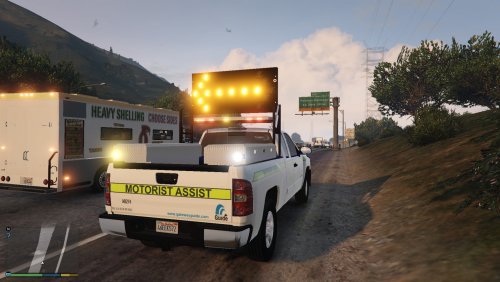 If y'all want to change the arrows direction you have to change the els config file.
- 18 comments
- 6 reviews
-
Hey y'all, saw this on the internet the other day and thought it would be a pretty cool feature for lspdfr/els. Basically the emergency lights will sync with other nearby units, matching speed, etc. see here or look up "bluePRINT Sync" or "CenCom Core™: DVI™ + V2V Sync"
-
 Doesn't work on latest version of lspdfr/rageplugin/gta ;(
 -
https://imgur.com/a/9yIlaWj
-
It says it has a loader problem seen above ^^ I get this in one of my logs [Log Check] ScriptHookDotNet.log doesn't find loader script [Log Check] ScriptHookDotNet.log doesn't start loader script
-
ok
-
Yes I think so
-
My GTAIV loads up gets past the character screen and then I am in my world. I get an error at the top left of my screen. And then I ignore it. Then I walk outside and activate LCPDFR (ALT + P) But, nothing comes up!!! I'v tryed the other ALT key but, it doesn't make a difference. I have also tryed re-instaling LCPDFR but, that hasn't seemed to have helped it work! Oh yeah when I press ALT + P it gets blurry or clear! As seen above! My PC specs are below! PC SPECS: i7 5th Gen 16 GB Ram 64-bit Lenovo Windows 10 Please help me!!! I also get this error when I close GTAIV and also the error as soon as I get into game. Is this the problem? Do I need to move/delete this?
.thumb.png.76b79cf6c077862aa7343b3d3b6d4c24.png)
.thumb.png.9725fb32bacfc619479313122a7f9799.png)
.thumb.png.bcbdf29b58cf8760d10e29f0d97046ae.png)
.thumb.png.fe2ed013279393d81edd98faa173eebf.png)
.thumb.png.52304d14402a2de28a7abb6268017518.png)

.png.086e1338f6a15999ca8c8de49eec8600.png)
.png.b1211c3d4dd9739c212863068b4864eb.png)
.png.611018739ac70e7ef909f6c874edb5bd.png)
.png.8ab8af5f03fe7a416d5ca3e7603d3d3d.png)
.png.22f3109e8fd40174a7f24b23bda45c8a.png)