LordMarshal
Members
-
Joined
-
Last visited
Files posted by LordMarshal
-
As seen in: https://www.youtube.com/watch?v=9K92TfHC3X8 at 2:39.
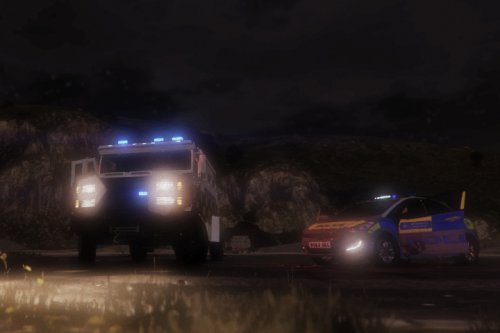
This is a simple texture modification to the police riot truck. It replaces the blue/red light bar with a full blue bar.
How the installation works:
I included a backup in the download folder, see "backup" folder.
Install with OpenIV:
Replace the image files in riot.ytd with the image files in the "blue lightbar for riot truck textures" folder at:
- mods\update\x64\dlcpacks\patchday3ng\dlc.rpf\x64\levels\gta5\vehicles.rpf\riot.ytd
(replace & save)
This download is exclusive to LCPDFR.com and GTA5-mods.
Recommendation (see first picture):
1) Brute Riot Mapped Default-Style - https://www.gta5-mods.com/vehicles/brute-riot-mapped-default-style
2) P.S.N.I Texture For Brute Riot Truck 1.0.0 - http://www.lcpdfr.com/files/file/8563-psni-texture-for-brute-riot-truck/
3) Put my files inside the already replaced riot.ytd.
TIP: In the Arrest Manager plugin, set the pick-up vehicle to the riot truck (replace "POLICET" by "RIOT" in the .ini file that comes with it) http://www.lcpdfr.com/files/file/8107-arrest-manager-35-more-jail-points-prisoner-transport-releasedetain-autodoorshut/
- 73 Downloads
- 3 Comments
Updated