



Buffertube
Members
-
Joined
-
Last visited
Everything posted by Buffertube
-
-
-
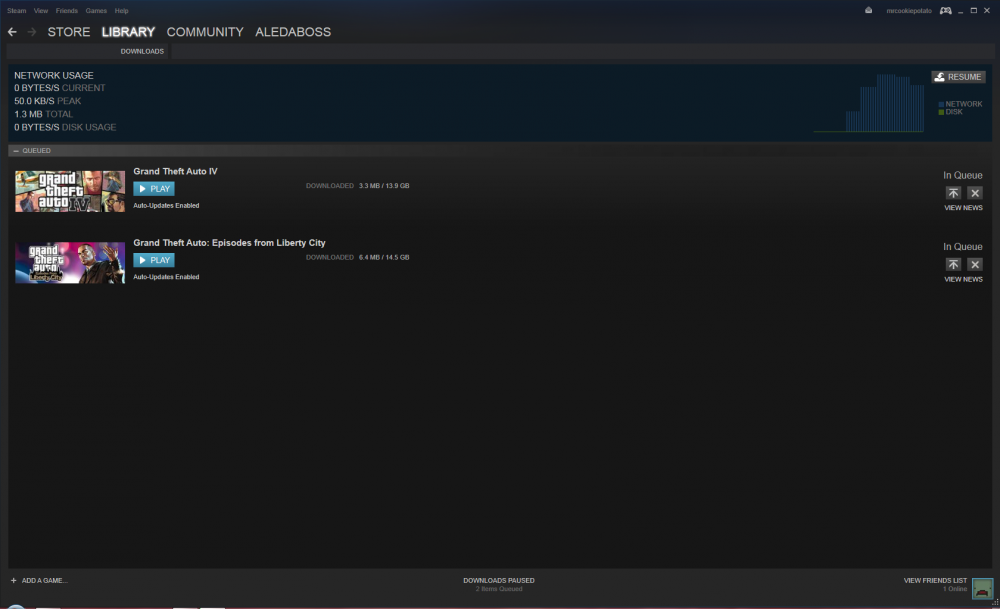
Now that i bought Grand Theft Auto IV Complete Edition,while its downloading can anybody tell me some good police car mods for Grand Theft Auto IV and some good scripts for LCPD:First Response.Here is the proof that i have bought the game just watch this topic get closed and says wait for your game to download
-
yes im on the cracked version but i will buy the complete edition by the end of the month.
-
Hey does anybody know any good police car packs with or without ELS i dont really care.For Gta IV
-
you got in a trap inseri you asshole keep closing topics just because i have a cracked version of gta 4 im gonna buy the game.But i just want to say that you are an unbelivable asshole
-
Hey, i am playing gta 4 cracked version and in a month im gonna buy gta 4 complete edition.On my cracked version LCPDFR wont work except for version 0.95 so while im waiting for payday to buy gta 4 complete edition can someone tell me good scripts for lcpdfr 0.95 thanks
-
Hey i play LCPD First Response 0.95 on cracked version of Gta 4.Because of compatibility i had to install ELS V5 instead of ELS V8 and whenever i turn on the lights the car fixes itself so can anybody help me.


