
karl sti
Members
-
Joined
-
Last visited
Everything posted by karl sti
-
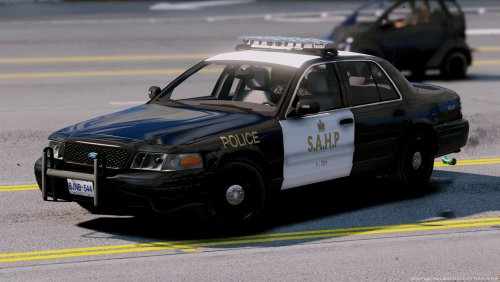 Hi I have only light color on 1 side when i use this pack/ELS.xml how do i fix that? and only red
- 28 comments
- 9 reviews
-
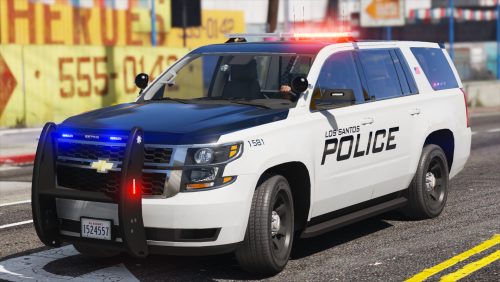 What handling for Charger 2015 its lean the same way i turn like a boat tested handling for police police2 police3
- 51 comments
- 22 reviews
-
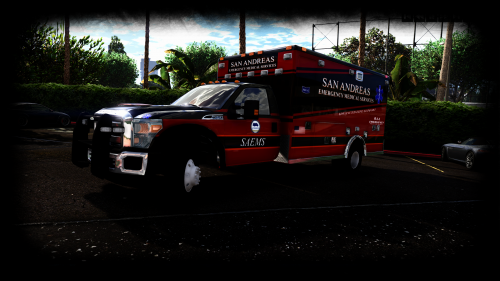 bug on the licence plate numbers comes and goes and the new template is crap hard to fit side to back no i go back to the first F 550 to its fixed
- 209 comments
- 40 reviews
-
-
got it
-
damn it was not the same car i used this is from Bxbugs123 car i used in the video was not from him
-
thank you thank you thank you
-
anyone have the link to download this charger cant find it
-
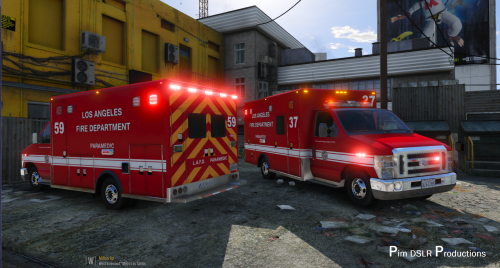
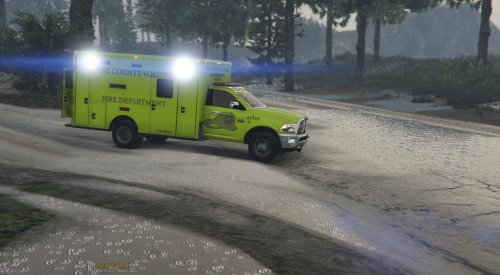
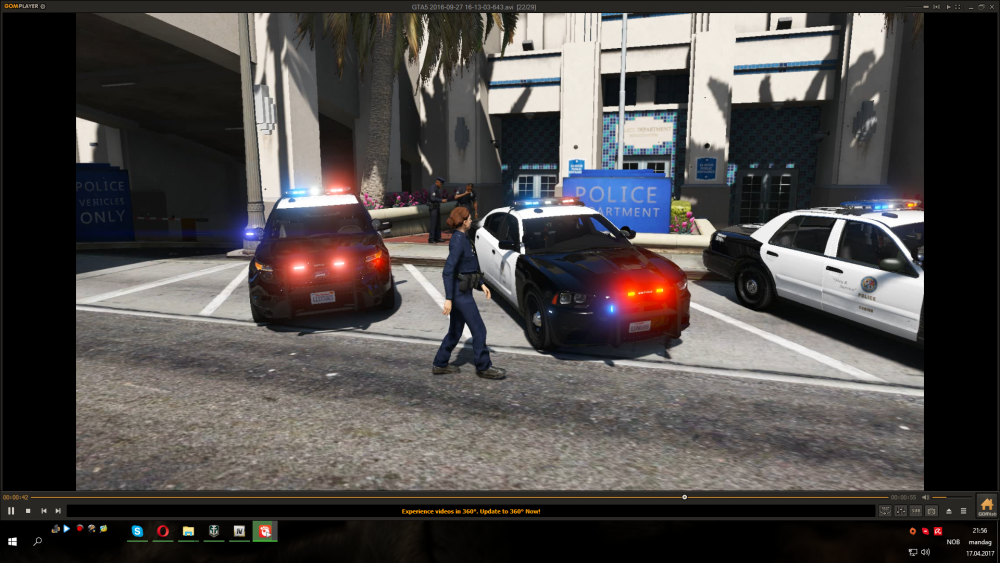
Hi this is the first time i use ELS/ELS car in GTA V but the ambulance use the police siren when els is active anyway to fix that ? or do i have to use it like that https://www.youtube.com/watch?v=gxKkCLlyGV4&feature=youtu.be
-
Hi nice ambulance first time i test ELS how do i change siren to ambulance siren now it use police siren i want to use ambulance siren for ambulance?
- 209 comments
- 40 reviews
-
yup no template
-
Hi anyone have template for this to share
-
-
-
Hi anyone now the name this siren?
-
-
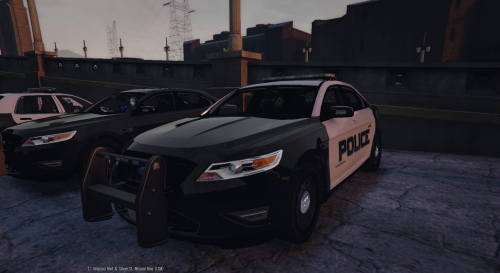 NICE Car : ) All works fine now on Police3 Orginal POLICE3 handling no flip and mod carvariations under \update\x64\dlcpacks\mpluxe2\dlc.rpf\common\data soo the light works fine too GTAV Update 1.0.505.2
- 49 comments
- 8 reviews
-
-

- 1
-