




ScrimpyData
Members
-
Joined
-
Last visited
Everything posted by ScrimpyData
-
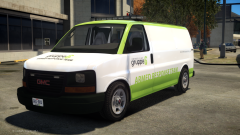
From the album: Scrimps Mods
I wanted to add a van in the pack, but I couldn't find an airport function for it, so yeah, I came up with this Equipment will be added later on -
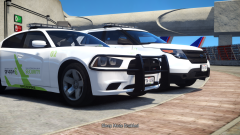 I see :P It's only like that because I'm using a pretty default ELS config on it xD But thanks for letting me know
 -
From the album: Scrimps Mods
Getting ready to f*ck up your day! -
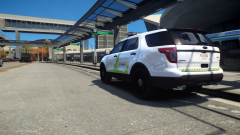 Well, I'm turning it into a (mini-)pack
 -
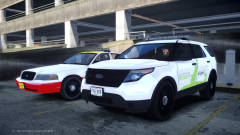
From the album: Scrimps Mods
An old(er) Airport Security CVPI (livery based of the original GTA IV FlyU6 livery), and the new Airport Security FPIU (after Gruppe6 took over the security, at least so I have a little story for the different liveries ;) ) And of course, both vehicles in action: -
I don't know what really happened, but I doubt they're going to sack him from the BBC. The audience just loves him (I've seen posts and pictures everywhere of people supporting Jeremy, and I've also signed the petition, which now has over 600,000 signatures)
-
From the album: Scrimps Mods
Just a really simple airport security FPIU I made :P (Idk about release) -
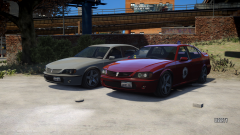
From the album: Scrimps Mods
Updated a few things on the FIB Merit: - Added a spoiler on the trunk -Added front badge and changed police badge on the rear to merit badge - resized the beacon a little bit -
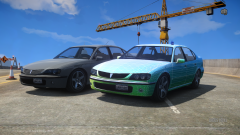 Well, I've seen them on the driver side of the roof as well, so yeah, Idk if it actually matters a lot :P
 -
Noticed it :P Thanks for pointing it out
-
From the album: Scrimps Mods
Just a simple car I'm working on (the headlights are fixed, but I didn't take any new screenshots yet) -
There isn't one at the moment :/ I don't completely remember how it's set up, so Idk if it works by changing the light textures
- 24 comments
- 11 reviews
-
 Much colour. Many picture. Wow.
 -
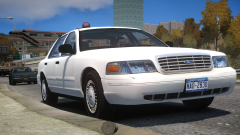 At the downloads section, duuuh! xD
 -
From the album: Scrimps Pics
Because they also deserve a lunch break ;) This great looking car is by Kirigaya btw -
It isn't a non-ELS beacon on the top, but I did quickly make this... (Just the model with the beacon atm, I'll probably add the rest you mentioned later)
-
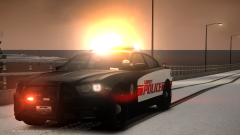 It is released, just not here.
 -
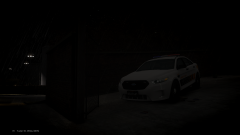 Edited version of Him1250's, why?
 -
Happy Birthday OL :D
-
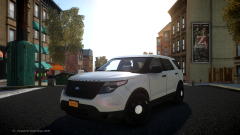 Thanks :P I really wish I knew how to fix that window bug tohugh, it's frustrating me a lot xd
 -
From the album: Scrimps Mods
I added the Ecoboost grill to the FPIU, but I'm still having this issue with unbreakable windows... :/ -
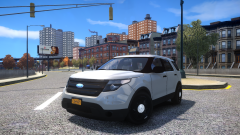
From the album: Scrimps Mods
I decided to change some small things up on Mustu's FPIU base... So far I have... Changed the grill and bumper material Redone both the front and rear license plate (both modeled by me) It's not much, but imo it's an improvement I'm also fixing a bug with the windows (they can't be shot for some reason) -
I'll be... What are you thinking of right now?
-
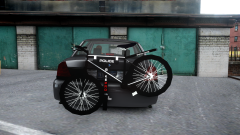 No idea at this moment
 -
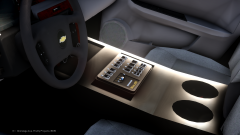
From the album: Scrimps Mods
After the bike rack, I decided to model my own console, with a fitting siren console/controller/whatever The siren controller also has lights synced up with the TA d]


