




ScrimpyData
Members
-
Joined
-
Last visited
Everything posted by ScrimpyData
-
-
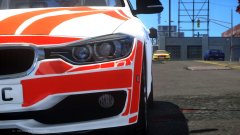 Thanks :D
 -
Still left the UK plate on... Oh well...
© ScrimpyData
-
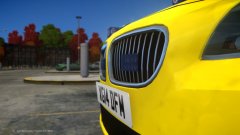
From the album: Scrimps Mods
Just a sneak peek at another car model I'm making (Modeled the grill lights and side bumper lights myself)© ScrimpyData
-
-
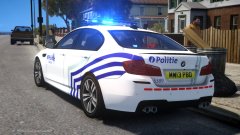 Oh I'm not stopping anytime soon ;)
 -
This one is a little high poly, but it looks pretty cool imo
© ScrimpyData
-
-
-
-
 It should use the Alt+K feature. Did you install the ELS file I put in the download? http://www.lcpdfr.com/tutorials/index.action/grand-theft-auto-iv/vehicle-modification-tutorial/how-to-install-a-vehicle-using-open-iv-extremely-simple-r53/ This tutorial should help out
- 25 comments
- 1 review
-
I will be releasing more vehicles once they're done. And as far as the Ingot goes, I might include it with this Volvo in an update
- 25 comments
- 1 review
-
-
-
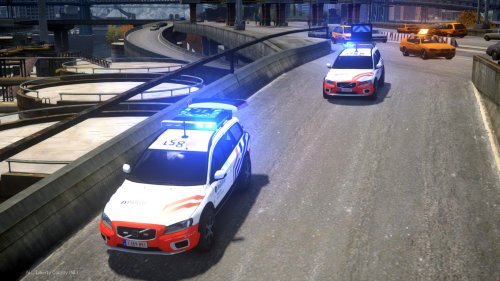
This is my first ever release in a (hopefully long) chain of Belgian Police vehicles. This download only contains the Road Police (WPR) Volvo XC70, since that one was finished and ready to go. The file includes: * WPR – Road Policing [noose.wft & noose.wtd] * Templates * Readme * ELS 8.5 settings Known issues: - Something’s up with the dirt mapping causing the vehicle to go fully grey. I’m looking into that. - There is no handling line included, because I did not manage to make one. Any bugs you come across can be reported in the comments.
- 25 comments
- 1 review
-
-

- 8
-
-
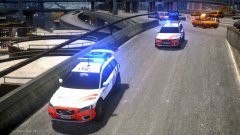 These Volvo's are getting ready for a release... :D
© ScrimpyData
-
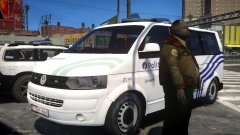 I don't have a release date, it's done when it's done
 -
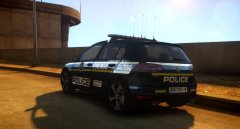 Image works fine for me
 -
From the album: Scrimps Mods
© ScrimpyData
-
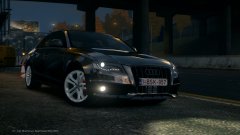
From the album: Scrimps Mods
© ScrimpyData
-
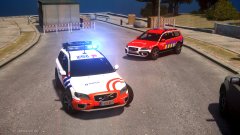 I am planning to release a full pack with Highway Police, Fire Dept, Local police and Ambulance service
 -
-
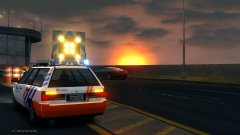 Gave the lightbar yet another makeover! It now has new front LEDs, new textures on the board, extra details and side lighting. http://i.imgur.com/OKasOit.jpg The front LEDs http://i.imgur.com/Quvi2ZW.jpg The stop sign (Couldn't add the images in this post for some reason)
© ScrimpyData
-
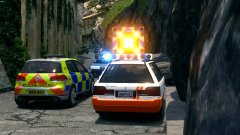 They can indeed look good as EU police vehicles, even though the real thing would look awesome as well :D
 -
From the album: Scrimps Mods
Just made this demo vehicle for my Arisco Arrow6 arrowboard. Since it's used a lot by the Belgian police, I decided to make it a Belgian vehicle :)© ScrimpyData


