



Kmgibbs
Members
-
Joined
-
Last visited
Everything posted by Kmgibbs
-
-
-
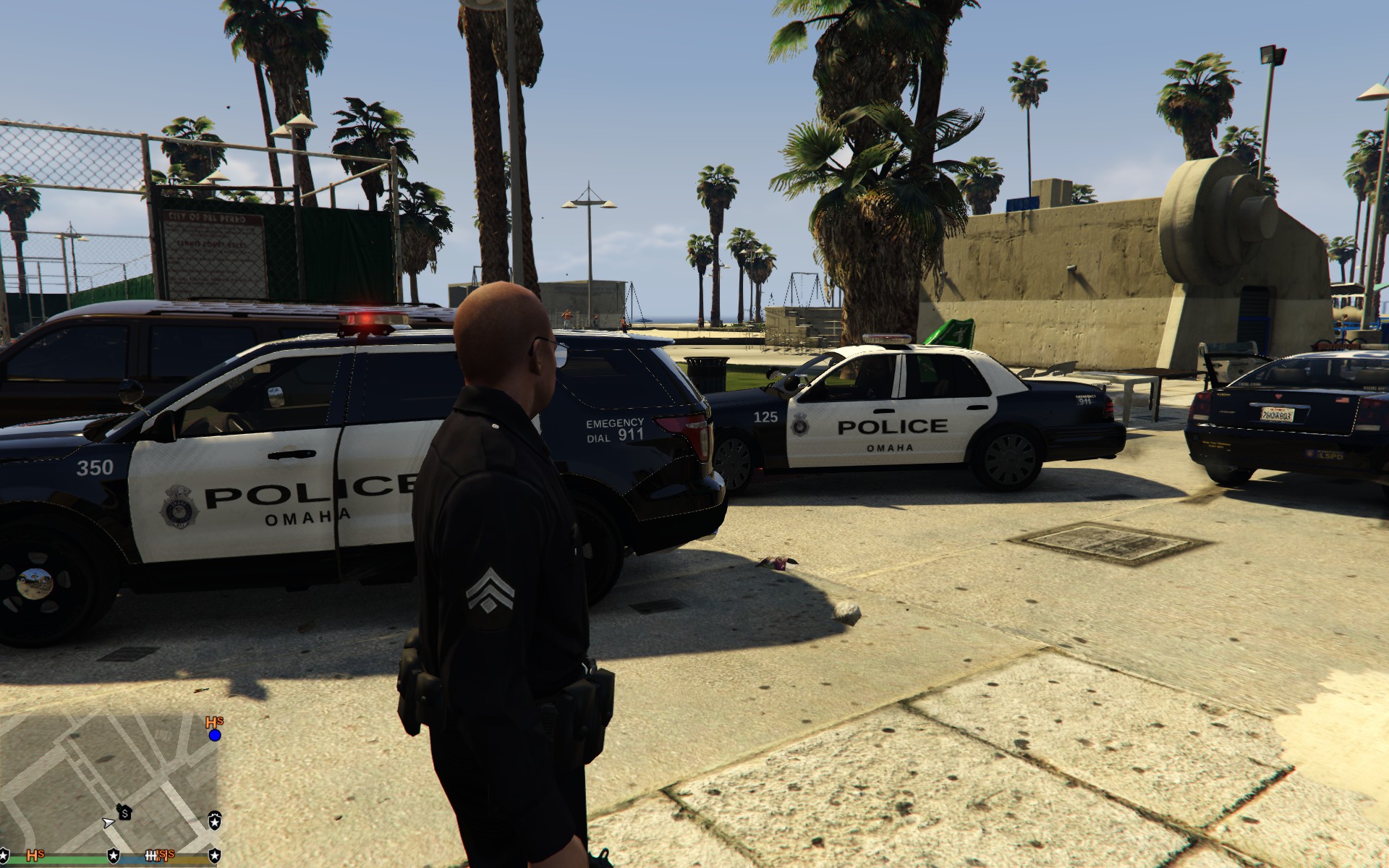
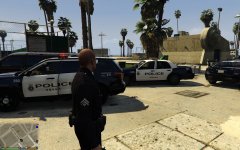
Testing out skins for vehicles in the Omaha, Nebraska area
-
-
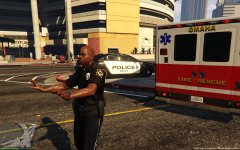
From the album: Omaha Emergency
-
-
-
I tried posting a gallery of some of my recent screenshots, unfortunately, the first time I tried to put in all in a gallery I got a bit confused and attached all my pictures to the description. I corrected this and tried to connect them in the correct place, but I got the screen that asks you to "please wait" as your pictures are uploaded. I waited, but after several minutes gave up and tried again. This time I was stuck on the "please wait" page for hours as I went to sleep while waiting. When I woke up I tried a third time, this time making a new album and doing no editing to the pictures. This time the album quickly uploaded. However, now the pictures are all copied two extra times, and I have no idea how to remove the duplicates.
-
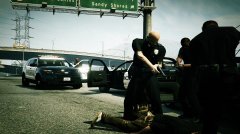
From the album: Omaha Area Police Vehicles WIP
-
An album of the police vehicle textures I'm making featuring Omaha Police and Douglas County Sheriff.
-
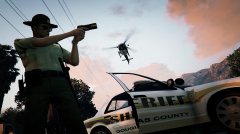
From the album: Omaha Area Police Vehicles WIP
-
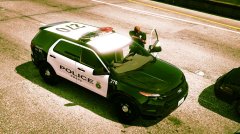
From the album: Omaha Area Police Vehicles WIP
-
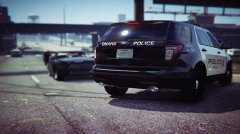
From the album: Omaha Area Police Vehicles WIP
-
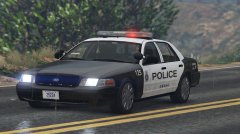
From the album: Omaha Area Police Vehicles WIP
© the OPD badge is property of the Omaha Police Department and is used without permission. Not to be used in any commercial works without express consent of the Omaha Police Department.
-
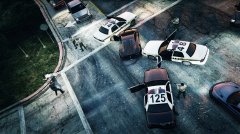
From the album: Omaha Area Police Vehicles WIP
-
 Waiting on someone to develop a Caprice model, in the meantime made skins for the other vehicles in the Omaha fleet.
 -
Some action shots for the new vehicle textures I'm working on.




