


davidp027
Members
-
Joined
-
Last visited
Everything posted by davidp027
-
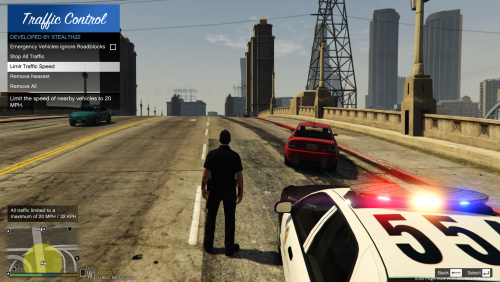 Well, idk your source but in asi files that's how I'd do it. (Not tested, just wrote that quickly(C++)) Hash cops[14] = {"police", "police2", "police3", "police4", "policet", "fib", "fib2", "riot", "sheriff", "sheriff2", "pranger", "policeold1", "policeold2", "policeb"}; const int numElements = 100; const int arrSize = numElements * 2 + 2; Entity vehs[numElements]; int count = GET_PED_NEARBY_VEHICLES(PLAYER_PED_ID(), vehs); for (int i = 0; i < count; i++) { int offsettedID = i * 2 + 2; //Make sure it exists if (vehs[offsettedID] != NULL && DOES_ENTITY_EXIST(vehs[offsettedID])) { //Do something Entity mveh = vehs[offsettedID]; Hash currentVehicle = GET_ENTITY_MODEL(mveh); for(int x = 0; x < 14; x++){ if(cops[i] == currentVehicle){ //Vehicle is a cop car } else { //Vehicle isn't a cop car } } } } Well made a mistake and can't edit it so in the for loop with x it should be instead: if(GET_HASH_KEY(cops[x]) == currentVehicle){ //Vehicle is a cop car } else { //Vehicle isn't a cop car }
- 338 comments
- 46 reviews
-
Hey to prevent the police/tow trucks/coroner from getting slowed down, you could just check the vehicle's hash / skiin hash and if it matches something then prevent any action on this specific vehicle/peds. At least that's how I do it
- 338 comments
- 46 reviews
-
Well I'd say take swat instead ? Maybe NOOSE is too strong for your situation, sometime they're very useful
