


gimokes
Members
-
Joined
-
Last visited
Everything posted by gimokes
-
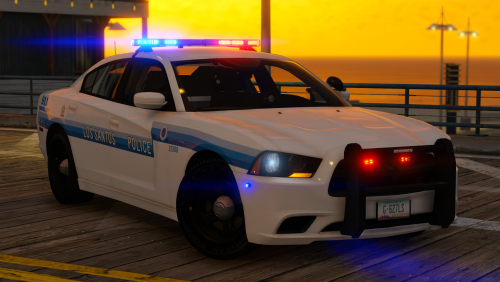 Yes it worked now. I didn't know that ELS had other controls because before I install this pack I used the pack from Captain14 and the lights worked normally. Now all vehicles are working fine thanks.
- 147 comments
- 65 reviews
-
Can someone help me. I'm having the same issue that aserfreak had, but for me the emergency lights are not turning on. I'm leaving a screenshot of my Grand Theft Auto V\ELS\pack_default to see if there is any error on how I installed since I don't know much about modding. I did some suggestion from above such as install VisualV and reinstall ELS but still didn't work and still the same way as the in game screenshot above.
- 147 comments
- 65 reviews
-
 I need some help. I installed the Police SmartRadio and when I went in patrol it said it was missing the trafficpolice.dll so when I checked I didnt noticed that for the Police SmartRadio needed the Traffic Policer mod so I downloaded and installed. When I open the game again now it crash during the loading screen.
- 3,646 comments
- 306 reviews
-
are you opening gta using the rage that come installed with the lspdfr or by steam?
-
did you try the simple trainer native? the only problem that i have notice so far is when you open the rage it open the trainer but the normal key is f3 https://www.gta5-mods.com/scripts/simple-trainer-for-gtav
