
eastpierceboy
Members
-
Joined
-
Last visited
Everything posted by eastpierceboy
-
 take whichever version you like and take the RESIDENT.rpf and put it in E:\Steam\steamapps\common\Grand Theft Auto V\x64\audio\sfx or wherever your GTA5 is
- 43 comments
- 10 reviews
-
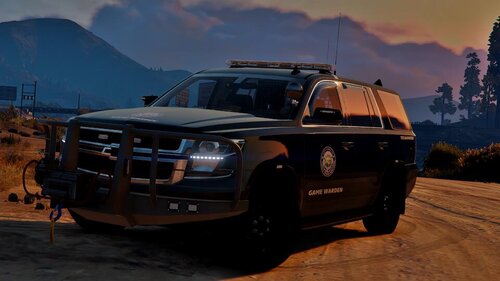
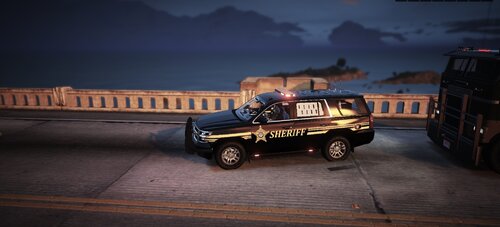
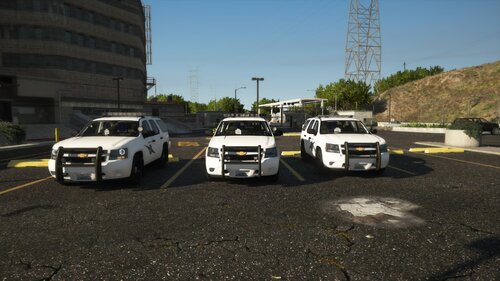 as someone who lives in the great state of Washington, and someone whos joining WSP, I noticed a few things. First of them being, they dont use the Edge 9000 on the 14 Tahoes. They use the Ultra Freedom. Another, is your radar on the passenger side, is on the windshield, just move it up to the visor and its good. And idk if its me but im pretty sure the mud flaps are clipping thru the body as well. But other than that, definitely would love to see more WA based things
 -
-
 ahh ok
 -
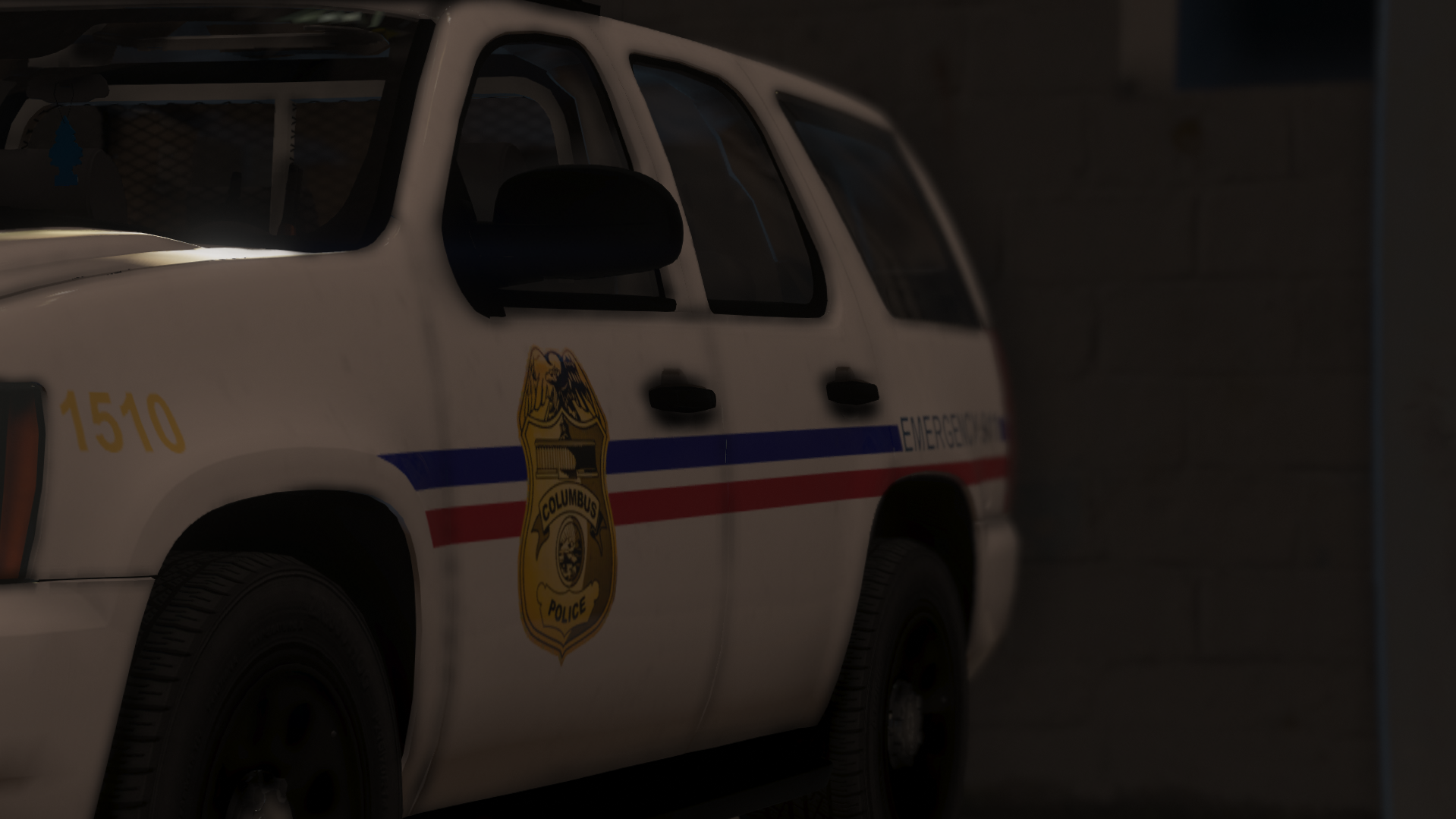
did you make a copy of the badge or how did you do that?
-
passenger side badge is backwards, do you use photoshop when you make these?
-
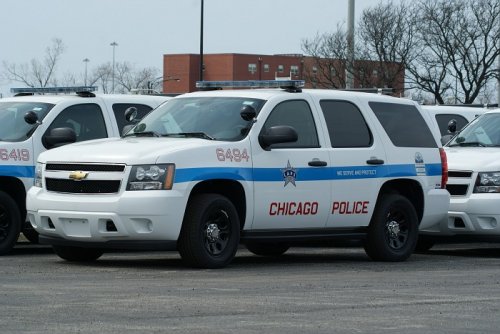
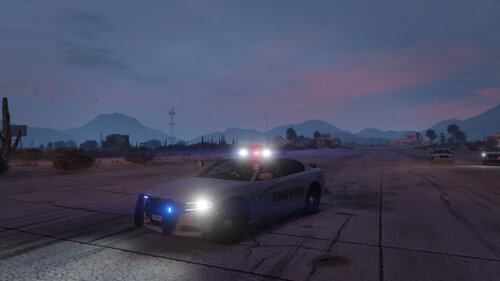 first, i LOVE the wide body kits officer. and um, not bad but definitely needs some adjustments. flickr helps alot. ill post an example. i would rate this Florida based Illinois pack, 50/5. keep it going guy. - Much love, Palmer Junior
 -
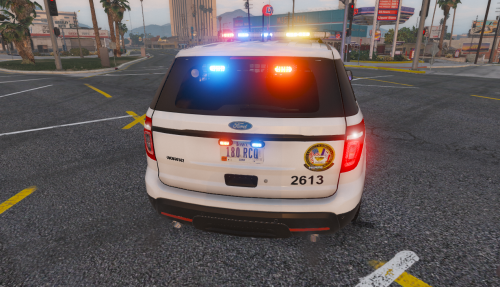 i made this pack over 3 years ago, i dont have the files or the cars anymore. might i also add, its 2020 my guy
 -
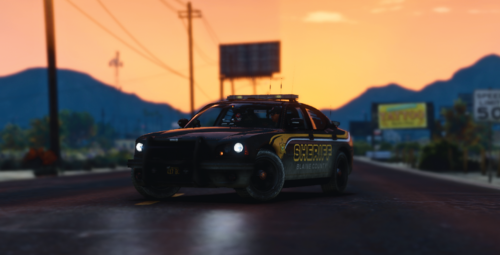 hey, 3 of those pics are mine, i forgot i took them lol
 -
-
-
-
its still uploaded into FR. Its an older version of the siren, so dont worry, it still exisit 🙂
- 43 comments
- 10 reviews
-
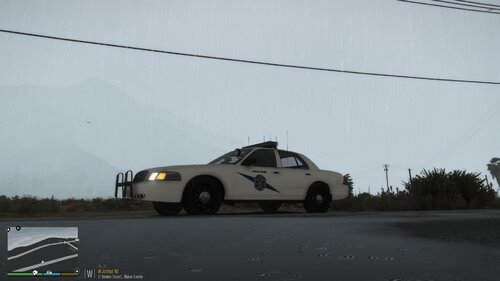
From the album: Western WA Skin Pack 2020
-
Wershinton
-
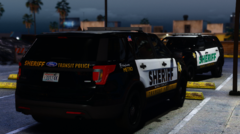
From the album: Western WA Skin Pack 2020
-
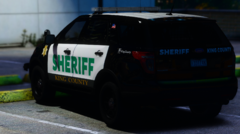
From the album: Western WA Skin Pack 2020
-
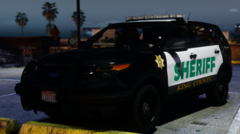
From the album: Western WA Skin Pack 2020
-
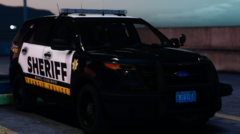
From the album: Western WA Skin Pack 2020
-
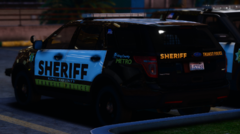
From the album: Western WA Skin Pack 2020
-
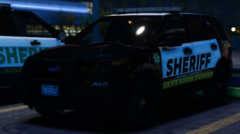
From the album: Western WA Skin Pack 2020
-
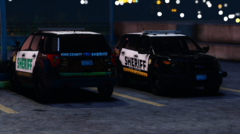
From the album: Western WA Skin Pack 2020
-
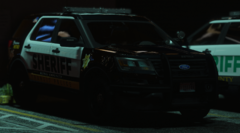
From the album: Western WA Skin Pack 2020
-
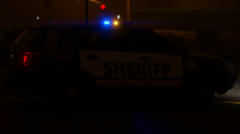
From the album: Western WA Skin Pack 2020
-
From the album: Western WA Skin Pack 2020