


MrOxPlay
Members
-
Joined
-
Last visited
Everything posted by MrOxPlay
-
It's not right to blame lcpdfr site every time, maybe the real problem are players3 months later : I'M BACK !!!
-
 20180615184732_1.jpg
-
 SAHP GHOST
-
 20180424213628_1.jpg
-
 LSFD
LSFD
-
 VSP and THP blocking the road
-
 100% Done
-
 20180319210207_1.jpg
-
 VSP Charger
-
 SW
SW
-
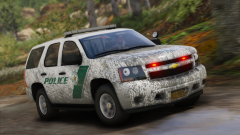 Dirty
Dirty
-
 4WHAT
4WHAT
-
 Amtrak Police
-
 I'll just leave this here
-
 Los Santos County Police [Released]
-
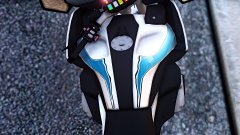 Whoever did this, it did amazing job
-
 San Andreas State Police [Based on PSP]
-
 Based on ??
-
 CLC
CLC
-
 1
1
-
 Me trying to skin after 2 months
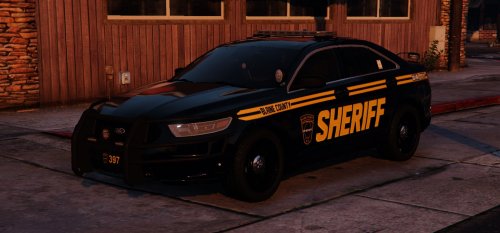
 Blaine County sheriff with Police logo ??????
From the album: WIP
Coming soon, including 2 versions of "ghost" for Lore and 1 for RL Do you use photoshop to enhanced photos ? or this is reshade effect
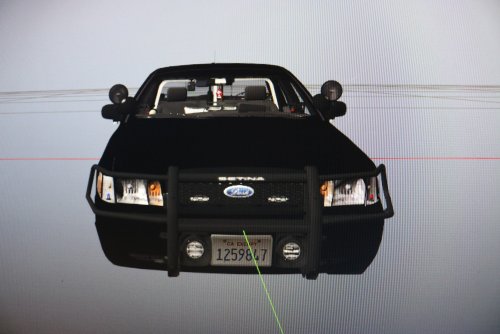
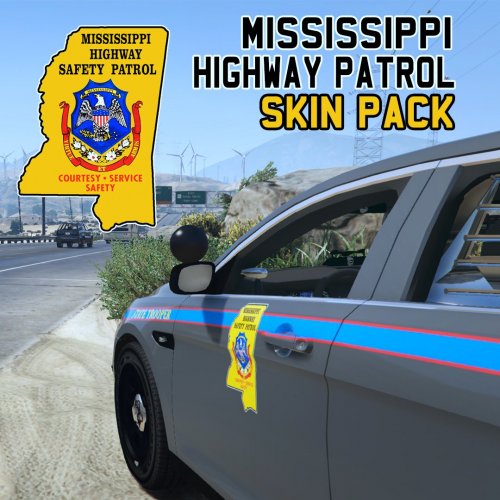 1. Mississippi Highway Patrol doesn't use FPIS 2. Colors are wrong 3. Decal is covering handles 4. Decals should be straight 5. Back of CVPI should be black 6. If you are gonna use RL version make it good
- 3 comments
- 9 reviews
From the album: WIP



Account
Navigation
Search
Configure browser push notifications
Chrome (Android)
- Tap the lock icon next to the address bar.
- Tap Permissions → Notifications.
- Adjust your preference.
Chrome (Desktop)
- Click the padlock icon in the address bar.
- Select Site settings.
- Find Notifications and adjust your preference.
Safari (iOS 16.4+)
- Ensure the site is installed via Add to Home Screen.
- Open Settings App → Notifications.
- Find your app name and adjust your preference.
Safari (macOS)
- Go to Safari → Preferences.
- Click the Websites tab.
- Select Notifications in the sidebar.
- Find this website and adjust your preference.
Edge (Android)
- Tap the lock icon next to the address bar.
- Tap Permissions.
- Find Notifications and adjust your preference.
Edge (Desktop)
- Click the padlock icon in the address bar.
- Click Permissions for this site.
- Find Notifications and adjust your preference.
Firefox (Android)
- Go to Settings → Site permissions.
- Tap Notifications.
- Find this site in the list and adjust your preference.
Firefox (Desktop)
- Open Firefox Settings.
- Search for Notifications.
- Find this site in the list and adjust your preference.