


OfficerStanley
Members
-
Joined
-
Last visited
Everything posted by OfficerStanley
-
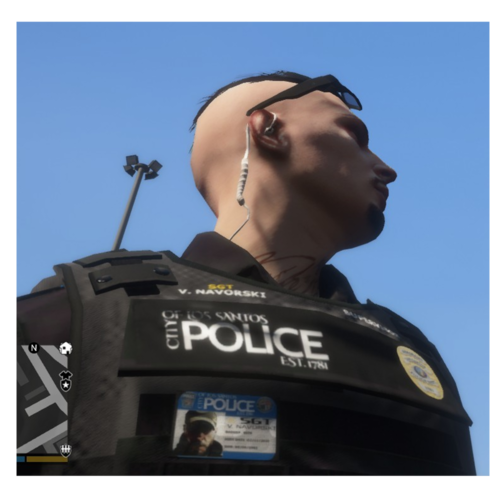 This Probably sounds like a NOOBy question.... mainly because I am one! But how do I get my NPCs and backup to wear these awesome uniforms?! Great job btw!
- 95 comments
- 16 reviews
-
Update: Fix Found (well.....I also hope this is what fixed it, 😜 ) Run everything without Admin Permissions and whitelist them (I had McAfee) GTA5 GTAVlauncher Launcher (rockstar) LauncherPatcher RockstarService RockstarSteamHelper SocialClubHelper EXCEPT: RAGEPluginHook Whitelist this but run it as an Admin Hope this works for someone else 🙂
-
Hi I recently got GTA V back up and running after many weeks of trying (try deleting cloud saves, apparently that was it , FYI) BUT I still haven't been able to load Rage Plugin Hook Correctly... It launches the game fine, but as if it were the normal game... when I look at my task-bar and click on Rage Plugin Hook it still says either: "launching game via Steam" or " this is taking longer than usual" If I click Story Mode it will launch the game normally and F4 does nothing... Hope one of you technically minded smart people have an answer to this. Thanks
