


MrScheckske
Members
-
Joined
-
Last visited
Everything posted by MrScheckske
-
I'm sure its possible yes.
-
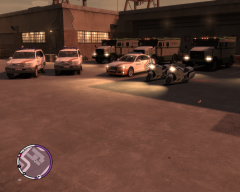
From the album: MrScheckske's gallery
Ready for a days work!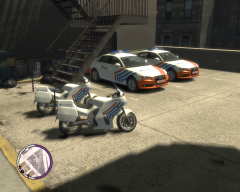
From the album: MrScheckske's gallery
NRG-P motorcycles are ready for dutySeen here is the Liberty City Highway Patrol unit's 2 latest test vehicles that will enter service soon. With 4 wheels an Audi A4 with a full led code3 360 lightbar. The other vehicle is a NRG-P motorcycle design for police work.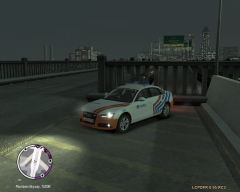
From the album: MrScheckske's gallery
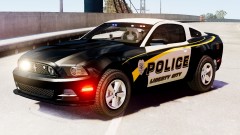 It's you.I will add it to the existing one, don't want everyone to remake all their skins they might make :) I'll look into it though, was thinking of possibly also having a sign ont he grill showing the engine number. And adding some more detail like a nightfighter and some intakes on the front bumper.
- 24 comments
- 17 reviews
-
-

- 1
-
FDLC Seagrave Marauder 2 now available here: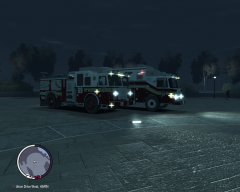 it is available right here:How about some callouts where you need to control traffic or set up a roadblock like at an accident scene?ADDITIONAL NOTES - Read README - Vehicle is ELS enabled - Vehicle is EFLC compatible - Template included in file Included FIles: - Modification Files: firetruk.wft; firetruk.wtd - template - 2 Images - Readme
- 24 comments
- 17 reviews
-
-
- 1
-
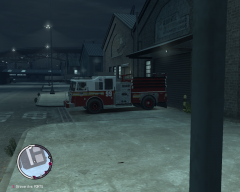
From the album: MrScheckske's gallery
Looks like FDNY is getting something newpolice boat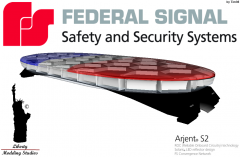 So did you make this?
