OfficerBaboso
-
Joined
-
Last visited
Everything posted by OfficerBaboso
-
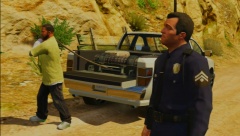
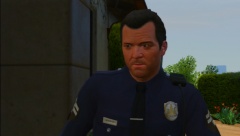
Never seen a car with that much holes in the game :D I didn't even recognize Michael in the second picture at first I think I have these glasses but to get sure, could you give me the name of them?
-
From the album: GTA V Modded Police
-
From the album: GTA V Modded Police
-
From the album: GTA V Modded Police
-
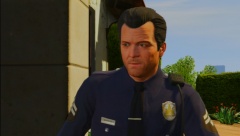
From the album: GTA V Modded Police
-
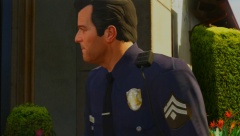
From the album: GTA V Modded Police
-
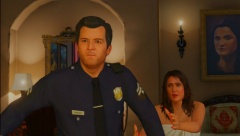
From the album: GTA V Modded Police
-
Thanks for the info. And are you sure the number for the Michaels police hat is the right one? I ended up with a firefighter helmet :p
-
I totally agree with you but he does have a point, it would actually make more sense to name it SAPD:FR or something like that, wouldn't it? Since its consists of authorities throughout the state, not only the LSPD. LSPD:FR is sorta more catchy though and I believe it's already a term of its own :D
-
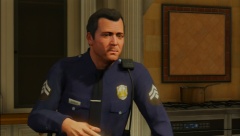 As soon as you change the clothes (which happens in the story) they're gone though :(
 -
Thanks for the info, gonna have to pass then unless there'll be a more "legitimate" way. Anyway, here come the pics, they're not snapmatic since I didn't have an internet connection when I played but they're close to selfies Without Glasses With Glasses Can't decide if to use the glasses or not Happily silly Selfie Without beard With beard I really can't decide :D My favorite pic so far Feel free to check out my gallery featuring the mod: and this video showcasing the uniform:
-
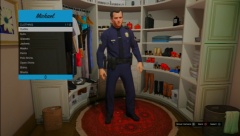
From the album: GTA V Modded Police
-
-
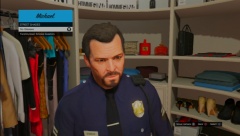
From the album: GTA V Modded Police
-
How'd you get the hat? :D Btw, will post a few pictures myself later from Michael's LSPD uniform :D
-
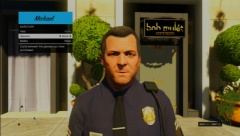
From the album: GTA V Modded Police
-
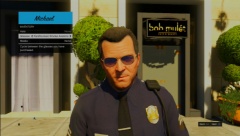
From the album: GTA V Modded Police
-
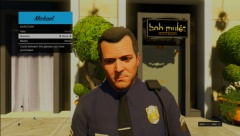
From the album: GTA V Modded Police
-
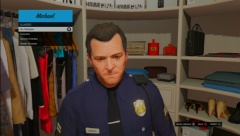
From the album: GTA V Modded Police
-
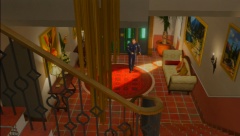
From the album: GTA V Modded Police
-
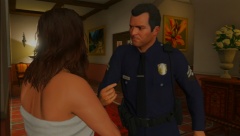
From the album: GTA V Modded Police
-
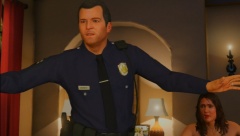
From the album: GTA V Modded Police
-
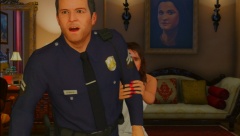
From the album: GTA V Modded Police
-
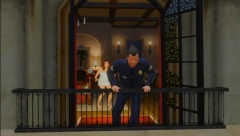
From the album: GTA V Modded Police
-
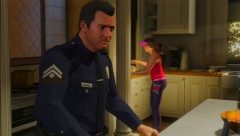
From the album: GTA V Modded Police