
TWISTEDSCOPES
Members
-
Joined
-
Last visited
Everything posted by TWISTEDSCOPES
-
From the album: Random Pictures In GTA V
-
np and thank you for sharing your solution.
-
Hello LCPDFR/LSPDFR, I have found a solutions on how to fix ELS when it stops working. First let's talk about the issues and then we'll talk about resolving it. My issue with ELS was it worked, like you can bring up the panel and activate the lights and all.. but when I tried turning on the lights they wont flash at all.. so I thought I didn't have something installed or something was missing, that.... wasn't the case... I tried everything but noting worked, but let me throw so examples of my problem. KEEP *NOTE* I HAVE TOUCHED MY GTA V IN TWO DAYS* First one is two days before I the issue *NOTE KEEP IN MIND ON THE SECOND PICTURE, THE PANEL IS ON STAGE 3, SEE HOW THERE'S NOTING WORKING.* RESOLVING THE ISSUE Now there's multiple ways on how to fix this issue one of these ways will probably work or mostly likely won't. Solution 1.(How I fixed it the issue) What i did was, i took my file put it in my external hard drive, after that... i deleted the one off my main drive, then i took the one from my external drive that i moved too and moved it back to the main drive, after that. I went in game and BOOM!!! it worked. Solution 2. ASI Manger "In OpenIV, go to ASI Manager and uninstall ASI Loader and OpenIV.ASI and then click install again to reinstall them. Then restart the PC, then try loading into the game again and see if that works." Solution 3. Resetting stuff Go in game and reset your graphics and your settings to everything, if that doesn't work then do the samething and restart your PC. Solution 4. Updating Make sure your game is update to date with the current update (BUT) before updating the game make sure to back up your update so you can revert back to your old patch, if something goes wrong. Solution 5. Restarting Try restarting your PC, that should work. Credits: I wanna thank @acepilot2k7 @Vegas725 @OfficerWalters @PSource for trying to help me fix this issue. I also wanna thank @KasmarKada for his solution on solution 2. Hopefully this helps and it works out for you.
-
-
little something
-
-
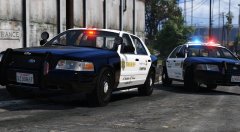 the lack off skins for miami dade. i've never really worked on it but i'll work on it once i gets skins and proper equipment.
 -
np and i'll be updating the pack soon.
-
me and one of the authors of a development part got into a arguement so i hid the file incase he decides to do something. but we are cool now and the file is instated.
-
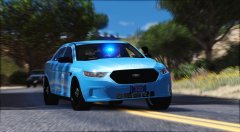
From the album: W.I.P Models (GTA V)
© TWISTEDSCOPES
-
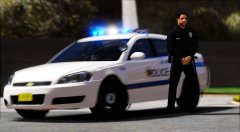 thank you i'll try that.
 -

-
yea it's the visuals mod, i might change it out unless there's a focus mode or something like that.
-
From the album: W.I.P Models (GTA V)
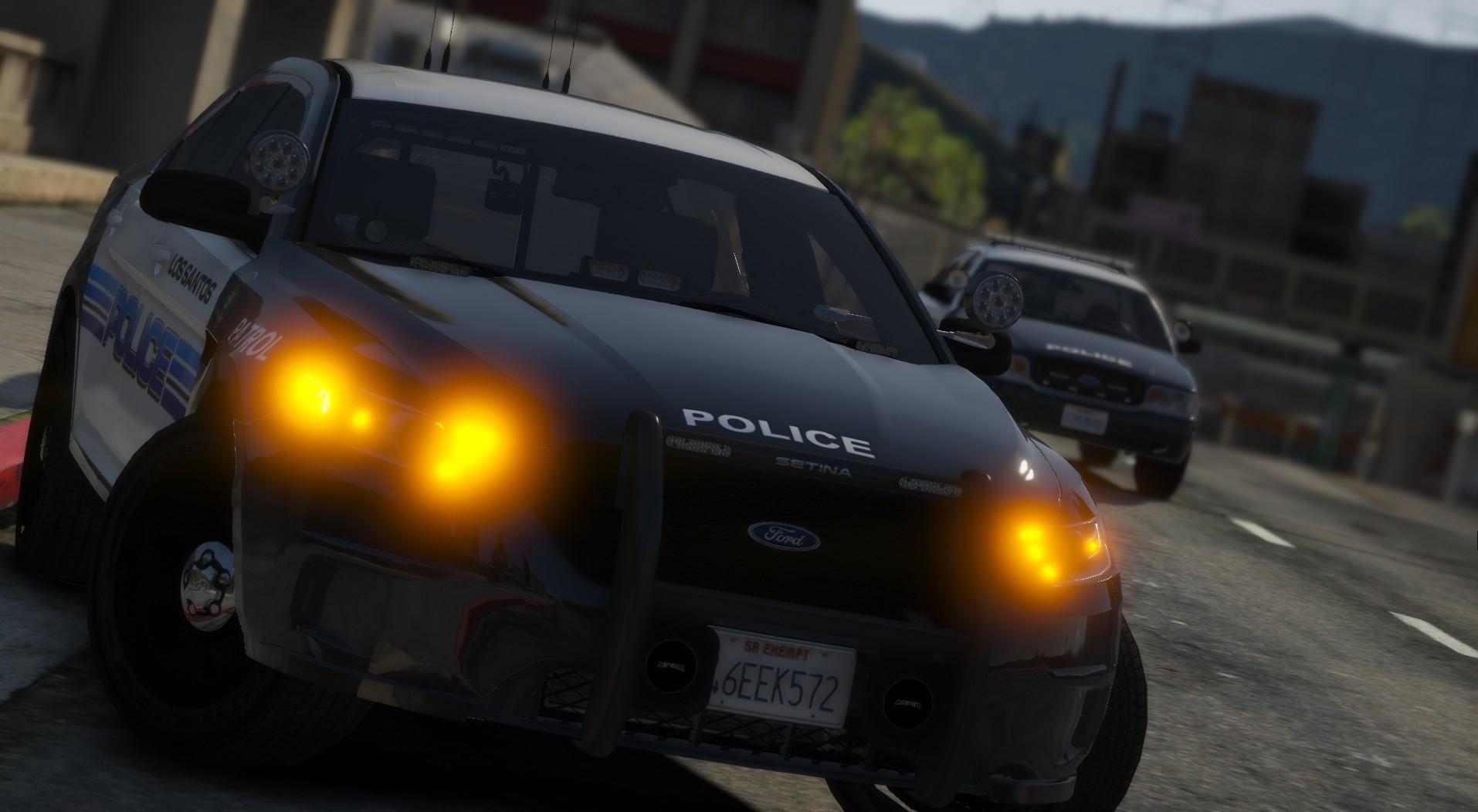
Here's some more pictures. also... i got a new visuals mod.© TWISTEDSCOPES
-
yup. put the skin looks a little weird though on underwoods taurus, but i fixed the white part on the door. hehe maybe
-
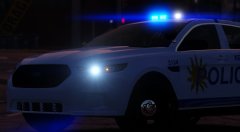
From the album: W.I.P Models (GTA V)
© TWISTEDSCOPES
-
nope. not even close.
-
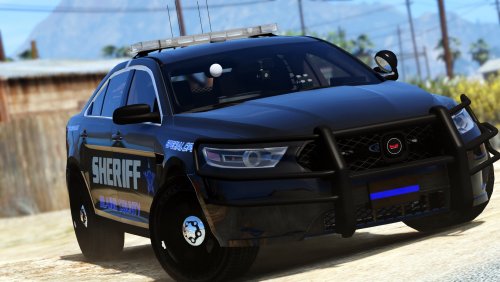
Thanks to @OfficerUnderwood for releasing his dev taurus, here's a little surprise.
-
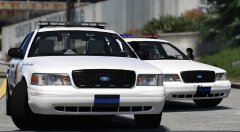 thanks it will be an option to change out the glass.
 -
From the album: W.I.P Models (GTA V)
Been busy lately so it might take awhile to get this pack finish.© TWISTEDSCOPES
-
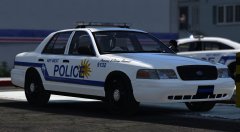 yes, correct.
 -
yes all vehicles will have lods 0-4
-
From the album: W.I.P Models (GTA V)
this pack will feature a couple cars. here's the progress so far© TWISTEDSCOPES
-
From the album: W.I.P Models (GTA V)
© TWISTEDSCOPES
-
Working on a 03-05 CVPI show far here's the progress on it. I don't know where the spoilers are at so i'll just post like this for now.