Creators: Due to background reprocessing of files, approvals and file security checks may be delayed. Thanks for your patience.

TooTall67
Members
-
Joined
-
Last visited
Files posted by TooTall67
-
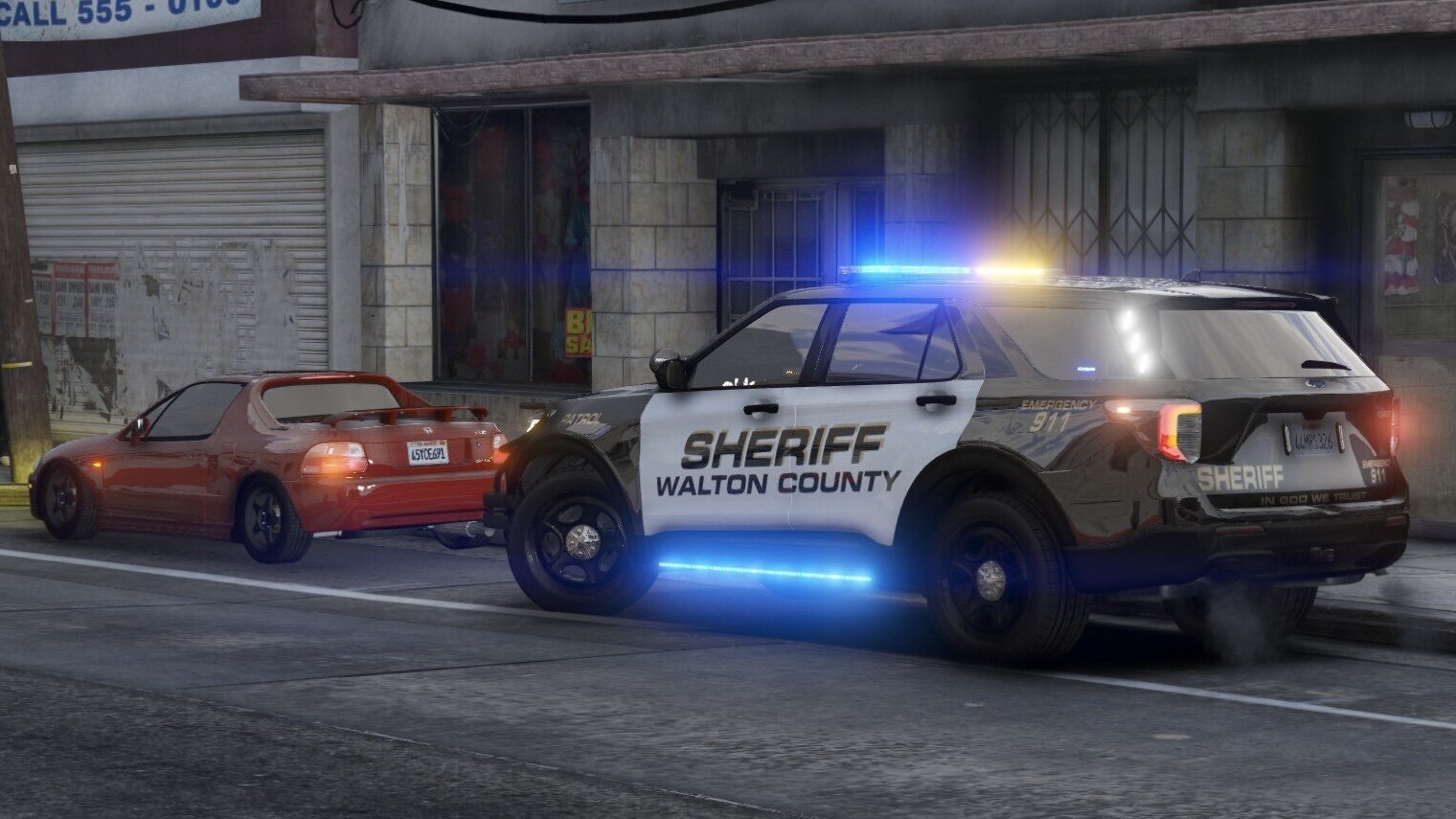
This is my first vehicle texture so go easy on me lol. I wasn't able to find the perfect specific font, so I got as close as I could. Also, due to a texturing issue in the Explorer model itself, I had to move the "PATROL" text that's on the front fenders to the wrong spot so that the text wasn't bleeding through to another part of the car. That one is out of my control. Sorry 😕
This skin is for PD Design's 2020 FPIU from their Atlanta PD Mini Pack [ELS] and is just a drag and drop replacement to change the livery. The pack can be found in this link:
If this file is well received, I will also make a WCSO texture for the Dodge Charger included in PD Designs' pack. PD Designs knocked it out of the park with this Atlanta PD pack, and the Walton County Sheriff vehicles (FPIU and Charger) share virtually the same exact lighting setup (minor differences ofc), even down to the lightbar and IONs having functional brake lights. I'd also like to do textures for other local departments. Gwinett County also shares a very similar lighting setup to this model, so I might do that one first after I do the WCSO charger. Thinking about maybe doing City of Loganville PD and City of Monroe PD textures next, but those vehicles are a bit different, so I might need to find another model, or make one.
Please let me know if you have any problems with the livery, or if you find the correct font to use for the text. Thank You.
- 266 Downloads
- 2 Comments
Updated