koesie10
Members
-
Joined
-
Last visited
Everything posted by koesie10
-
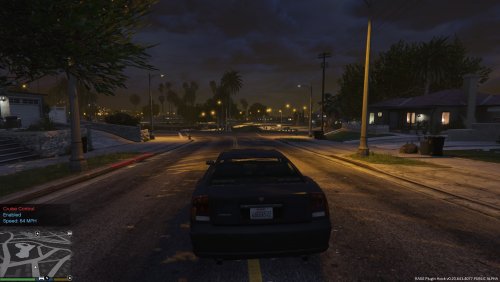 Unfortunately that won't work in this version because it doesn't actually accelerate, it just sets the speed. You would go from 0 to 40 in a few milliseconds, that would be a bit unrealistic. I haven't figured out how to do acceleration and deceleration yet.
 -
I've fixed this in the latest version (1.1.1), it was indeed a bug with the controller. I've tested it and it should work now. Download the latest version to use.
-
It auto disables if you have a collision or if you press W or S. Are you sure you are not colliding, accelerating or braking?
-
Press T to enable/disable, Page Up to increase speed, Page Down to decrease speed (configurable). Automatically disables itself if the car takes damage or if you press accelerate or decelerate (if you changed the defaults of W/S you will need to change this in the CruiseControl.ini file as well). Also works with a controller, although there are no defaults configured and controller support is disabled by default. Check the config file for configuration options.