Skip to content
View in the app

A better way to browse. Learn more.

LCPDFR.com

A full-screen app on your home screen with push notifications, badges and more.

To install this app on iOS and iPadOS
  1. Tap the Share icon in Safari
  2. Scroll the menu and tap Add to Home Screen.
  3. Tap Add in the top-right corner.
To install this app on Android
  1. Tap the 3-dot menu (⋮) in the top-right corner of the browser.
  2. Tap Add to Home screen or Install app.
  3. Confirm by tapping Install.

RunnGTX

Members
  • Joined

  • Last visited

About Me

This account was/is a multiple account of previously banned iiKonrad

You are now entering Massachusetts

Welcome to My Profile, MA. If you want some screenshots taken for you, just hit me up! I go to BayPath Vocational High School in Charlton, MA. I take classes in marketing and stuffz. Any other questions? Just MSG Me.

Specs:

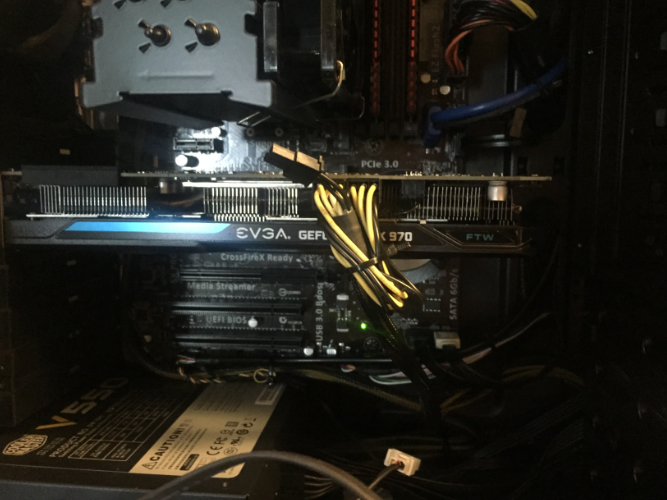
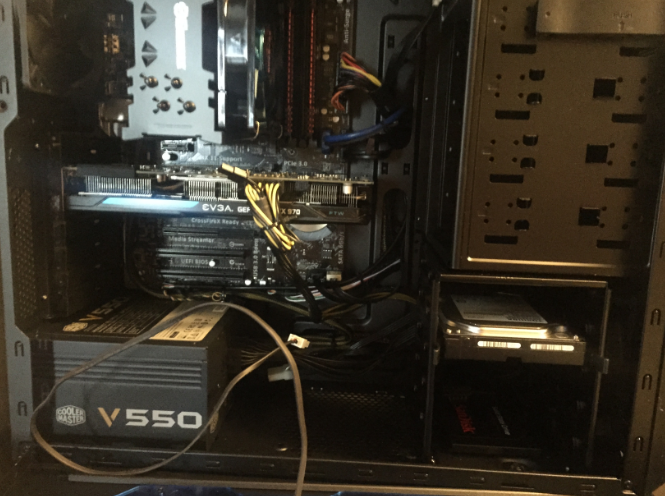
GPU: EVGA GTX 970 FTW Edition CPU: i5 4690k @3.8GHz Ram: 8GB

Storage: 120GB SSD, 1TB HDD Mobo: Asus Z97-K ATX PSU: Coolermaster v550 80+ Gold

CPU Cooler: Entermax ETS

Pics:
eca370a84c53784949d51b1087150ed0.png

995afa713e36f81b8af635cb99815e73.png

Account

Navigation

Search

Search

Configure browser push notifications

Chrome (Android)
  1. Tap the lock icon next to the address bar.
  2. Tap Permissions → Notifications.
  3. Adjust your preference.
Chrome (Desktop)
  1. Click the padlock icon in the address bar.
  2. Select Site settings.
  3. Find Notifications and adjust your preference.