Therouterz
Members
-
Joined
-
Last visited
Reputation Activity
-
 Therouterz reacted to Zelyth in ELS in GTA V?Hello everyone,
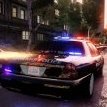
something crossed my mind today. Taking into consideration that there will most likely be police vehicle mods for GTA V PC, probably from many people a part of this community, there will likely be demand for a lighting system other than the default one (granted, it is FAR better than the default GTA IV lighting system) but my question is, how do you think it will be integrated? I don't think that an ELS type mod for GTA V would use the same mechanic as the GTA IV ELS (turning extras on and off and making them bright to simulate police light effects in patterns) but it may rather utilize the existing mechanic and simply change some of the properties to make them brighter and the like and also enable the use of takedowns and traffic advisors. Then, similar to ELS, some panel to change patterns around so that it isn't the way it is now where it changes every 3 or so seconds. Even more brilliant is that there are mechanics already in game for LED lights AND rotary lightbars! This is all presuming that the mechanic even works in such a way that makes it manipulable.
Yes, I know that a GTA V ELS type mod is far in the future, but it just crossed my mind.
How do y'all think a GTA V ELS would work? Is it even necessary, or are you pleased enough by the default mechanic?