


PapiRPG
Members
-
Joined
-
Last visited
Everything posted by PapiRPG
-
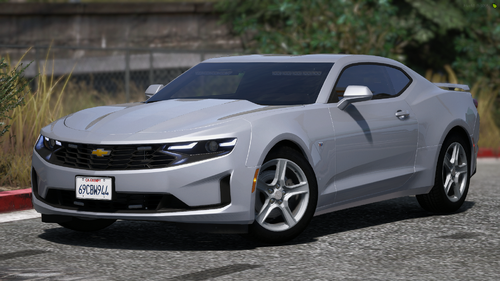 Sorry for the bad pic but yes. On Stage 3 it reflects only in the back. But not the wall on the side or the front
 -
Love the car but can you fix the reflections of ELS? It seems its only reflecting in the back but not the front or the sides. It's the same on the Mustang...
-
 I dont know if its just me but the reflections of the R&B lights are reflecting white? Can I fix it alone or does the author have to do it?
 -
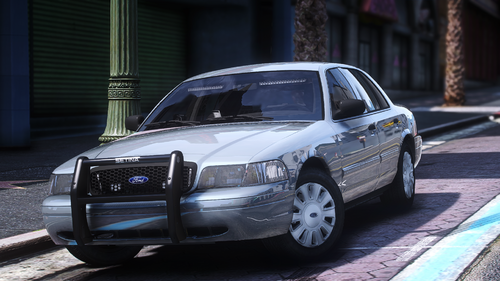 Love this car but I think I’d like a R&B variant
 -
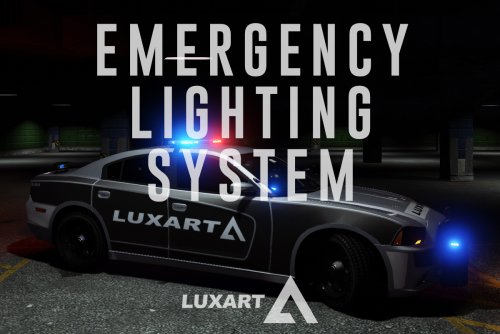 Yes. My laptop has 16 gigs of RAM. It’s the Zephyrus G16 4070. I have a ROG Ally that I play on, it works no problem there which is why it’s confusing that it stutters on the laptop but not a handheld gaming computer.
- 2,706 comments
- 242 reviews
-
Im also having this same issue. I didnt have it before this past update..
- 2,706 comments
- 242 reviews
-
 Sorry I must of got confused then. I used the optional lighting for R&B and the lights were blue but the reflection of the lights were red and blue. It’s a great pack overall man! Thanks for checking!
- 135 comments
- 14 reviews
-
-

- 1
-
-
els for red and blue is all blue. I only checked unmarked vehicles. Idk about the others.
- 135 comments
- 14 reviews
-
 I noticed that too. Reading through the comments, I did find out that they’re temporarily disabled, I think.
- 560 comments
- 28 reviews
-
-

- 2
-
-
Im having this exact issue with my new gaming laptop. Expect mine just stuffers for like 1-2 seconds.
Its all there when I start LSPDFR up but after some time it all disappears. Can I get some help?
- 560 comments
- 28 reviews
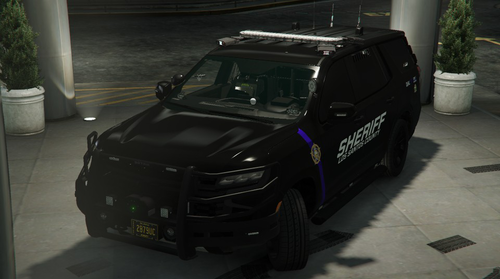 My Tahoe didn't roll over on me before this update. I'm now rolling over with this update. I followed the instructions, but it still didn't help.
- 61 comments
- 12 reviews


