


Chrxs
Members
-
Joined
-
Last visited
Everything posted by Chrxs
-
Nope, I was loading it manually //edit: So I fixed it by waiting a little until I load LSPDFR "patience is a virtue"
-
Sure RagePluginHook.log
-
Well playing GTA without RAGE works fine, even starting RAGE works (without plugins), but loading LSPDFR leads to a crash
-
I tried but sadly it still keeps crashing
-
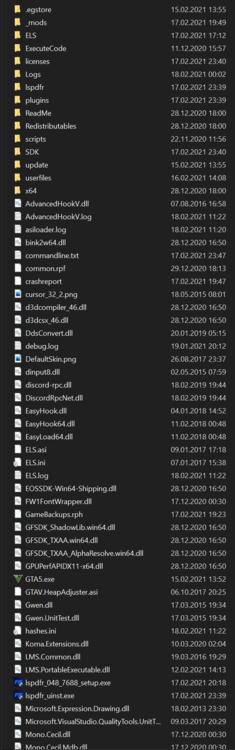
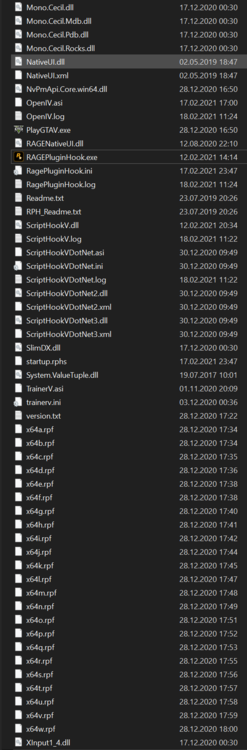
Hey, i tried to install my LSPDFR after a while and tried using old plugins, but I already tried to remove them. I updated LSPDFR and RPH. As soon as I LoadPlugin "LSPD First Response.dll", the game crashes to desktop. Logfile is basically empty. It only worked once, but I didn't have any plugins. After a restart of GTA, it crashed again.. I'm literally trying this my whole day and I'm out of ideas..
-
Did you add the GTA V main folder to your anti-virus exceptions and Windows Defender exceptions? If not do that.
-
My game is crashing right when loading LSPDFR...I don't know what the issue is...It's in AV and Windows Defender exceptions, time is set higher, I used a clean copy of GTA V and then added mods, every plugin is updated I added some vehicles (in patchday20ng), added a weapon, installed EUP (and some german skins), installed NaturalVision (optional: Brighter Vehicle Tail Lights, Brighter Nights, Brighter Emergency Lights (LSPDFR))...It worked once..now it doesn't RagePluginHook.log

