
Jdog21
Members
-
Joined
-
Last visited
Everything posted by Jdog21
-
That is how I installed the mod in the first place, the automatic will not work for me. Any other suggestions?
-
While playing LCPDFR, I noticed my in game messages were messed up and weren't looking right. When I checked my logs I got this. Missing translation and Fallback translations are missing. Could this be the reason why my in game messages are messed up? Ive never had this problem before until now. HELP!!??
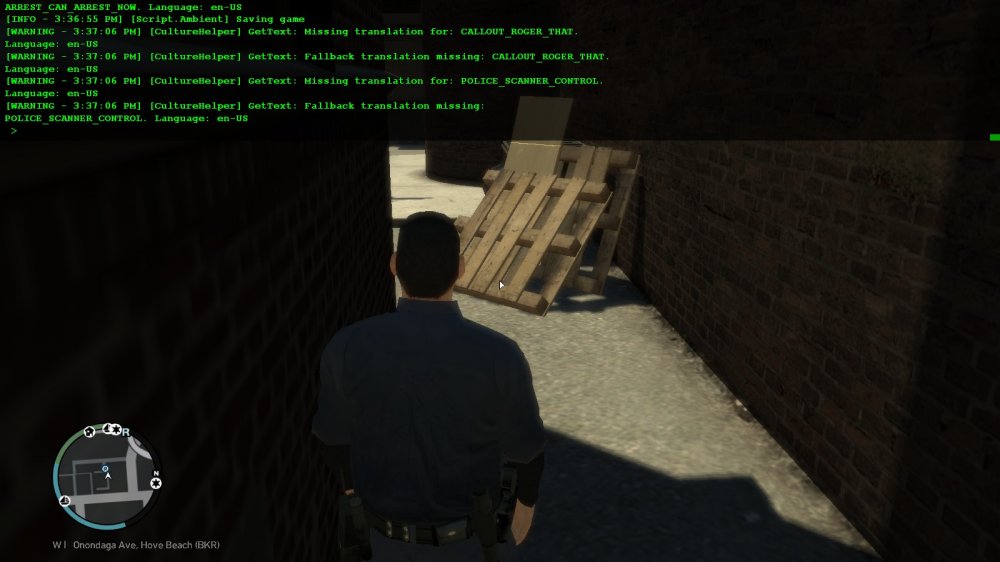
-
But the mod just recently started doing it, about right after I installed ELS. Ive uninstalled and installed the mod multiple times and installed it the same way everytime I am still confused as to why this is happening? How could the mod not have installed properly? I am soooo confused and have no idea what im doing
-
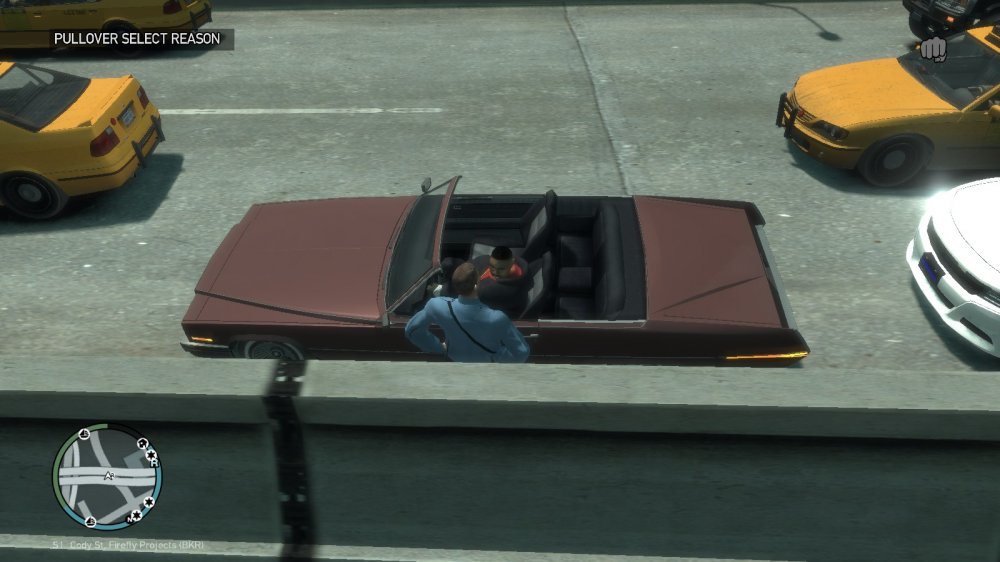
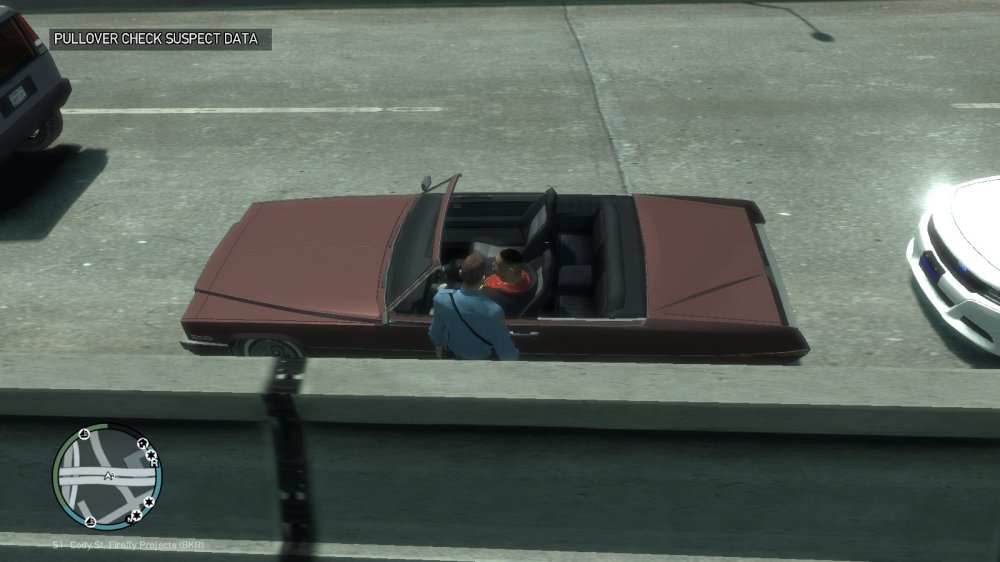
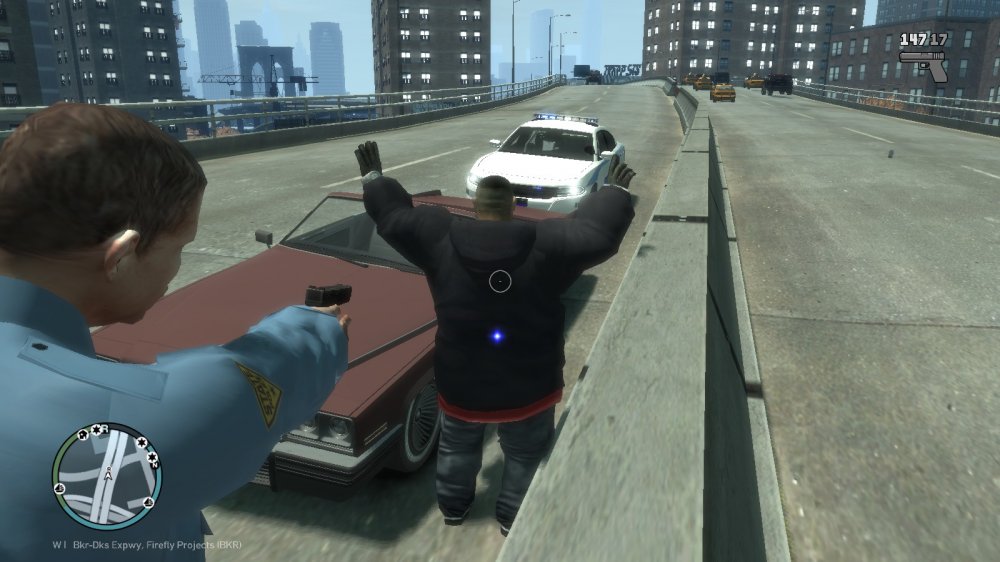
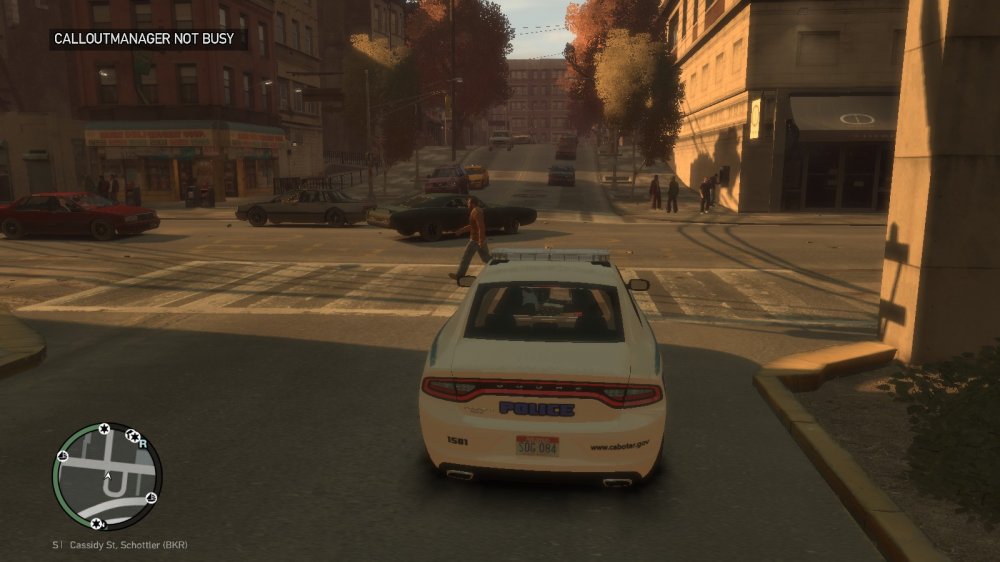
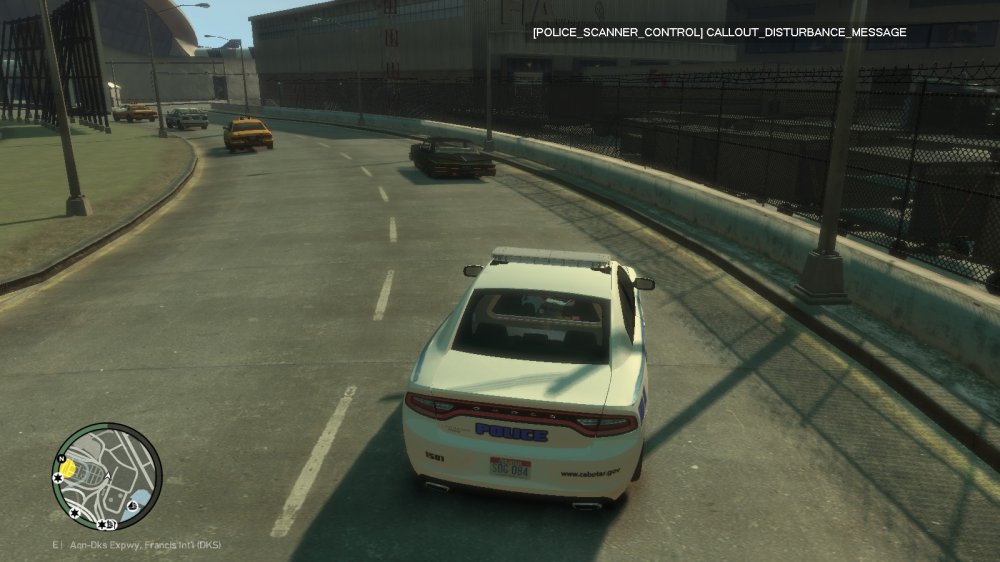
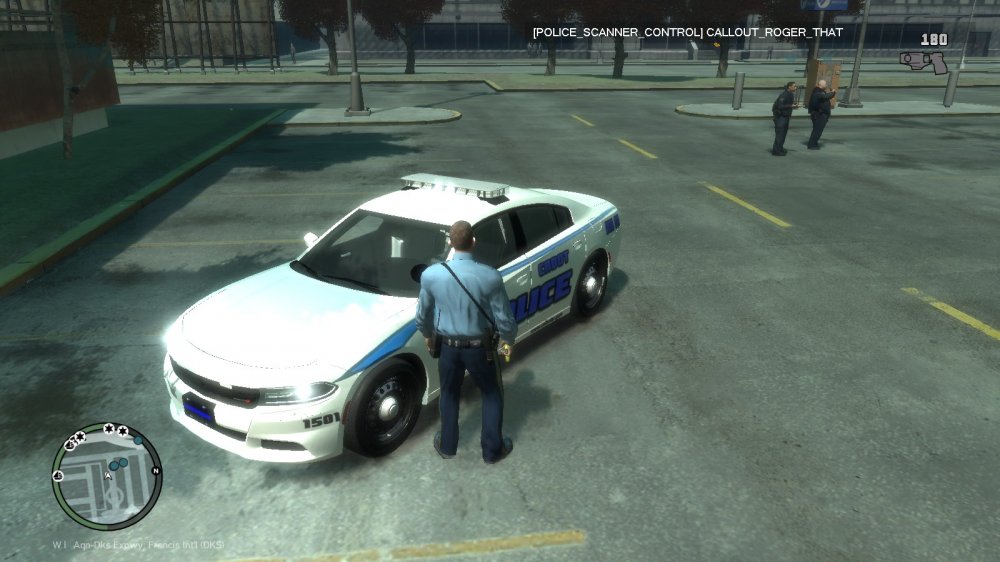
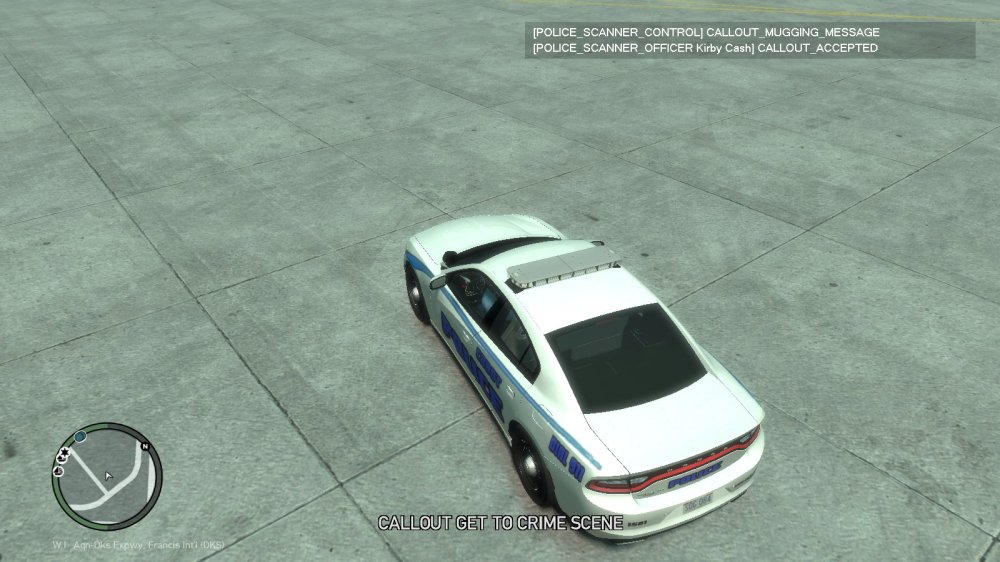
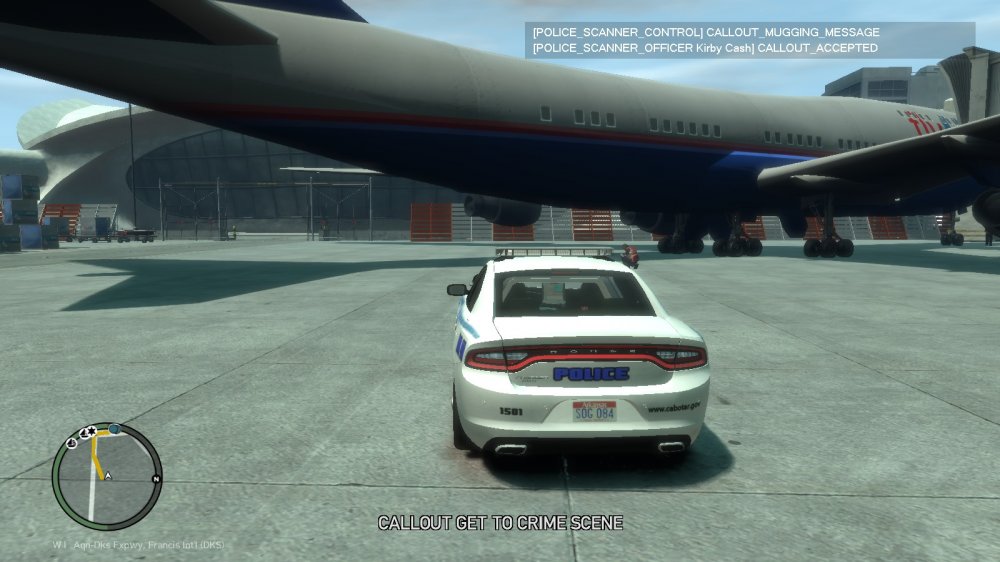
When I first started playing LCPDFR, the interaction menu would come on and tell me which keys to press for example, when i was doing a traffic stop, now as you can see in the pictures below, there is nothing there and the letters look funky. Can anyone help with this problem? The only mods i have installed are a trainer, ELS V8, and a few car mods. Or when selecting a character to use there is no menu in the top left like there used to be telling me the left/right keys are to select your player and click enter to continue. The call outs are also messed up. Before it used to tell me where is was located now it just says message. Is there something I can do to revert it back to its original form? Do i have something missing or something that needs to be updated?