Dinoguy
Members
-
Joined
-
Last visited
Everything posted by Dinoguy
-
-
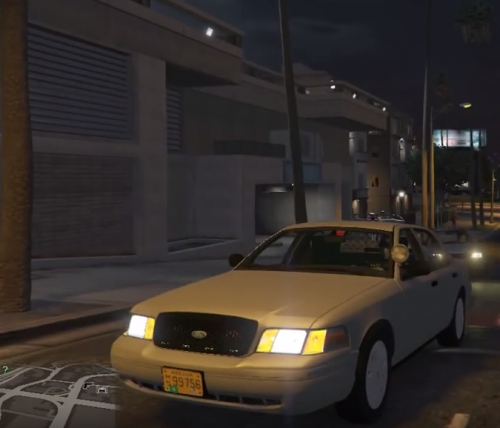
 it won't let me change thing in carvations when i try to delete anything or change the number it won't do it
- 563 comments
- 116 reviews
-
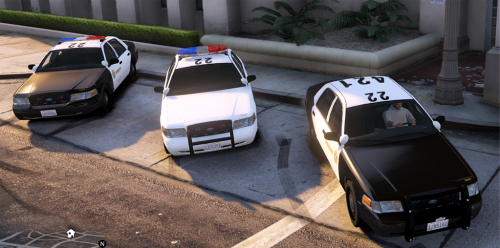
 will you add a lightbar?
 -
-
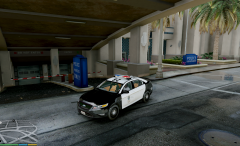 :0 amazing just amazing Its looks perfect am i right to guess it'll be released sometime in the near future or is there still alot of bugs that need to be fixed?
 -
-
-
-
-
-
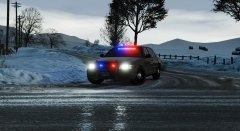 Can't wait i really like the lightbar!
 -
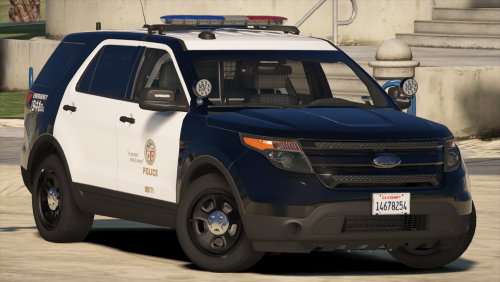
.png.889dd8a5ea91bec84cebf6bf21bb1717.png) Awesome an explorer
Awesome an explorer -
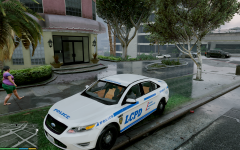 Awesome an argent lightbar to start out with will you make it with an lapd skin?
 -
-
-
-
-
-
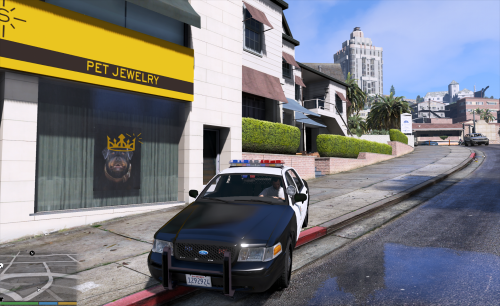 Awesome car but i installed the cvpi.steel for the hub caps but i go into game and there is only the regular tires
- 139 comments
- 21 reviews
-
-
-
-
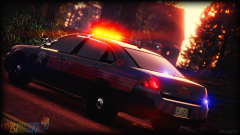 Awsome! can't wait till its released
 -
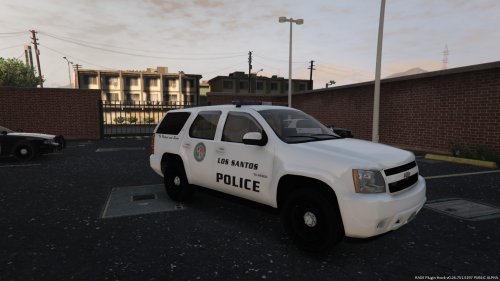 same im so used to uploaders accedently uploading to the gta 5 page that I almost just skipped it while looking at the new downloads
- 183 comments
- 38 reviews
-
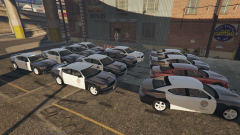
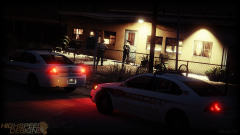 Amazing i can't wait until all these vehicles are released :)


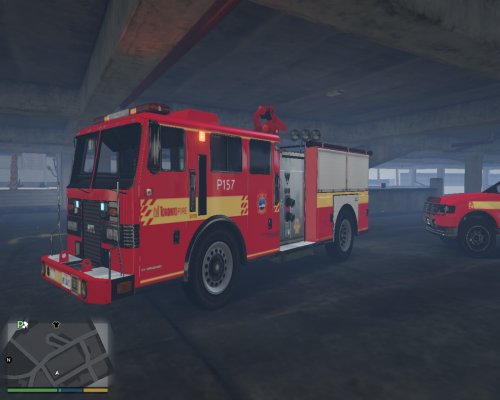
.png.889dd8a5ea91bec84cebf6bf21bb1717.png)