Pown3r88
Members
-
Joined
-
Last visited
-
-
-
.thumb.png.ccb0302957ee78eebc9b6db9b98a38d2.png) That's a shame because you did a great job on this one! Especially because of the so many different spawn locations. Just a quick question, I know how to initiate a traffic stop with LShift or a pursuit with the vanilla LCPDFR by holding the backup key. With one of the callouts in your (amazing) roadincident callouts, 'Stolen Vehicle', it seems that I can't initiate a pursuit. The stolen vehicle is (obviously) not stopping and an officer is giving chase, but I can't ask for 'Pursuit' backup - also with Ultimatebackup the option 'pursuit' doesn't show, only Code2 and Code3. So it seems LCPDFR doesn't 'see it' as a vehicle is failing to stop? Other AI cops also don't join the chase. Anyone has had this as well with other plugins and might know the fix? Might as well be looking over something really simple...
That's a shame because you did a great job on this one! Especially because of the so many different spawn locations. Just a quick question, I know how to initiate a traffic stop with LShift or a pursuit with the vanilla LCPDFR by holding the backup key. With one of the callouts in your (amazing) roadincident callouts, 'Stolen Vehicle', it seems that I can't initiate a pursuit. The stolen vehicle is (obviously) not stopping and an officer is giving chase, but I can't ask for 'Pursuit' backup - also with Ultimatebackup the option 'pursuit' doesn't show, only Code2 and Code3. So it seems LCPDFR doesn't 'see it' as a vehicle is failing to stop? Other AI cops also don't join the chase. Anyone has had this as well with other plugins and might know the fix? Might as well be looking over something really simple...- 68 comments
- 14 reviews
-
-

- 1
-
-
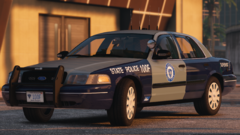
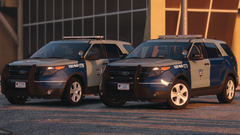
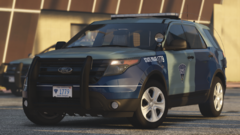
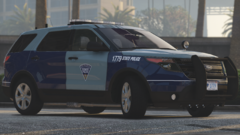
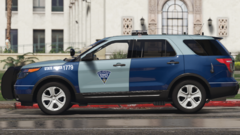
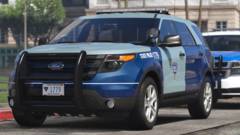
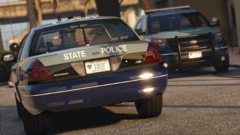 More than a great job done here Cartres! I've been trying to get a Boston/MA setup together in game but missing out on (too many) details. This is absolutely spot on. Thanks and keep it up, following and looking forward to this!!
 -
-
-
Mate, this is really a good looking model. I'm working on a Dutch uniform, but when I want to import the texture on SparkIV, it crashes. Common? Or am I doing something wrong or will it be fixed in a next version.?
- 107 comments
- 35 reviews
-
-
.thumb.png.ccb0302957ee78eebc9b6db9b98a38d2.png)