


Quadkid2
-
Joined
-
Last visited
Everything posted by Quadkid2
-
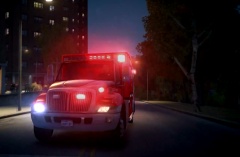
From the album: LCLE Community Mod Pack
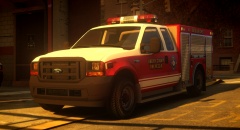
LCLE's new fire department's ambulance. -
This is Liberty City Law Enforcement's community mod pack. These are some of the vehicles that are included in it.
-
LCLE's Medic 2
-
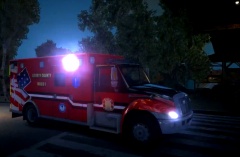 LCLE's Medic 1
-
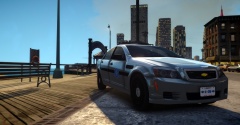 LCLE State Caprice
-
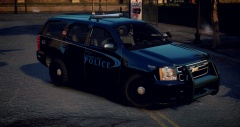
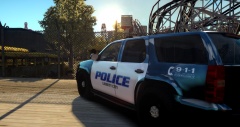 LCLE Police Tahoe
-
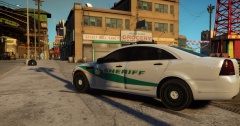 LCLE Sheriff Caprice
-
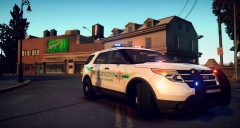 LCLE LCSD Explorer
-
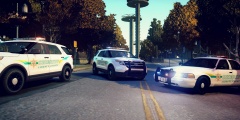 LCLE LCSD on Shots Fired
-
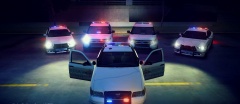 LCLE Sheriff Fleet 2
-
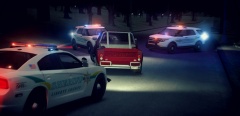 LCLE LCSD Vehicle Pursuit
-
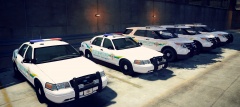 LCLE Sheriff Fleet
-
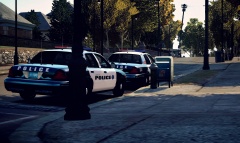 LCLE Police on Break
-
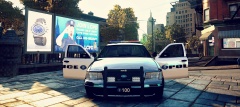 LCLE Police Crown Vic
-
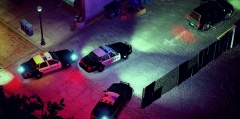 LCLE Police on a Felony Traffic Stop
-
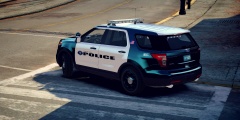 LCLE Police Explorer
-
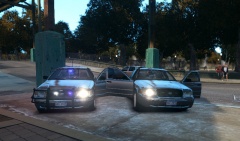 LCLE Slick top CVPI
-
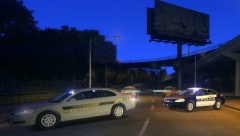 LCLE Impalas
-
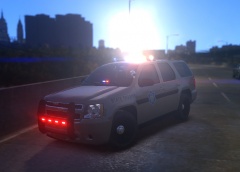 LSP Tahoe
-
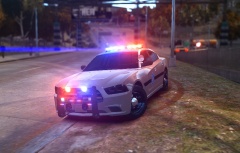 LSP Charger
-
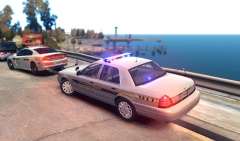 LCSD On a Traffic Stop
-
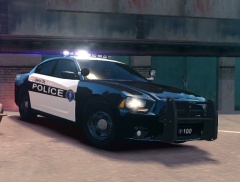 LCPD Charger
-
-
From the album: LCLE Community Mod Pack
LCLE's new fire department's ambulance. -
From the album: LCLE Community Mod Pack
-
From the album: LCLE Community Mod Pack
-
From the album: LCLE Community Mod Pack
-
 OMG, that looks great!
 -
 Don't, I want to look at that more. Ps. Its quad
 -
From the album: LCLE Community Mod Pack
Pics and Skin credits to https://www.lcpdfr.c...1753-classyera/ -
From the album: LCLE Community Mod Pack
Pics and Skin credits to https://www.lcpdfr.c...1753-classyera/ -
From the album: LCLE Community Mod Pack
Pics and Skin credits to https://www.lcpdfr.c...1753-classyera/ -
From the album: LCLE Community Mod Pack
Pics and Skin credits to https://www.lcpdfr.c...1753-classyera/ -
From the album: LCLE Community Mod Pack
Pics and Skin credits to https://www.lcpdfr.c...1753-classyera/ -
From the album: LCLE Community Mod Pack
Pics and Skin credits to https://www.lcpdfr.c...1753-classyera/ -
From the album: LCLE Community Mod Pack
This is a LCLE City Police Crown Vic included in our mod pack. Pics and Skin credits to https://www.lcpdfr.com/user/151753-classyera/ -
From the album: LCLE Community Mod Pack
This is LCLE Police on a Felony Traffic Stop in Broker. Pics and Skin credits to https://www.lcpdfr.com/user/151753-classyera/ -
From the album: LCLE Community Mod Pack
This is a LCLE City Police Explorer included in our mod pack. Pics and Skin credits to https://www.lcpdfr.com/user/151753-classyera/ -
No its part of your community pack
-
From the album: LCLE Community Mod Pack
-
From the album: LCLE Community Mod Pack
-
Its vision ENB sorry, I use a lot.
-
-
Really all the GTA V Bike needs is a bag in the back of it. But a modeler would have to do that task...
-
From the album: LCLE Community Mod Pack
-
From the album: LCLE Community Mod Pack


