scouse
Members
-
Joined
-
Last visited
Everything posted by scouse
-
-
-
-
-
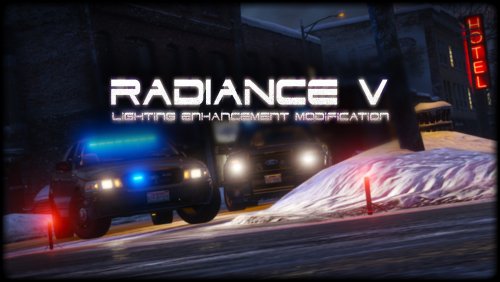 I like my lights bright especially during the daytime so this mod is excellent. 😃
- 337 comments
- 74 reviews
-
i found out what it was. i downloaded scripthook for this version and its that for some reason eventhough it says it for the latest update....
-
so i downloaded the latest version of lspdfr . everytime i try and play it i get fatal error unknown version, been trying since lspdfr was updated but get the same message every time!!!
-
is lspdfr going to be a patron only service for updates or is it going to be available to non patrons ???
-
how does it take so long to update lspdfr???
-
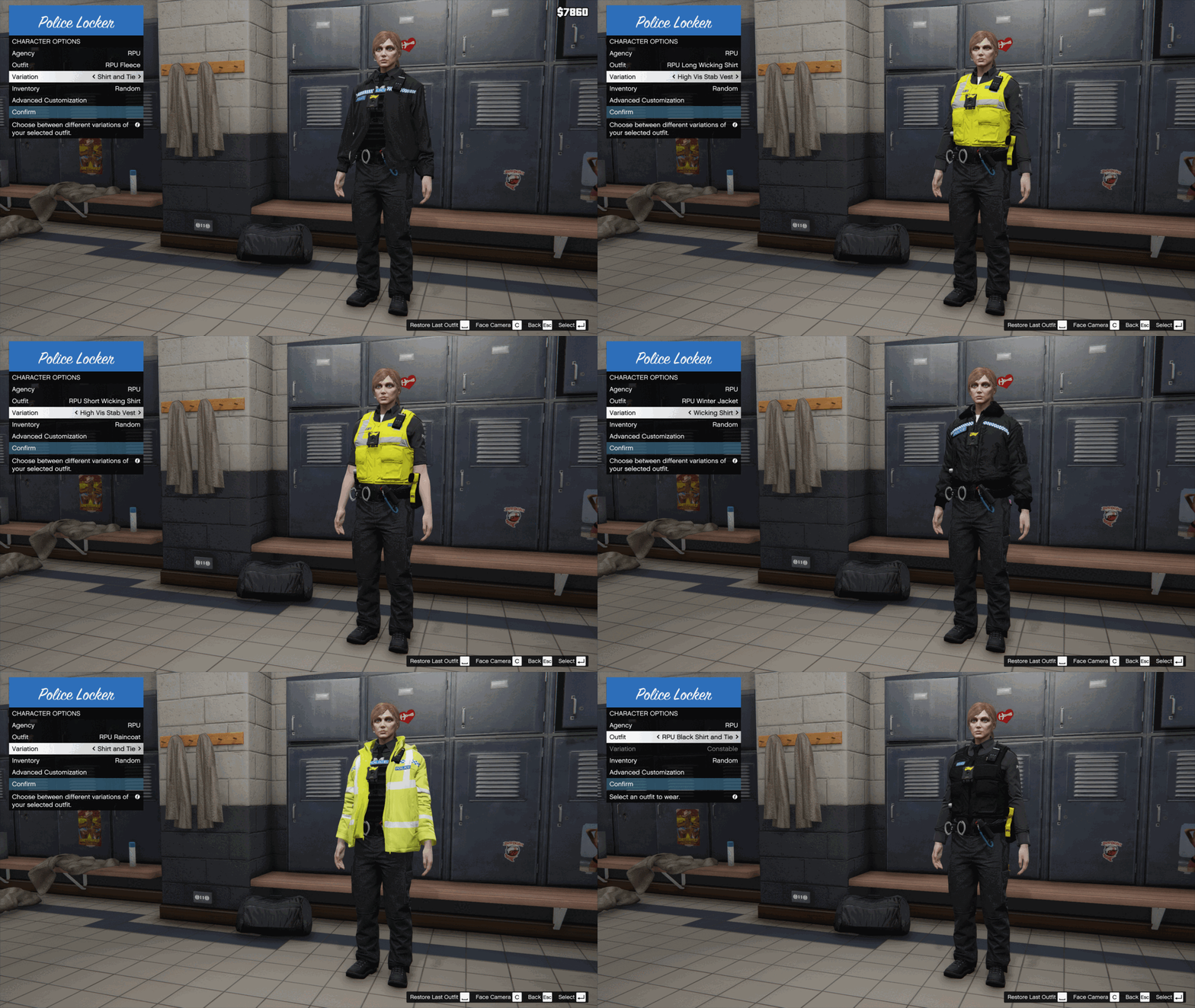 how do i install this.........
 -
-
when i try to google it i am directed to the same microsoft page where file not available, will try the link you gave, thankyou so much for your help
-
it says that it needs microsoft c++ redistributable 2010 for rage hook to work, went to microsoft site and file is no longer available , how can i start lspdfr without it or i cant play it..
-
tried that and still wont work !!!!
-
tried 11 times ,installed as instructed, doesnt even open the game. a rage splashscreen appears...say.loading then get rage stopped working!!!!