


Officer Chevy
Members
-
Joined
-
Last visited
Everything posted by Officer Chevy
-
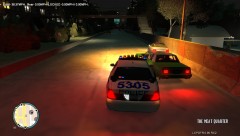
From the album: 04/14/2012
Setting up the PIT. Heading South on Union Drive West. -
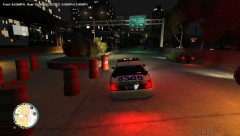
From the album: 04/14/2012
Short Pursuit. Heading South on Union Drive West. -
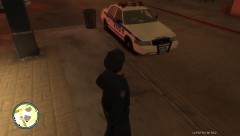
From the album: 04/14/2012
Just going on Duty. -
Great Job!
-
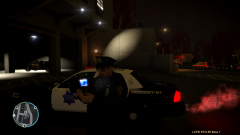 Can you send me the link for the uniform please?
 -
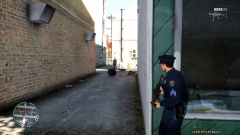 Nice Uniform
 -
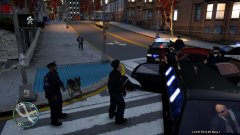 How do you spawn the police dog?
 -
-
-
Yea that would be cool. I seen every episode.
-
this should work, I did not make this expedition Yakadafi did. http://uploading.com/files/43mdade9/%255BREL%255D05FordExpeditionV1.0.rar/
-
I have one but I cant re-upload it.
-
Sorry I cant find one.
-
Can you make it on the Expedition please?
-
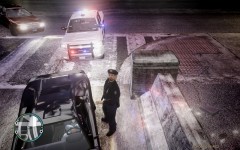 That looks like a guy. ;}
 -
Please. It is a Sacramento County Sheriff Ford Expedition http://www.flickr.com/photos/23065916@N04/2960217438/
-
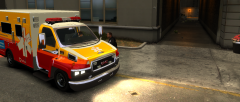 Nice Pic, can you send me the link to the ambulance please?
 -
-
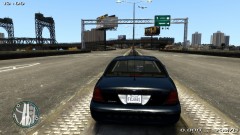 Nice. Can you send me the link please?
 -
and that is for 1.0.4.0
-
I try this one and and when I first downloaded it and installed it. it had a lock and the bottom left and I cant use ELS.
-
Does anyone know of a first person mod i can use with els
-
Im using that first person mod and when im in the police car it has a lock at the bottom left and it wont let me use ELS.
-
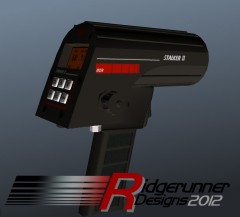 Looks Great
 -
I'm am using a first person mod and has a lock at the bottom and I can't use ELS. Here's is the link. http://www.gta4-mods.com/script/first-person-107-compatible-f9171


