
LilQ
Members
-
Joined
Everything posted by LilQ
-
-
-
-
-
-
-
-
-
 Tsssss... don't let others figure that out!
 -
 Great to see people still release their stuff! Keep it coming!
 -
-
-
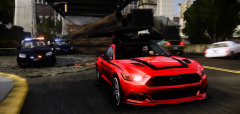 LOL Yes, I do, sometimes!
 -
From the album: GTA IV screenshots
-
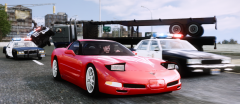 I'm glad you liked it! :)
 -
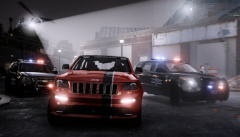
From the album: GTA IV screenshots
-
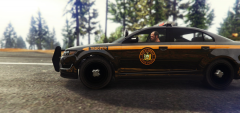 Great texture!
 -
From the album: GTA IV screenshots
-
-
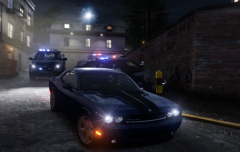 That's Bone 1.0 with an enbeffect from settings XC3 2.0
 -
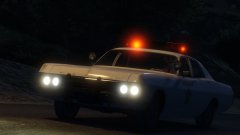 Very nice! Love these calssics! :)
 -
From the album: GTA IV screenshots
-
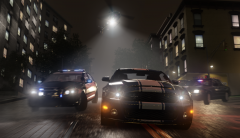
From the album: GTA IV screenshots
;-) -
-
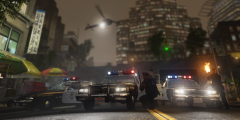
From the album: GTA IV screenshots
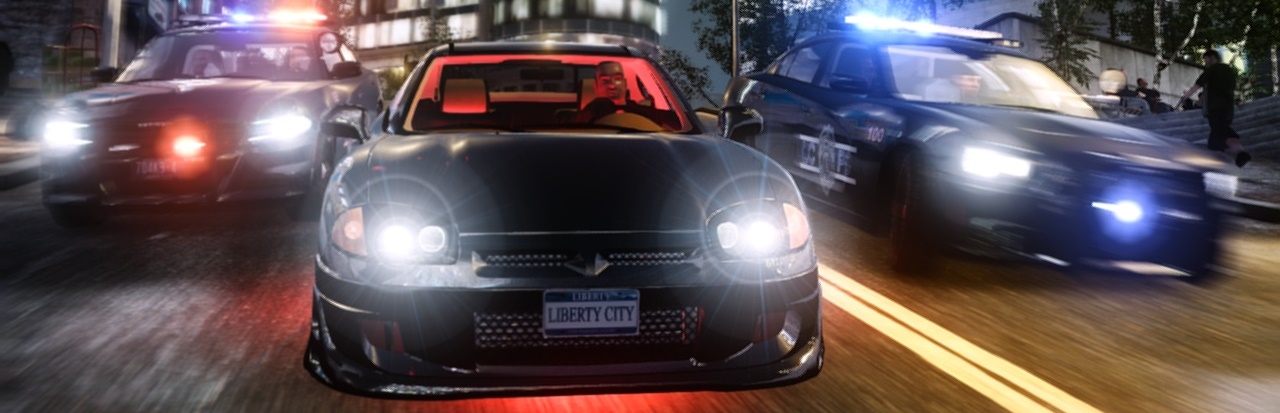
You're gonna diiiiiiieeeee! Had a little IV moment.... >_> Thanks to Sameer for the cars!