


Creators: Due to background reprocessing of files, approvals and file security checks may be delayed. Thanks for your patience.

Virzza
Members
-
Joined
-
Last visited
Everything posted by Virzza
-
.png.874ad4605005b794877a5a4a7ea07af9.png) @DeputyKriZ Once I finish the rest of the pack ;)
@DeputyKriZ Once I finish the rest of the pack ;) -
-
-
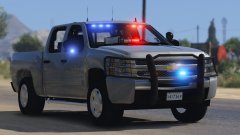 Lookin really slick!
 -
.png.160c99fdb07bb46e9ab51ef8b8ddf558.png) @thegreathah I know, message me on Skype. lol.
@thegreathah I know, message me on Skype. lol. -
Here is a preview of the base Explorer model - http://imgur.com/a/rUydv
.thumb.png.a68683bf93281dd8e75bf9460d198559.png)
-
@AMSAGENT000 Doing a version to match this - http://imgur.com/a/nkjkW
-
@thegreathah Gonna do a version the same as my WIP 2011 CVPI. After that I will gladly do a slicktop
-
@OfficerFive0 The base model is Jasonct203's
-
From the album: Works in Progress
This is going to be the Explorer used in my LSPD pack. Really nice model and am excited to work with it. -
-
@SerekgPL Thanks man!
-
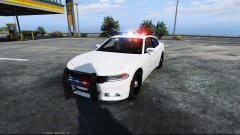 Lookin' good!
 -
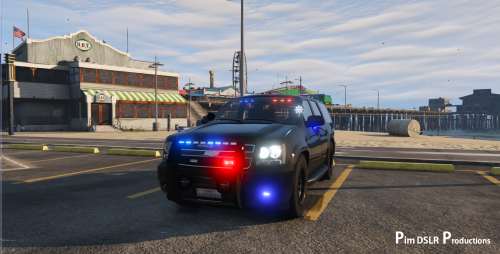
.png.599f66763ac26a95934dc31858c03bec.png) What do you use to take your screenshots? Jesus chirst that looks good.
What do you use to take your screenshots? Jesus chirst that looks good. -
From the album: Works in Progress
Alright now all the lights are done for the CVPI. Time to add equipment and move on to the 2013 Dodge Charger! -
I redid the side lights. Looks much more clean and professional! http://imgur.com/a/nkjkW
-
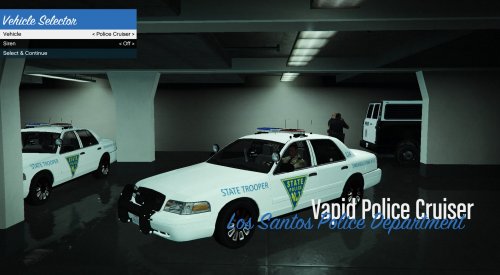 @iansonwheels In the comments of the file I released a fix.
 -
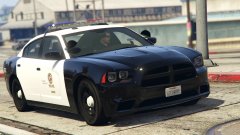 Very excited. It'll be nice to have a complete LAPD pack :)
 -
@Krame86 Thanks buddy!
-
@thegreathah Thanks man!
-
I think I have finalized the lighting setup on the CVPI. I added some new side lights and removed the ones by the wheels. What do you guys think? Pictures in spoiler.
.thumb.png.47102393a86201e7c5dcb363b5db0f1a.png)
.thumb.png.6846a24b6e63ecc9190b7271d9d92ed2.png)
.thumb.png.dfbb23c93d6064e95ecd5801c529fd48.png)
-
 Loser
Loser -
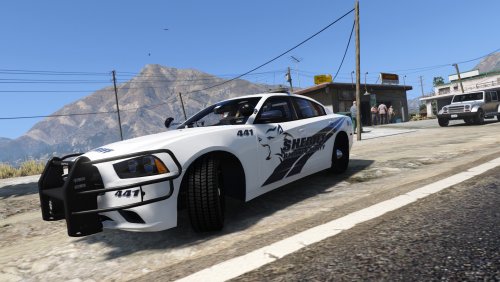 These are awesome. Thanks for releasing them bud!
 -
@TheDivineHustle I think this one will be much better! I'm glad I can use an Explorer for this pack!
-
@Lundy @GravelRoadCop I will remove the side lights. Maybe some lights in the back windows?

.png.874ad4605005b794877a5a4a7ea07af9.png)
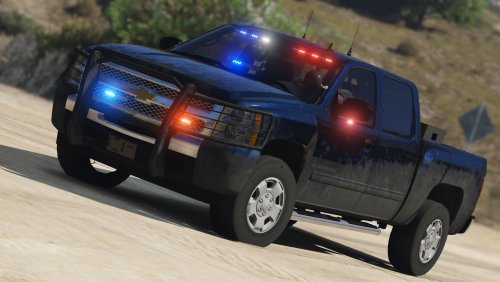

.thumb.png.647a35b217b2e1fe6e15e0ccc0c77b3b.png)
.png.160c99fdb07bb46e9ab51ef8b8ddf558.png)
.png.36e67d17535e3035217f18649996a313.png)
.png.599f66763ac26a95934dc31858c03bec.png)
.png.9f9253171f21cedad0a14322a3e943ea.png)
.png.c26155b802f54deae180f777419c5726.png)
.png.7c15d4c1080ef6cf729fcbce120b4970.png)
