shadowKiller
Members
-
Joined
-
Last visited
Everything posted by shadowKiller
-
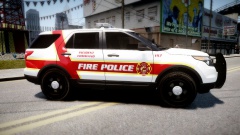 hul123, Nice, this is a cool skin here dude! I always thought Fire Police were wierd lol but you made it cool! Kind Regards, ShadowKiller
 -
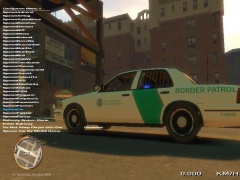 bradyg, When you get ready to hit upload picture or whatever it says to click there right above it. It states rules and regs. Here I got you a picture were it says only 5 images per 30-minute time frame. ('>) There is the picture. Its underlined red for you to see the rule. Kind Regards, ShadowKIller
 -
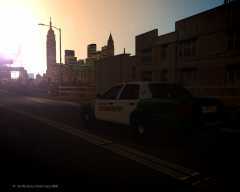
From the album: ShadowKiller's Images
Hello all, Crown Victoria just driving and watching the sun! Kind Regards, ShadowKiller -
Hi all, this is were I will show my cool pictures!
-
Jay, Happy birthday Jay! Hope you have a good one! As far as I know looks like you did a great job with this website! Kind Regards, ShadowKiller17
-
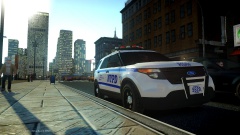 Jewish_Banana, I like the way you wrote that. That probably makes the most since to me why people say I can't release things. Thanks Jewish_Banana! Kind Regards, ShadowKiller17
 -
-
Hello new york swat, I'm new to LCPDFR but not new to the GTA:IV for PC. I have played lcpdfr 1.0b for like 4 hours the other day on and off. But I had ALPR thing enabled and running names. So I do believe that its your game or something. I dont know how you would fix it but all I know its something with the game. I do believe that there was something called a diagnostic or something I seen like that in the download. I hope this help but im not good at helping others with messed up problems with games! :) Kind Regards, ShadowKiller17
-
Wow now that has to be one of the funniest cop song ever. I mean funny! Kind Regards, ShadowKiller17
-
 I hope not. Cause she will be paying for that dinner then. And vertex haha Yeah she would be better than fisshing! Kind Regards, ShadowKiller17
 -
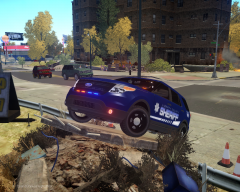
From the album: ShadowKiller's Images
They see me flying.. Well I hope not. I hope my explorer dont go flying in the sky and hit that high way below. Well if you want to know what the explorer did (Chickened out or Ramped the ramp) go to my new flickr (https://www.flickr.c.../122373994@N04/). Skin by my new friend XBR410! Kind Regards, ShadowKiller17 -
Wait wait That dang girl told me I was next before both of you! C'mon I'm taking her to a $200 Steak Dinner. Lol Guys! Kind Regards, ShadowKiller17
-
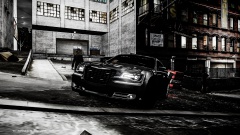
Vertex3D, As a owner of a chysler like this. Im glad to see a modeler make a police version! Kind Regards, ShadowKiller17
-
I think that would be fun to role play with. Also have a 60in TV while playing GTA:IV. KInd Regards, ShadowKiller17
-
Wow, I like this!