


Cleveland023
Members
-
Joined
-
Last visited
Everything posted by Cleveland023
-
From the album: Cleveland's Pictures!
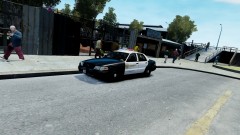
Because I can -
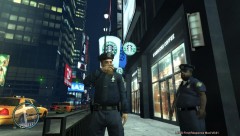 Ha! It is the Bean Machine in GTA IV you idi..... Shit, it really says 'Starbucks'. *hides*
 -
From the album: Cleveland's Pictures!
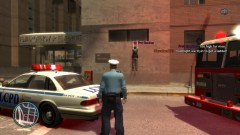
Well, some guy got stuck up there! Had no other option than to call FDLC to get him down there... -
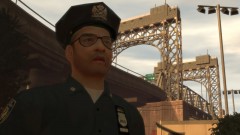 Mother of God!
 -
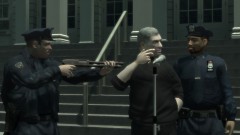 Haha, that pic is like half a year old. Remember Me, you, Akurra & Custo being there! Great times!
 -
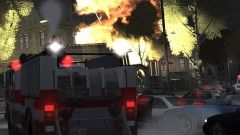 I bet Brian placed those fires!
 -
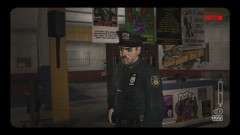 LOL, epic!
 -
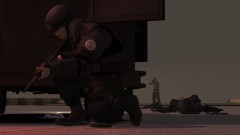 Goddamn Terrorists!
 -
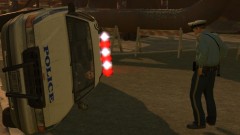 Haha, I remember this. :D
 -
Sam that naughty boy still didn't remove that! Thought he would
-
![123007865 4[1]](//s3-gallery.int-cdn.lcpdfrusercontent.com/gallery/album_510/sml_gallery_12581_510_71880.jpg) lol, say hi to BadGamer from Cleveland. Bet she will go rage.. or not
lol, say hi to BadGamer from Cleveland. Bet she will go rage.. or not -
Well I don't know about you guys, but I would totally buy this game!!
-
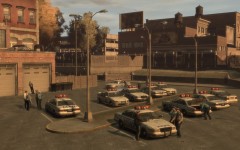 Damn, I have a pic on xfire where you said I get promotions!
 -
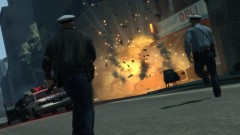 Fire in tha hole!
 -
Nope, I don't see it. He is just having his baton in it's holder.
-
-
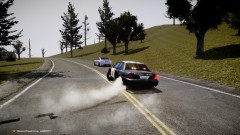 Oooo weee! Someone's hauling ass
 -
 Finally someone's making a mod for the garbage truck!
 -
-
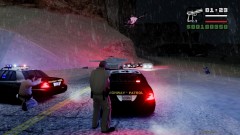
From the album: Cleveland's Pictures!
Shoot the tires out Lu! -Uhhh I can't chief, its a tank... I'm getting really tired of your attitude Lu.... -
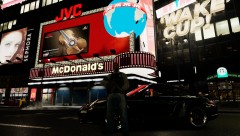 McDonald's, WOOOOT!
 -
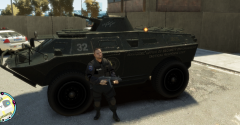 damn you got that wrong its: Noone f*cks with NOoSE!
 -
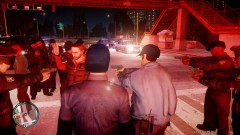 *calls for noose*
 -
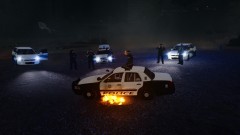 LVMPD? It's made by Yakadafi.
 -
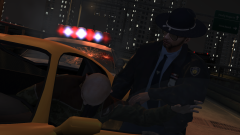 Dat... Hat...

![123007865 4[1]](http://s3-gallery.int-cdn.lcpdfrusercontent.com/gallery/album_510/sml_gallery_12581_510_71880.jpg)
