DoubleP99
Members
-
Joined
-
Last visited
Everything posted by DoubleP99
-
@turbofandude Ok, I sent you a message ;)
-
@turbofandude No, anyway I upload here the logfile if you want check it. RagePluginHook.log
-
@turbofandude I still have the same problem (Yes, I already installed the en-US windows language pack). The logfile tells me this about Vocal Dispatch: LSPD First Response: VocalDispatch, Version=1.5.2.0, Culture=neutral, PublicKeyToken=null LSPD First Response: Creating plugin: VocalDispatch.Main LSPD First Response: VocalDispatch: Encountered an ArgumentException.
-
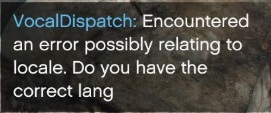
I still have the same error with the new version of Vocal Dispatch... (I already have installed the United States - English language pack)
-
@turbofandude I mean the windows languages files which the Vocal Dispatch have to use (for example if into the .ini file there is set as language "en-US", where it goes to search the "en-US" language?) (sorry for my bad english :P )
-
@turbofandude In what folder Vocal Dispatch goes to search the language files?
-
I tried but it gives me the same error
-
Hi, I installed the language pack for Windows (Windows 10) requested (English United States), but when I go on duty keeps telling me which it can not find the right language pack. I did not touch the .ini file the language is still set "en-US". (EDIT: I'm using ragepluginhook 38)