Marlonso242
Members
-
Joined
-
Last visited
Everything posted by Marlonso242
-
Hey, so I've had this problem for a while now and tried solving it but nothing seems to fix it. And it seems like I am the only one with this problem since I found absolutely nothing with Google, Reddit etc. Whenever I need Code 3 BackUp (using UltimateBackup), the blip will appear on the Minimap for a few seconds before despawning. RAGE console says "UB [...] about to be dismissed, too far from player." My SpawnDistance is at 250, I tried looking for a dismiss / despawn range configuration, but I couldn't find anything. I tried disabling other plugins. The only Backup that works with no problem is Traffic Stop / Felony Stop backup. All other code 2 / code 3 police backups just despawn. EMS works for some reason. I'm sorry if this is a common problem or something, but I really didn't find anything on it. Thanks for your time
-
Hey, first of all sorry for creating a topic about this again. I know there are dozens of threads to this already, but they seemingly all end with "forgot to install mpclothes" etc. I (re-)installed it step by step but it just doesn't seem to work. Some vests show in game, some just won't. I have mpclothes installed, I don't run OpenIV as admin, I tried reinstalling (even reinstalling my whole GTA + LSPDFR) I'm thankful for every idea you might have.
-
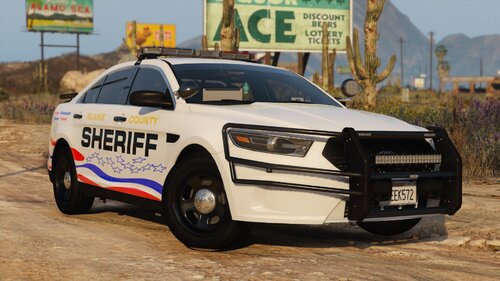 My new favorite pack fr. Love the light setup! Great work
 -
now I'm no GTA expert, but isn't that just the tail light? anyway, I hate the light system in GTA too 😅 the lights fade out so much if you just walk away a few steps from your car, some lights are just so much brighter than other ones etc.
-
I don't know what you mean by that. But NaturalVision Evolved and visualV are 2 different things. I've never used VisualV
-
In NVE there's an ingame menu in which you can control the brightness of each single light while being ingame. You need a decent PC though.
-
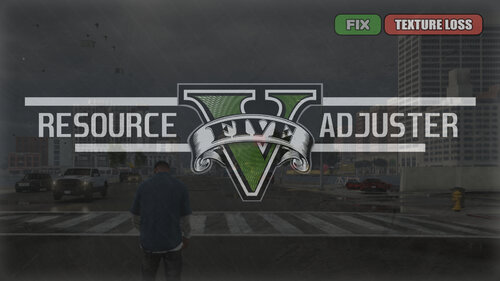 Sorry, might be a stupid question, but is 8GB VRAM required to make use of this mod? I have a GTX1660 6GB, would this mod help me? I run GTA on ultra with no problems besides texture loss.
- 108 comments
- 33 reviews
-
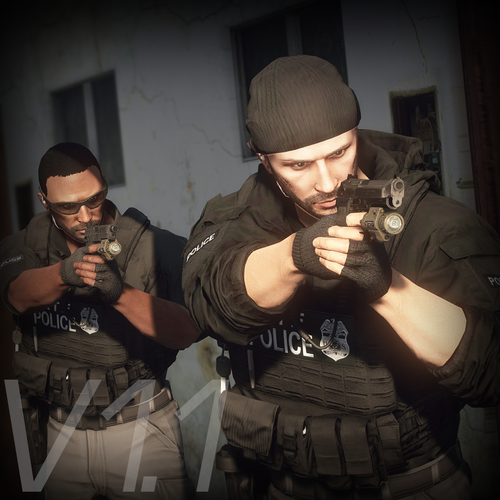 So has anyone had an idea on how to fix the bug with half of the vests not showing in game? Already reinstalled, didn't help
- 556 comments
- 47 reviews
-
-

- 1
-
-