


JackHerge
Members
-
Joined
-
Last visited
Everything posted by JackHerge
-
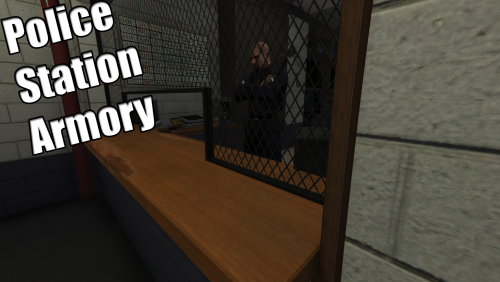 'nother Bug report... This is not the entrance to the armory, or did we renovate? It spawns me in here...
- 128 comments
- 34 reviews
-
I did. I even changed the name to be displayed, to make sure it was reading the new content. Well, the name changed. The Attachments did not. Will try to reproduce, I'll be back with results.
- 128 comments
- 34 reviews
-
Indeed, it's the AR flashlight. if you'd like, I could experiment a little to see which guns accept which attachments and PM you the list. And another bug-report: If you create a new Loadout while the game is running, then unload and load the plugin again via RageHook, the newly created loadout doesn't show up in the menu. Once, I had it that, even after I stopped the game and restarted it, it wouldn't display my newly created loadout (Nor would it update an edited one).
- 128 comments
- 34 reviews
-
As not all weapons accept every piece of attachment, perhaps grey the ones that can't be accepted by the selected gun in the LoadoutCreator out? Also, which Flashlight shall one use for the shotgun? Drives me nuts, I only see two (AR and Pistol), neither seem to work.
- 128 comments
- 34 reviews
-
I wonder if it's possible to integrate LSPDFR more with RDE (Like,if it's installed, list the cars added by it in the Vehicle Selection Menu). Also, it took me 2 days to find the note about the LowRider DLC thingy. Could you, at any chance, put this up a bit higher (Or at least make it bigger?) That one issue aside, this is a great mod!
-
 Sorry to say, but you're asking the impossible from most of us. Gnnnnghhghghghg.... *maniacal laughter*. Oh, this is gonna be great! I'd suggest an open Beta. So excited that I can't wait.
