
SheriffTanta
Members
-
Joined
-
Last visited
Files posted by SheriffTanta
-
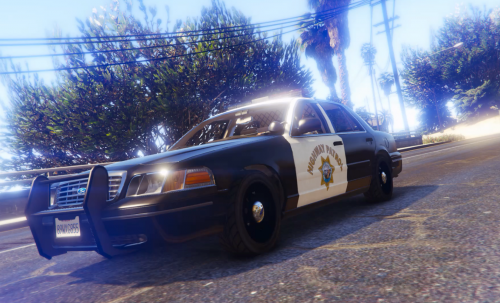
Firstly, you need the original Crown Vic from here: https://www.gta5-mods.com/vehicles/1999-ford-crown-victoria-police
Now, there isn't a lot to do to get the new textures, all you have to do is:
Run OpenIV and enable Edit Mode. Now all you need to do is navigate to the location of your Crown Victoria and enter the YTD File. When you've done that, simply click on one of the old skins and click "Replace", navigate to the new Highway Patrol skin and then double click on it, and vuala! Enjoy the new Highway Patrol skins!
Special Thanks to the creator of the Crown Victoria YCA-RE for the original!
DO NOT RE-PUBLISH THE SKIN WITHOUT PERMISSION!
- 314 Downloads
Submitted -
Since i've had a lot of demand from the picture i did of this, i've decided to release it to the public! :)
Firstly, you need the original base from here: http://www.lcpdfr.com/files/file/8287-added-police-vehicles-by-dbock/
Now, there isn't a lot to do to get the new textures, all you have to do is:
Run OpenIV and enable Edit Mode. Extract the main file "Pobison.ytd" and replace the original Pobison.ytd in update/x64/dlcpacks/mpluxe2/dlc.rpf/x64/levels/gta5/vehicles/mpluxe2vehicles.rpf
Your new Sheriff Bison skin should now be installed and should work correctly! :)
Special Thanks to the creator of the Added Vehicles pack in the forum for the original Police Bison!
DO NOT RE-PUBLISH THE SKIN WITHOUT PERMISSION!
- 1,221 Downloads
- 9 Comments
Updated