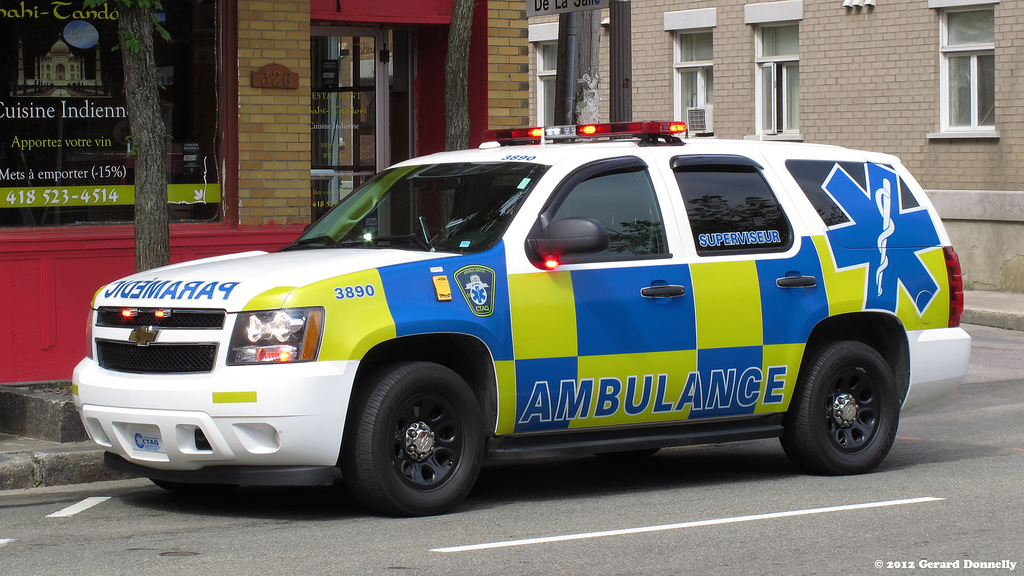
In my time away from the computer, I enjoy running (a lot...) and working. I run on the Varsity Cross Country and Track teams. I run for fun and whenever I tell people that they give me a face... Anyway I also volunteer at an ambulance company and respond to call for service. I've been apart of the company for 3 years and plan to stay with them for as long as possible. Some where along the lines i do make money... I work at a water park as a lifeguard, which I love. I am certified through Ellis and Associates (best company out there  ) as a specialized facilities deep water lifeguard. Other than all of that, I hang out with friends and watch movies occasionally (as long as they are on Netflix
  ).
).
My Favorites
Movie - Short Term 12
TV - America's Got Talent, Orange Is The New Black
Music - Elastic Heart, I Need A Doctor, Talkin' 2 Myself
Sport - Running (Track & XC), Hockey
Charity - Suffolk County Volunteer Firefighters Burn Center, NLEOMF