
The Impulse
Members
-
Joined
-
Last visited
Everything posted by The Impulse
-
 Thanks!
 -
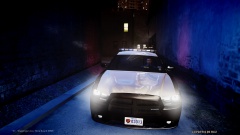
From the album: HD Shots
Lighting up the suspect -
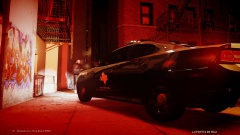
From the album: HD Shots
Pulling up on suspect -
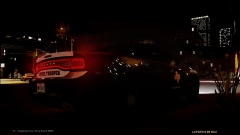
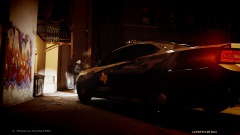
From the album: HD Shots
Shiny lights -
From the album: HD Shots
First Pic. They always suck -
That was actually kinda disturbing. At least the background sounds were pretty bad
-
Holy crap... Sniper lives in the milky way... What a hipster.
-
"Is it necessary for me to drink my own urine? No, but it's sterile and I like it!" - Patches O'Hoolihan from Dodgeball
-
Oh stop it. These emotes are sick. Props.
-
I was quite picky as to where I posted first. Made the second one a support answer. Already contribbin whaaaaat
-
Hey, I had to make it count, right??
-
Just as br100x said, it's an ELS issue or rather setting. Just open up your ELS text file and go down to MISC Settings. Look for Els_Range_Ai = Change the setting to anywhere from 50-5000. In this case, you are going to want to increase the number. I have mine at 500 which is high but I'm tweaking it and I don't have a problem. Set it to 5000 if you want support from two islands over. Haha. Hope this helped you out!
-
Boooo. Inside has LCPDFR.
-