Skip to content
View in the app

A better way to browse. Learn more.

LCPDFR.com

A full-screen app on your home screen with push notifications, badges and more.

To install this app on iOS and iPadOS
  1. Tap the Share icon in Safari
  2. Scroll the menu and tap Add to Home Screen.
  3. Tap Add in the top-right corner.
To install this app on Android
  1. Tap the 3-dot menu (⋮) in the top-right corner of the browser.
  2. Tap Add to Home screen or Install app.
  3. Confirm by tapping Install.

LaFuAzz

Members
  • Joined

  • Last visited

Everything posted by LaFuAzz

  1. LaFuAzz commented on Prophet's gallery image in GTA IV Galleries
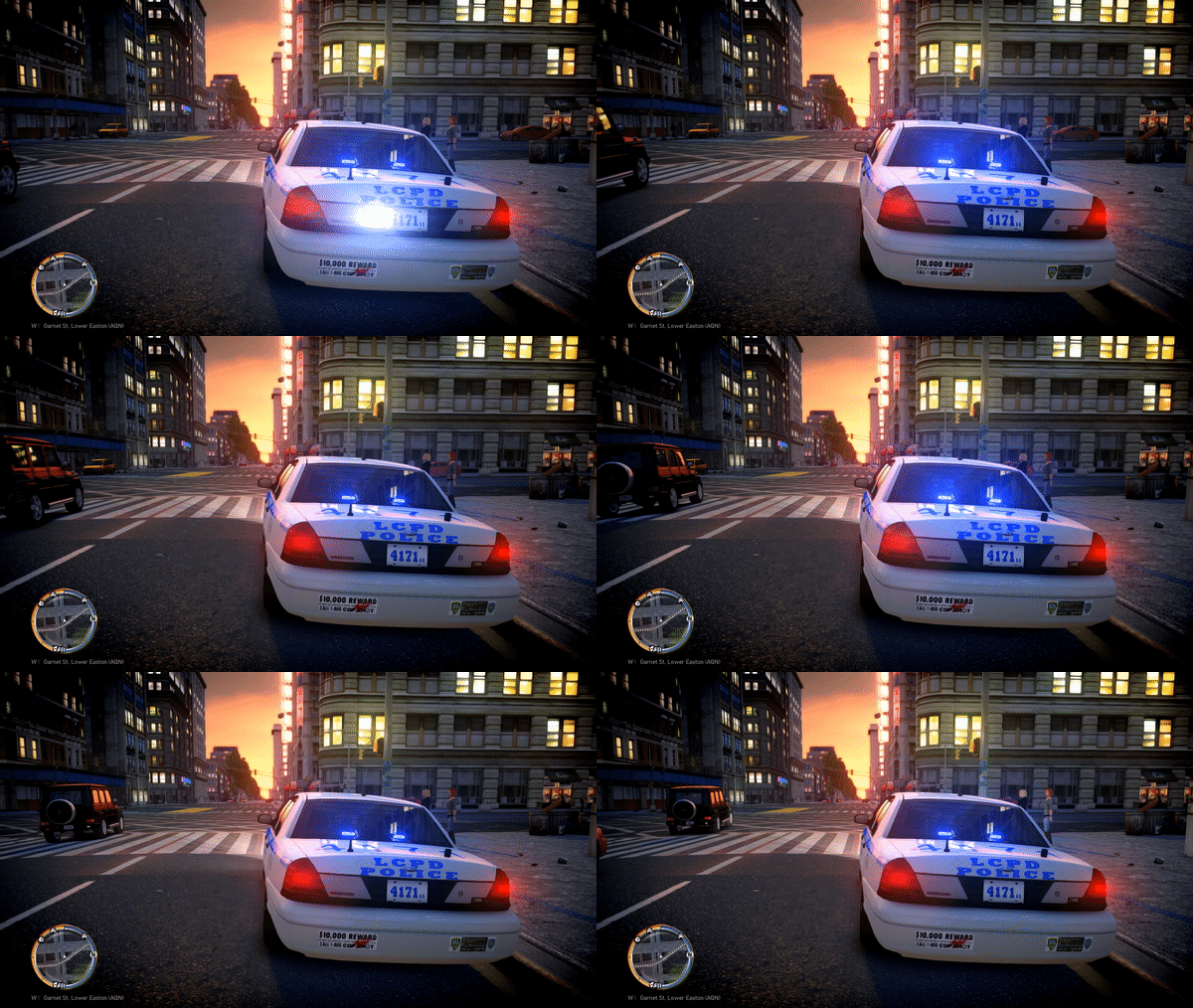
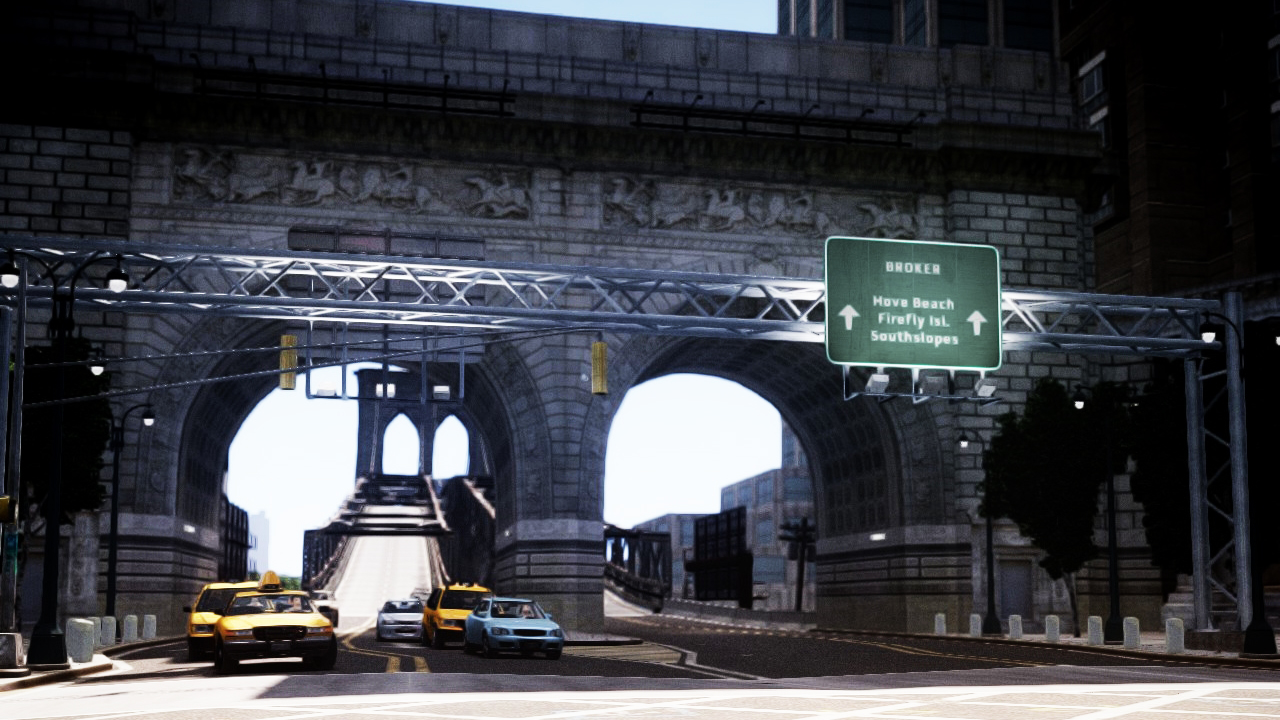
  2. LaFuAzz posted a gallery image in GTA IV Galleries
  3. LaFuAzz posted a gallery image in GTA IV Galleries
  4. I think LCPDFR is more fun than LSPDFR, I still play it. LSPDFR is due to RPH far more stable, if a script fails, you just reload it and you do not have to restart the whole game.
  5. Thanks for your reply, if there's no other way, I'll report them.
  6. I recently added 2 pictures a couple of times (because the Finish button didn't work properly) and now I am looking for a button to delete them. I tried going to 'edit' and delete the image but it doesn't work.
  7. LaFuAzz posted a gallery image in GTA IV Galleries
  8. Images added to a gallery album owned by LaFuAzz in GTA IV Galleries

Account

Navigation

Search

Search

Configure browser push notifications

Chrome (Android)
  1. Tap the lock icon next to the address bar.
  2. Tap Permissions → Notifications.
  3. Adjust your preference.
Chrome (Desktop)
  1. Click the padlock icon in the address bar.
  2. Select Site settings.
  3. Find Notifications and adjust your preference.