
moneymic87
Members
-
Joined
Everything posted by moneymic87
-
 Thanks for the suggestion! Unfortunately, reducing the overall traffic population isn’t something this plugin controls. Traffic density is managed by GTA V itself and can be adjusted through game configuration files, traffic mods, or OpenIV edits. This plugin focuses on vehicle cleanup and world maintenance rather than spawning or removing traffic. If you’re looking for fewer vehicles on the roads, I’d recommend checking traffic density mods or adjusting your game configuration. 👍
- 21 comments
- 1 review
-
Thanks for the feedback. Smart Vehicle Cleanup does not modify traffic AI, driving behavior, pursuits, or NPC decision-making. It only removes abandoned empty vehicles based on the configured settings. What you're describing sounds more like a traffic AI, NPC AI, or callout plugin conflict. If you have traffic-related mods installed, try disabling them one at a time to identify the source. 🚔
- 21 comments
- 1 review
-
-

- 1
-
-
🚔 Smart Vehicle Cleanup 1.1 Update Announcement 🚔 First, thank you to everyone who downloaded, tested, and provided feedback on Smart Vehicle Cleanup 1.0. The support has been incredible, and your suggestions have helped shape the next update. 🔥 Coming June 1, 2026 – Smart Vehicle Cleanup 1.1 🔥 New Features ✅ Manual Safe Cleanup Hotkey ✅ Vehicle Wash Hotkey ✅ Vehicle Repair Hotkey ✅ Improved Startup Notifications ✅ Better Installation Package Structure ✅ Additional Stability Improvements New Controls 🔹 Left CTRL + Double Tap U = Safe Manual Cleanup 🔹 Left CTRL + Double Tap W = Wash Vehicle 🔹 Left CTRL + Double Tap R = Repair Vehicle Improved Protection System ✔ Player Vehicle Protection ✔ Police Vehicle Protection ✔ Emergency Vehicle Protection ✔ Mission Vehicle Protection ✔ Occupied Vehicle Protection Goal of This Plugin Smart Vehicle Cleanup is designed to reduce lag, reduce FPS drops, remove abandoned vehicles, and help keep long LSPDFR sessions stable without interfering with active gameplay. Thank you to everyone who has downloaded, tested, commented, and supported this project. More features and improvements are already being considered for future updates. 🚓 Smart Vehicle Cleanup 1.1 releases June 1, 2026. Stay tuned! 🔥 — moneymic87 Developer of Smart Vehicle Cleanup 🚔
- 21 comments
- 1 review
-
-

- 1
-
-
Thanks everyone for the feedback and suggestions! The plugin should display a startup notification when LSPDFR loads and you go on duty. If you’re not seeing it, make sure the plugin is installed correctly and enabled in your Plugins folder. Smart Vehicle Cleanup is designed to reduce lag, traffic buildup, and FPS drops by automatically removing abandoned empty vehicles in the background at the configured interval (default 10 minutes). Occupied vehicles, player vehicles, police vehicles, emergency vehicles, and active world traffic are protected. More features and improvements are already being considered for future updates. Thanks for all the support! 🚔🔥
- 21 comments
- 1 review
-
Really appreciate it brother! Glad it’s helping your game run smoother. More updates and features are already planned for future versions. 🚔🔥
- 21 comments
- 1 review
-
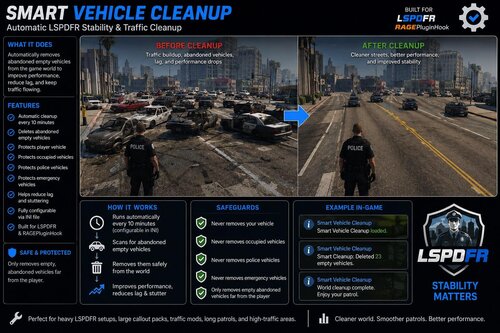
Smart Vehicle Cleanup 1.0 Automatic LSPDFR Stability & Traffic Cleanup ✔ Automatic cleanup every 10 minutes ✔ Deletes abandoned empty vehicles ✔ Protects police/emergency vehicles ✔ Protects occupied vehicles ✔ Protects player vehicle ✔ Helps reduce lag and memory buildup ✔ Built for LSPDFR/RAGEPluginHook manually use CleanWorld suffer long-session lag get traffic buildup deal with abandoned vehicles stacking LSPDFR RAGEPluginHook single-player patrol stability
- 21 comments
- 1 review
-
-
-

- 6
-
-