
jgrivera3
Members
-
Joined
-
Last visited
Everything posted by jgrivera3
-
 Love it
 -
 Alright it's quite a bit of calls, i'm not computer savvy, i'd lower them myself. but i made a txt doc of the names. Really appreciate it. loud calls.txt
- 356 comments
- 25 reviews
-
-

- 1
-
-
Loving the callout pack, but is there a way i could edit the audio of the dispatcher? Some of the incoming calls are quite loud while some others are normal.
- 356 comments
- 25 reviews
-
Figured it out, it was EUP, reinstalled it and now it's all working correctly.
-
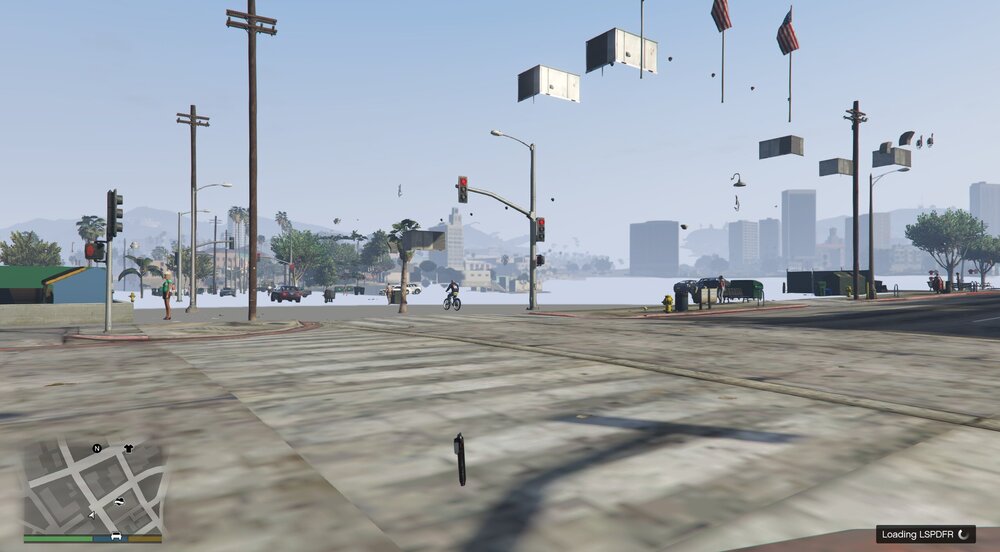
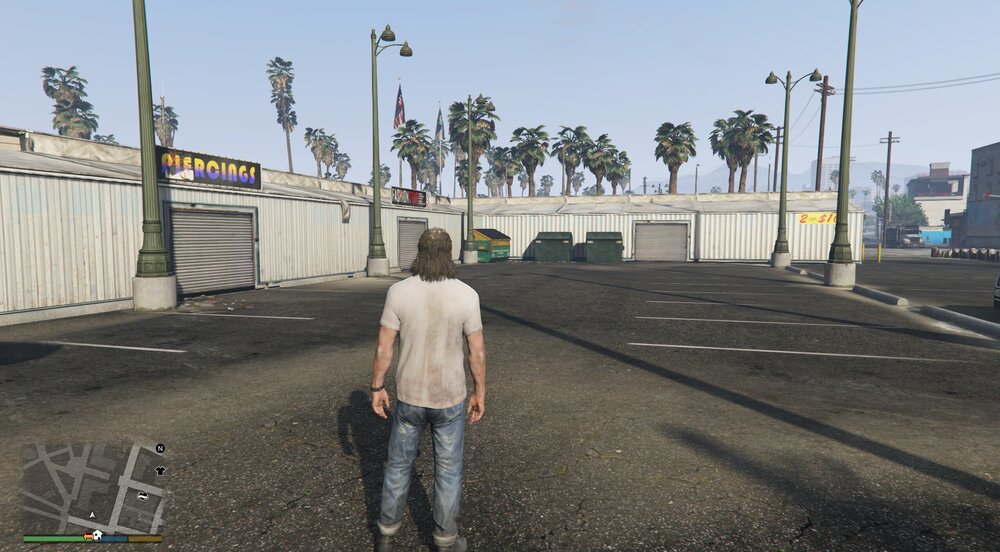
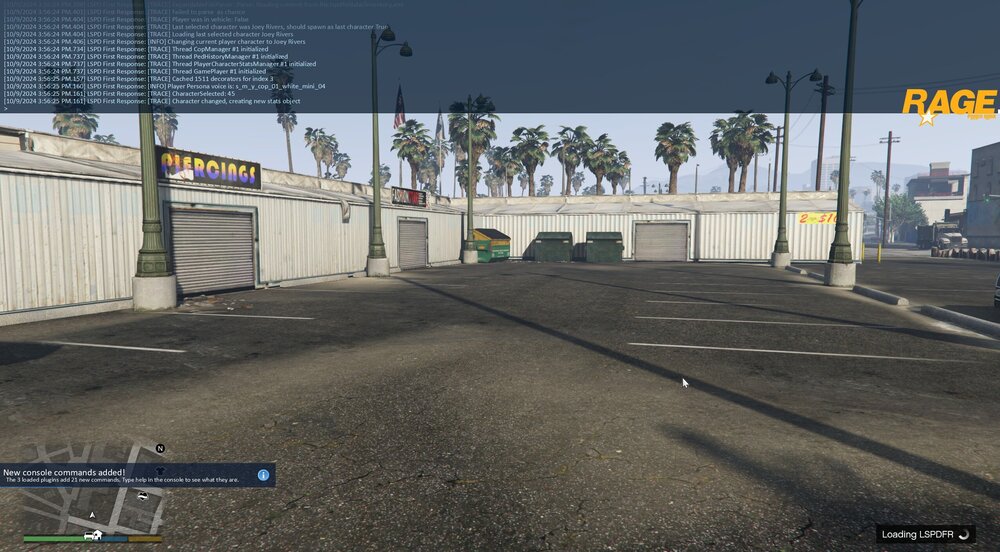
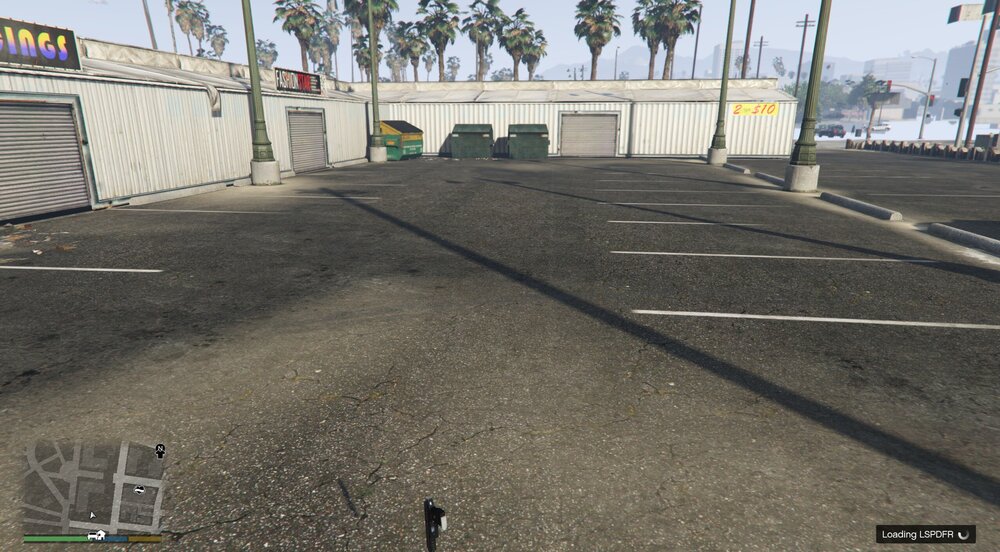
I can start up the game through RPH and it all loads normally, I click F4 and type reloadallplugins to start loading in lspdfr and whatever else loads in. It'll load up as normal, but now it says loading lspdfr infinitely and my character becomes invisible. As I walk around everything is losing texture until the game eventually freezes. I've already reinstalled lspdfr. Please help, If possible without reinstalling everything.
-
-
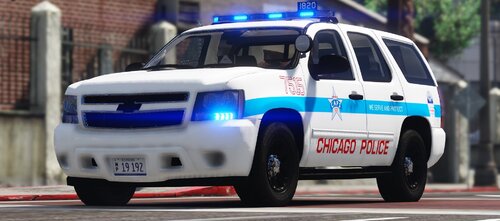 Absolutely love your work, I don't know how much work it takes, I imagine a lot making these models and liveries. These would be cool to see in your collection. Regardless, love your work.
- 125 comments
- 14 reviews
-
-

- 1
-
-
-
-
.thumb.png.4200977192ef3e708a701ebc7335b1f7.png) Love this pack. Awesome work!
Love this pack. Awesome work! -
-
-
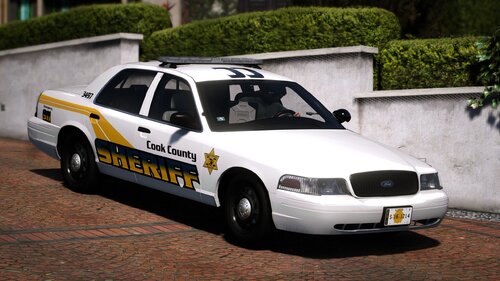 Love your work.
 -
I'm using the replace version, I have not changed any names for any of the slots, but when I enter the game and try to spawn the vehicles they come out as the vanilla cars. I'm not sure if I have been doing something wrong, but I would like some insight as to what It could be. Fixed it.
- 125 comments
- 14 reviews
-


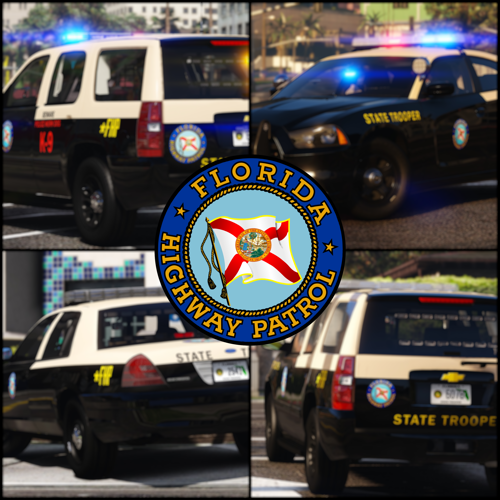
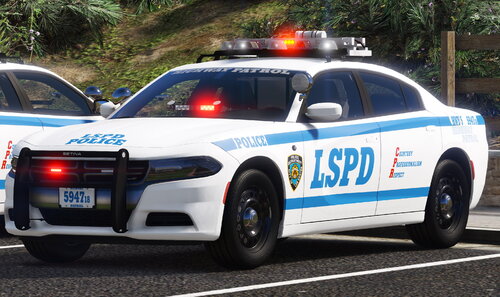
.thumb.png.4200977192ef3e708a701ebc7335b1f7.png)