MarkyyG123
Members
-
Joined
-
Last visited
Everything posted by MarkyyG123
-
-
-
hahah then i guess its job here is done mate
-
i'm sure it shouldnt be a problem and as ineseri said, the LCPDFR computer is only a script.
-
haha Yea, Unr3al is right, it a good texture, but the Chevy Volt is not the car to be using mate
-
hahah no way mate, i reckon most people are checking it out everyday and waiting for the 1.0 to be released
-
hahaha most stupidiest song ever.... but damn its catchy
-
COPS hand down. A good show which depicts the most real-life incidents handled by the members of Law Enforcement and the most accurate in terms of how incidents are handled as well as suspects.
-
hahah Classical SAPS Action
-
Isn't the best upgrade but hey, at least its an upgrade
-
-
hahah go to school, like the old school. Glory days those were, back when I wasn't a member. Just browsed through the forums
-
hahahha lol
-
-
-
In certain cases, police brutaility does need to be addressed because it is genuinely the fault of the officer, however, force is often needed in cases in which officers are called to and is greatly over exaggerated at times.
-
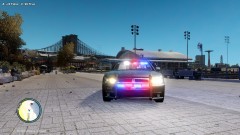 Awesome bro, christmas comin' early ;)
 -
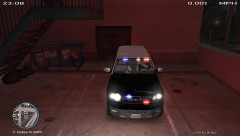 Thats awessome man
 -
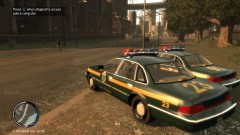 Go to school like the old school :D
 -
-