
CoryMP33
Members
-
Joined
-
Last visited
Everything posted by CoryMP33
-
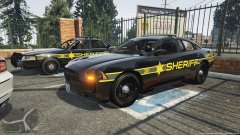
From the album: GETINMYBELLY!!!
-
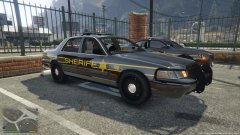
From the album: GETINMYBELLY!!!
-
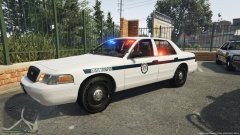
From the album: GETINMYBELLY!!!
-
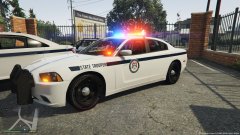
From the album: GETINMYBELLY!!!
-
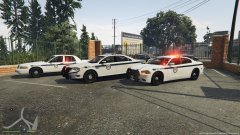
From the album: GETINMYBELLY!!!
-
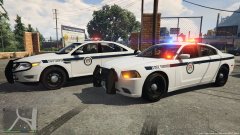
From the album: GETINMYBELLY!!!
-
.thumb.jpg.4066677156985e22489bfecddc2f6c45.jpg) Same issue for me too. I have been researching the meta files and cant find a solution. But as good as Bugs is I am sure when he gets a chance he will either update or let us know how to fix it.
Same issue for me too. I have been researching the meta files and cant find a solution. But as good as Bugs is I am sure when he gets a chance he will either update or let us know how to fix it.- 376 comments
- 81 reviews
-
-

- 1
-
-
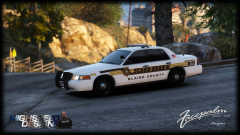 Very soon meaning?? This was December and it is now almost April. I love the work man but I am sure the community would love it too if we had it for our games. Very soon meaning?? This was December and it is now almost April. I love the work man but I am sure the community would love it too if we had it for our games.
 -
Why did you have to update that and how? Was it crashing because of car mods?
-
FOUND IT! Make sure you update Script Hook V and any other hooks works for me and I am playing with RPH 37 just fine
-
My guess is that LSPDFR will need to update as it is probably not compatible with new RPH
-
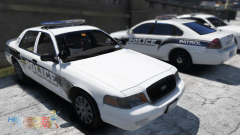 Thanks for the feature pic Prophet!
 -
-
-
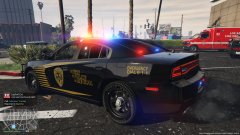 2016-03-02_00188.jpg
-
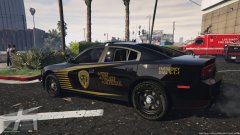 2016-03-02_00127.jpg
-
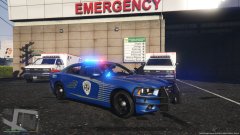 2016-03-02_00119.jpg
-
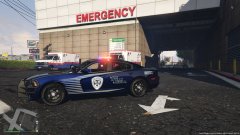 2016-03-02-00109.jpg
-
 2016-03-02_00029.jpg
-
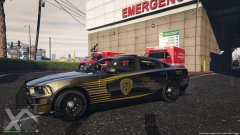 Coming soon
-
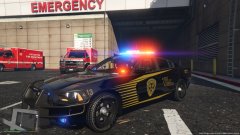 Coming soon
-
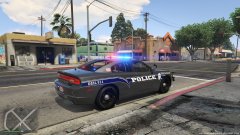 2016-02-29_00075.jpg
-
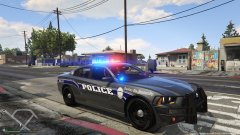 2016-02-29_00060.jpg
-
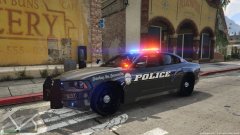 Skin in Development
-
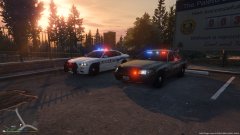 2016-02-29_00045.jpg
-
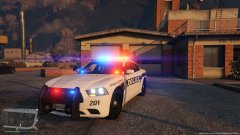 2016-02-29_00041.jpg
-
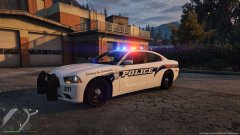 Bxbugs123 Modles
-
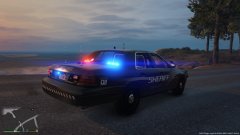 Bxbugs123 Custom cvpi(slicktop) Plus New Charger
-
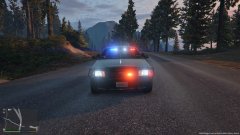 2016-02-29_00018.jpg
-
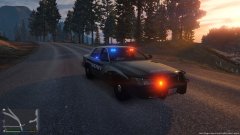 2016-02-29_00016.jpg
-
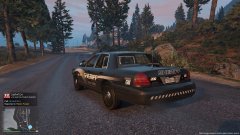 2016-02-29_00008.jpg
-
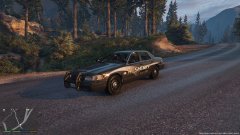 2016-02-29_00004.jpg
-
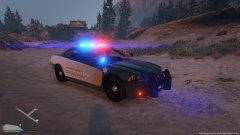 2016-02-29-00003.jpg
-
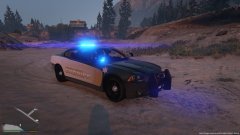 2016-02-29_00002.jpg
-
-
-
-
-
-
-
-
-
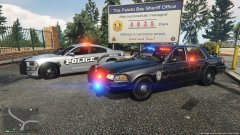 Now released as an update for the community. Check the mod textures page!
 -
There are no graphics mods at all. The skins are just that nicely done, and will be released in the extremely near future! The pack will have quite a few options but I don't want to spoil it.
-
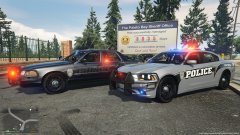
From the album: Traffic Enforcement
-
Custom CVPI not released by BxBugs123

.thumb.jpg.4066677156985e22489bfecddc2f6c45.jpg)
.thumb.png.f8a27e3bd53c9469a2fdf3653a655b73.png)